
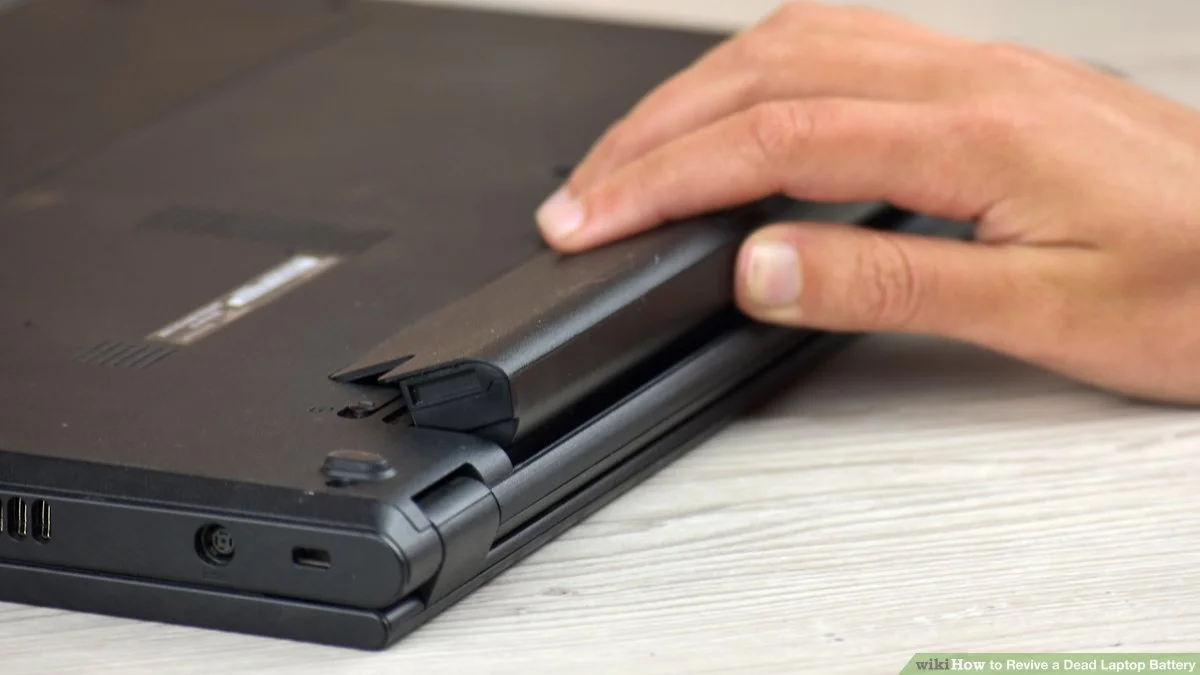
I still remember the day I bought my very first laptop. I unboxed the item, connected it to the power source, and marveled at its remarkable speed and glossy appearance. Like most beginners, I wanted to ensure that I treated it “perfectly”—or so I thought. But within just a few months, I noticed my battery life dropping sharply. One day it lasted 3 hours, and the next barely an hour. I was confused, frustrated, and honestly a little panicked. After digging into the problem, I realized I had made a common yet serious mistake in caring for my laptop battery.
If you’re new to laptops or have noticed your battery performance dropping, this story could save you many headaches. Let me walk you through what went wrong, how I fixed it, and practical tips to avoid the same mistake.
Understanding the Problem: Why Your Laptop Battery Declines
When I first noticed the battery issue, I thought it was just “normal” wear and tear. I didn’t realize how everyday habits could harm lithium-ion batteries. Modern laptop batteries are mostly lithium-ion, and while they’re efficient, they are sensitive to certain practices.
Here’s the reality I learned the hard way:
-
Overcharging: Leaving a laptop plugged in constantly can heat the battery and stress its cells.
-
Deep discharge cycles: Running the battery down to 0% regularly can shorten its lifespan.
-
High heat exposure: Using a laptop on a soft surface like a bed or blanket traps heat, damaging the battery.
-
Cheap or wrong chargers: Using third-party chargers without proper voltage regulation can degrade your battery fast.
In my case, I was guilty of all four. I kept the laptop plugged in all day, occasionally let it die completely before charging, and often worked in bed. The result? A battery that barely lasted a few months.
Step-by-Step Solution: How I Fixed My Battery Habits
After researching and experimenting, I developed a system that restored my laptop battery’s health and prevented further damage. Here’s a beginner-friendly guide that worked for me.
Step 1: Calibrate Your Battery
Calibration might sound technical, but it’s simple. It helps your laptop know the accurate charge level and can improve performance.
-
Fully charge your laptop to 100%.
-
Unplug it and use it normally until it drops to around 5-10%.
-
Shut down the laptop and recharge to 100% without interruptions.
Do this once every 2–3 months to maintain accurate battery readings.
Step 2: Adjust Charging Habits
One of my biggest mistakes was leaving the laptop plugged in constantly. To prevent overcharging:
-
Use battery saver modes if your laptop has them (Windows and macOS both have options).
-
Charge up to 80–90% for daily use instead of the full 100% for non-intensive work.
-
Avoid letting it drain below 20% regularly.
This approach reduces stress on the lithium-ion cells and extends overall battery life.
Step 3: Control Heat Exposure
Heat is the silent battery killer. I learned this the hard way after using my laptop on a pillow for hours. To prevent overheating:
-
Always place your laptop on a hard, flat surface.
-
Use a laptop cooling pad if you play games or run heavy applications.
-
Keep vents clean from dust and debris.
Even a few degrees of reduced heat can significantly improve battery longevity.
Step 4: Check and Use the Right Charger
At first, I didn’t realize my spare charger was incompatible. Using it stressed the battery:
-
Always use the original charger that came with your laptop or a certified replacement.
-
Check voltage and amperage ratings; mismatched specs can harm the battery.
-
Avoid cheap third-party chargers with unclear specifications.
I replaced my old charger with a certified one, and my battery performance stabilized.
Step 5: Monitor Battery Health
Modern laptops offer tools to monitor battery health. I started using them, and it made a huge difference:
-
Windows:
powercfg /batteryreportgenerates a detailed battery report. -
Mac: Hold
Optionand click the battery icon to check health status. -
Linux: Use
upowerbattery monitoring apps.
Checking battery health regularly helped me notice subtle changes before they became major problems.
Practical Tips and Mistakes to Avoid
From my experience, here’s a list of actionable tips that genuinely help beginners:
Avoid Common Mistakes
-
Plugging in 24/7: Even if your laptop has smart charging, continuous heat reduces battery lifespan.
-
Running to 0%: A few occasional full discharges are okay, but regular deep cycles are harmful.
-
Ignoring system updates: Battery management firmware is sometimes improved in updates.
-
Using unsupported software: Some apps can drain or overheat your battery quickly.
Useful Tips That Made a Difference
-
Partial charging habit: Charging 20–80% is better than 0–100% every time.
-
Cooling strategies: Small adjustments like lifting the laptop or using a cooling pad make a huge difference.
-
Battery saver modes: Enable “battery saver” or “low power” mode when on the go.
-
Smart scheduling: Avoid charging at night if possible, or unplug once full.
These small changes helped me get almost double the battery lifespan compared to my first few months.
Real-Life Example: How I Fixed My Laptop Battery in 3 Weeks
Here’s how I turned things around:
-
Week 1: Calibrated the battery and stopped overnight charging.
-
Week 2: Started using it on a flat desk and bought a cooling pad.
-
Week 3: Monitored battery health weekly and optimized charging habits.
By the end of the third week, my laptop was holding a charge much better. I went from 1-hour battery life to nearly 5 hours on normal usage—a massive improvement without spending a single extra penny on the battery itself.
FAQs:
Q1: Can leaving my laptop plugged in damage the battery?
Yes. While modern laptops manage charging better, keeping them plugged in constantly generates heat and stresses the lithium-ion cells, which shortens battery lifespan.
Q2: How often should I calibrate my laptop battery?
Once every 2–3 months is sufficient for most laptops. Calibration helps the system accurately display battery levels.
Q3: Is it okay to let my battery drop to 0% occasionally?
Occasional deep discharge is fine, but regular 0% cycles are harmful. Try to charge before reaching 20%.
Q4: Can heat really damage a laptop battery that fast?
Absolutely. Heat accelerates chemical degradation in lithium-ion batteries. Using laptops on soft surfaces or in hot environments can significantly reduce battery life.
Q5: Are third-party chargers safe to use?
Only if they are certified and match your laptop’s voltage/amperage specifications. Cheap or unknown brands can harm the battery.
Conclusion:
Looking back, my first laptop battery mistake was a tough lesson—but an invaluable one. The combination of overcharging, deep discharges, and heat exposure nearly ruined my first laptop’s battery. By adjusting my habits—calibrating the battery, managing charge cycles, avoiding heat, and using the correct charger—I not only restored performance but also extended its lifespan.
If you’re new to laptops, take it from me: small, consistent habits can prevent major battery problems. Treat your battery wisely, monitor its health, and avoid the mistakes I made. Your laptop will thank you with years of reliable performance, and you’ll avoid unnecessary frustration and cost.

NilansGuide Editorial Team creates practical guides for people who want to use technology with more confidence. Our content covers everyday smartphone use, apps, digital safety, common technology problems, and beginner-friendly device guidance. We focus on clear explanations and practical steps that help readers understand and solve everyday technology questions without unnecessary complexity. Content is reviewed and updated when needed to keep information useful and relevant.