
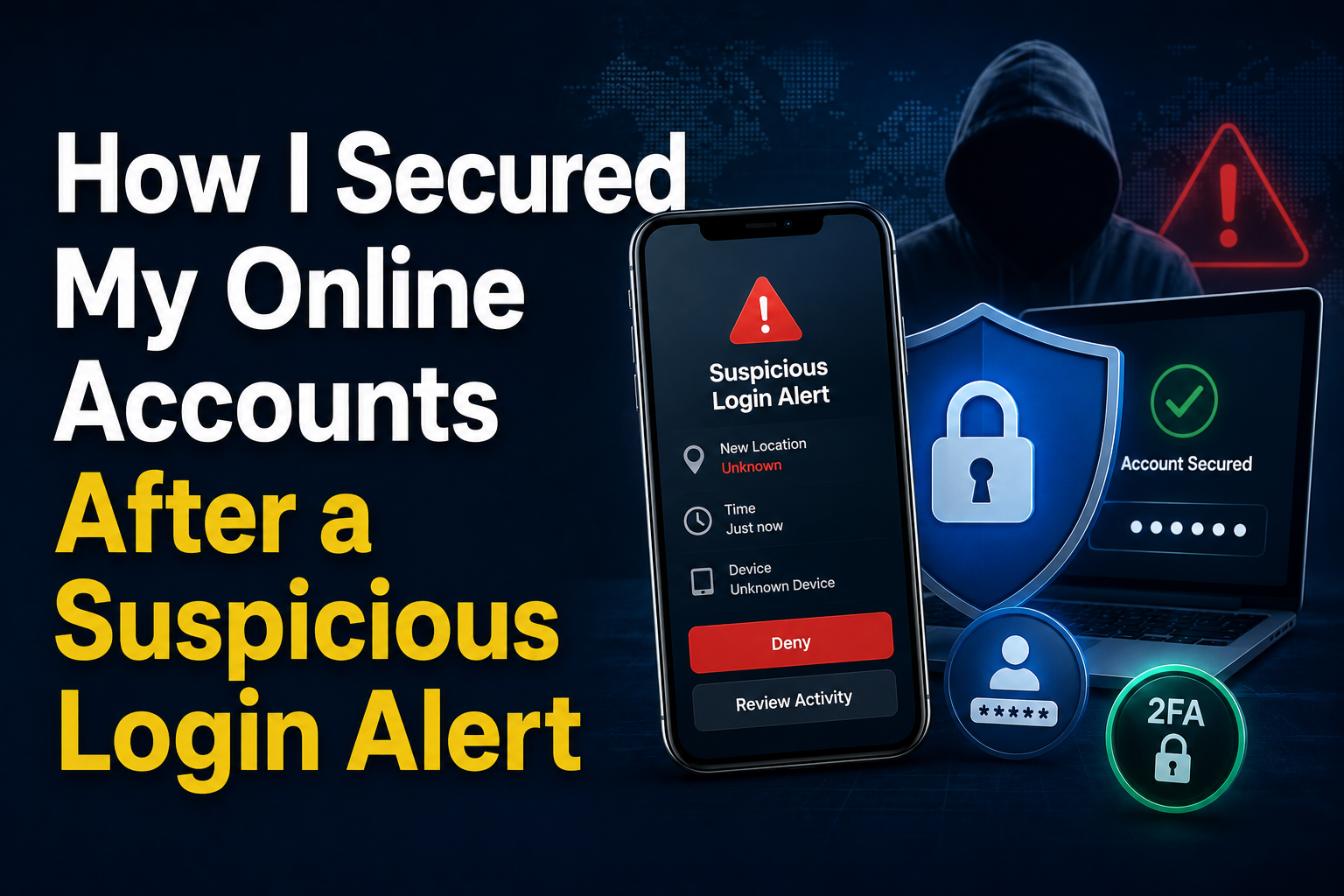
It was a normal morning until I saw the email subject line: “Suspicious login attempt detected.” At first, I assumed it was one of those automated warnings that turn out to be harmless. But when I opened the email and noticed the login location was from a country I had never visited, my stomach dropped. That single notification pushed me into a full security audit of my online life. In this article, I’ll walk you through exactly how I secured my online accounts step-by-step so you can do the same immediately.
Why Suspicious Login Alerts Should Never Be Ignored
Most people assume hackers target only big companies or influencers, but everyday users are actually easier targets. Our accounts hold valuable data: emails, personal photos, payment methods, and passwords saved in browsers.
That alert made me realize something important: account security is not a one-time task — it’s ongoing maintenance.
Here are the risks I discovered during my research:
- Password reuse allows one breach to compromise multiple accounts
- Weak passwords can be cracked in seconds
- Public Wi-Fi logins can expose sessions
- Old unused accounts become easy entry points
The suspicious login was not the real danger — it was the warning sign that my security habits needed a serious upgrade.
Step 1: Immediately Securing the Compromised Account
The very first thing I did was log into the account mentioned in the alert and review the recent activity. Most platforms provide a section showing login history, devices, and locations.
I found a login attempt from an unfamiliar device. Even though the platform blocked the attempt, I didn’t take chances.
Here’s exactly what I did right away:
Immediate actions checklist:
- Changed the password instantly
- Logged out of all active sessions
- Removed unknown devices
- Checked recovery email and phone number
- Updated security questions
This step alone removes most attackers who may still have session access.
Step 2: Creating Strong Passwords That Are Actually Memorable
Before this incident, my passwords were “strong enough”—or so I thought. I used variations of the same base password with small changes. That is extremely risky.
Instead of random characters that are hard to remember, I switched to passphrases.
A passphrase example:
BlueCoffee!RidesBikeAtSunrise
Why passphrases work better:
- Longer length = harder to crack
- Easier to remember than random strings
- Can include numbers and symbols naturally
My new password rules:
- Minimum 14–18 characters
- Unique for every account
- No personal information (birthdays, names, etc.)
- No reuse anywhere
This change alone dramatically improved my security posture.
Step 3: Using a Password Manager (My Biggest Upgrade)
Managing unique passwords manually is impossible long-term. I finally started using a password manager—and it became the biggest security upgrade I made.
Password managers:
- Generate strong passwords automatically
- Store them securely
- Autofill login forms safely
- Alert you about weak or reused passwords
Within one afternoon, I replaced over 70 reused passwords.
Practical tip:
Start with your most important accounts:
- Email accounts
- Banking and finance apps
- Social media
- Cloud storage
- Shopping websites
Once these are secured, move to less critical accounts gradually.
Step 4: Enabling Two-Factor Authentication Everywhere
If you do only one thing after reading this article, make it this step.
Two-factor authentication (2FA) adds a second verification step beyond your password. Even if someone steals your password, they cannot log in without the second code.
Types of 2FA I enabled:
- Authenticator app codes
- SMS backup verification
- Backup recovery codes stored offline
Important lesson I learned:
Authenticator apps are safer than SMS when possible.
I went account by account enabling 2FA. It took time, but it created a powerful security barrier.
Step 5: Securing My Email Account First (The Master Key)
Your email account is the gateway to everything else. If someone controls your email, they can reset nearly all your other passwords.
This was the most important account to secure.
Here’s what I changed:
- New strong password
- Two-factor authentication enabled
- Recovery email updated
- Backup codes saved offline
- Suspicious filters and forwarding rules checked
Many hackers create hidden forwarding rules to spy on emails. I carefully reviewed settings to make sure nothing suspicious existed.
This step alone gave me huge peace of mind.
Step 6: Checking for Data Breaches and Leaked Passwords
Next, I checked whether my email or passwords had appeared in any data breaches. To my surprise, one of my older accounts had been leaked years ago.
This explained the suspicious login attempt.
What I did next:
- Changed passwords on all affected accounts
- Deleted unused accounts tied to old services
- Removed saved payment details from unused websites
Old accounts are often forgotten security holes. Cleaning them up reduced my digital footprint significantly.
Step 7: Reviewing Connected Apps and Third-Party Access
Many websites allow you to sign in using Google, Facebook, or other accounts. Over time, we grant access to dozens of apps and forget about them.
I reviewed every connected app and removed anything I didn’t recognize.
Examples of apps I removed:
- Old productivity tools I stopped using
- Games linked years ago
- Shopping tools from old browsers
This step reduced the number of services that could access my data.
Step 8: Securing My Devices (Laptop and Phone)
Account security isn’t just about passwords. Devices themselves can be entry points.
Here’s how I secured mine:
Laptop security upgrades:
- Full disk encryption enabled
- Automatic updates turned on
- Antivirus scan performed
- Browser extensions cleaned up
Phone security upgrades:
- Screen lock set to PIN + biometrics
- App permissions reviewed
- Unknown apps removed
- Automatic backups enabled
Your devices are the keys to your accounts — they must be protected.
Step 9: Creating a Personal Security Routine
The biggest lesson from this experience is that security is not a one-time fix. It’s a habit.
I created a simple routine:
Monthly:
- Check login activity
- Review connected apps
- Update critical passwords if needed
Every 3 months:
- Run device security scan
- Remove unused accounts
- Review privacy settings
Every year:
- Full digital security audit
This routine now takes less than an hour but keeps everything secure.
Conclusion
That suspicious login alert felt scary at first, but it turned into a powerful wake-up call. By strengthening passwords, enabling two-factor authentication, securing email, reviewing devices, and building a routine, I transformed my online security completely.
The biggest takeaway is simple: online security doesn’t require advanced technical skills — just consistent habits. If you follow these steps, you can dramatically reduce the chances of unauthorized access and enjoy peace of mind knowing your digital life is protected.
FAQs
1. What should I do first after a suspicious login alert?
Immediately change the password, log out of all sessions, enable two-factor authentication, and review recent activity.
2. Are password managers safe to use?
Yes. Reputable password managers use strong encryption and are far safer than reusing passwords or storing them in browsers.
3. Is two-factor authentication really necessary?
Absolutely. It prevents most unauthorized logins even if your password is stolen.
4. How often should I change my passwords?
Change passwords immediately after any security alert and periodically for critical accounts like email and banking.
5. Can old unused accounts be dangerous?
Yes. Forgotten accounts often use weak passwords and can become easy entry points for attackers. Delete or secure them.

NilansGuide Editorial Team creates practical guides for people who want to use technology with more confidence. Our content covers everyday smartphone use, apps, digital safety, common technology problems, and beginner-friendly device guidance. We focus on clear explanations and practical steps that help readers understand and solve everyday technology questions without unnecessary complexity. Content is reviewed and updated when needed to keep information useful and relevant.