
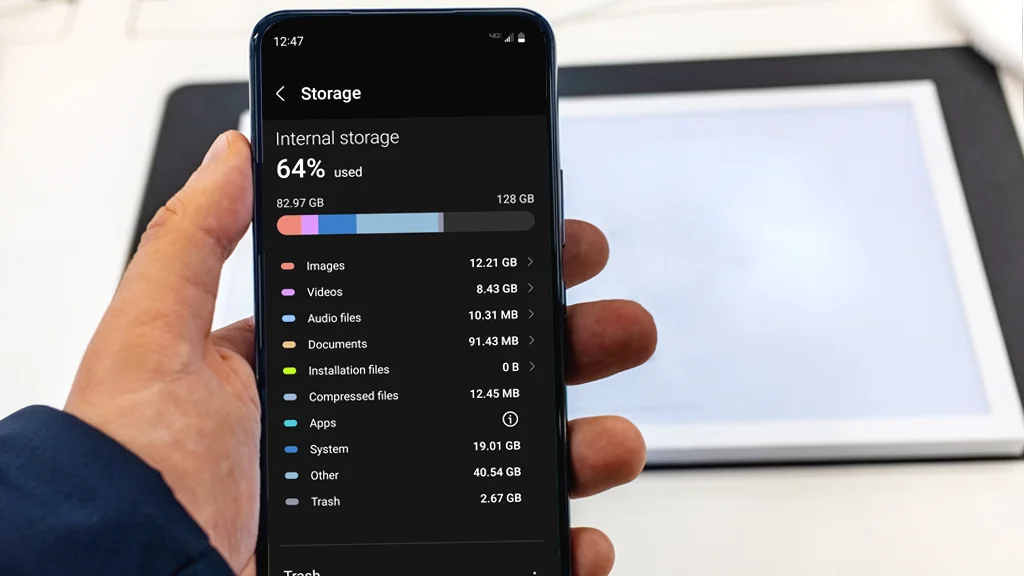
A few months ago, I noticed a problem that many smartphone users dread: my phone storage kept filling up at an alarming rate. One moment I had plenty of space, and the next, I was greeted with the dreaded message: “Storage almost full.” I couldn’t install new apps, save photos, or even update my phone properly.
At first, I ignored it, thinking I could manage by deleting a few photos or apps here and there. But the problem kept coming back, and my phone felt slower every day. Frustrated, I decided to dig deep and find real solutions. After some trial, error, and research, I discovered several practical strategies that actually worked.
If you’re struggling with fast-filling phone storage, this guide will help you regain space, optimize your device, and prevent the same issue from happening again.
Understanding Why Phone Storage Fills Up So Fast
Before diving into solutions, it’s essential to understand why storage gets consumed quickly. Phones today handle far more data than ever—apps, photos, videos, system updates, and cached files all compete for limited storage.
Here’s what I realized caused most of my storage problems:
-
Photos and Videos: High-resolution photos and videos take up a giant chunk of storage. I discovered dozens of duplicate screenshots and videos I didn’t need.
-
Apps and Games: Some apps cache large amounts of data, even if you use them occasionally. Popular social media apps, for instance, can consume gigabytes of space over time.
-
Cached Data and Temporary Files: Many apps store temporary files to speed up performance, but they can grow unchecked.
-
Downloads and Attachments: PDFs, music, and files downloaded from messaging apps silently occupy storage.
-
Old Backups and System Files: Sometimes, system updates or old app backups take up more space than necessary.
Once I understood the problem, I realized that freeing space wasn’t just about deleting random files—it required a strategic approach.
Step-by-Step Solutions That Worked for Me
Here’s a beginner-friendly guide to freeing up phone storage, based on real experience:
Step 1: Analyze Storage Usage
Before deleting anything, I wanted to know exactly what was consuming space. Most phones have built-in storage analyzers:
-
Android: Settings → Storage → Review storage usage.
-
iPhone: Settings → General → iPhone Storage.
These tools break down storage by category, showing which apps, media, or files are the most significant offenders. By identifying the largest culprits, I avoided unnecessary deletions.
Step 2: Remove Unnecessary Apps
I was surprised to see several apps I barely used occupying significant space. Here’s what worked:
-
Uninstall unused apps: Don’t just move them to folders—remove them completely.
-
Check app sizes: Some apps store large amounts of data even if small in size.
-
Consider Lite versions: Many social media apps offer “Lite” versions that use less storage.
After this step, I freed several gigabytes in just a few minutes.
Step 3: Clear Cache and Temporary Files
Cached data can silently eat up space. Initially, I was hesitant because I thought clearing the cache would slow down my phone. But the difference was minimal, and the benefits were huge:
-
Android: Settings → Storage → Cached Data → Clear Cache.
-
iPhone: Some apps, like Safari and social media apps, allow clearing the cache within app settings.
I also found third-party tools like Files by Google (Android) to clean junk files safely.
Step 4: Manage Photos and Videos
Photos and videos were my biggest storage drain. Here’s what I did:
-
Delete duplicates and blurry images: Apps like Remo Duplicate Photos Remover helped automate this.
-
Backing up to cloud storage: Google Photos, iCloud, or OneDrive allowed me to free up local storage while keeping my files safe.
-
Enable storage optimization: On iPhone, I enabled “Optimize iPhone Storage,” which stores full-resolution photos in iCloud. On Android, Google Photos has a similar feature.
After this step, I reclaimed the majority of my space.
Step 5: Move Media to External Storage
For Android users, using an SD card is a lifesaver. I moved videos, music, and large documents to an SD card, freeing internal storage dramatically. If your phone doesn’t support SD cards:
-
Use a USB-C flash drive or external storage device.
-
Regularly transfer files to a computer or cloud service.
Step 6: Delete Old Downloads and Attachments
Over time, downloads from messaging apps like WhatsApp or Telegram pile up unnoticed. Here’s my approach:
-
Go to the Downloads folder and remove unnecessary files.
-
Check messaging apps for media-heavy chats and delete old attachments.
-
Use features like WhatsApp’s “Manage Storage” to remove large files safely.
This step alone freed hundreds of megabytes on my phone.
Step 7: Manage Offline Music and Podcasts
Streaming apps like Spotify and YouTube Music allow offline downloads, which can silently consume storage:
-
Delete songs or playlists you no longer listen to.
-
Limit offline downloads to a few favorites.
-
Use storage-saving options in the app’s settings.
Step 8: Update System and Apps
Keeping your phone updated can surprisingly help with storage efficiency. System updates sometimes include optimizations for file management and app storage. I made sure to:
-
Update my operating system regularly.
-
Update apps to their latest versions.
-
Remove old backup files stored by system updates if unnecessary.
Step 9: Reset as a Last Resort
If storage still feels tight despite all efforts, a factory reset can restore your phone to near-new storage efficiency. I only did this after backing up all data:
-
Back up photos, videos, contacts, and important files.
-
Go to Settings → System → Reset → Factory Data Reset.
-
Restore only the apps and files you need.
This was a last resort, but it made my phone feel like new and freed up a huge space.
Practical Tips to Prevent Fast Storage Fill
Once I regained space, I realized prevention was better than cure. Here are tips that helped maintain storage over time:
-
Regularly review storage: Check usage once a month to catch problems early.
-
Enable automatic cloud backup: Photos, videos, and documents can be stored off-device automatically.
-
Be selective with downloads: Avoid unnecessary offline files or temporary downloads.
-
Uninstall unused apps promptly: Don’t wait until storage is almost full.
-
Limit cache-heavy apps: Use web versions of apps instead of installing multiple heavy apps.
-
Monitor messaging app media: Enable settings to prevent automatic media downloads.
Following these habits prevented storage issues from recurring.
Real-Life Example: How I Regained 10GB of Storage
Here’s how I applied these tips and got real results:
-
Step 1: Deleted 15 unused apps (3 GB freed).
-
Step 2: Cleared cached data from social media apps (2 GB freed).
-
Step 3: Moved old videos to Google Drive (4 GB freed).
-
Step 4: Deleted duplicate photos and screenshots (1 GB freed).
Within a single day, I had reclaimed 10 GB of space. My phone ran faster, and I no longer had to worry about running out of storage.
FAQs
Q1: Why does my phone storage fill up so fast even with few apps?
Even a few apps can store large amounts of cached data, temporary files, and media. System files and downloads also contribute to storage consumption.
Q2: Can clearing the cache harm my phone?
No. Clearing cache only removes temporary files. Your apps will rebuild cache as needed, and performance is usually unaffected.
Q3: Is cloud backup safe for photos and videos?
Yes, if you use trusted services like Google Photos, iCloud, or OneDrive. Make sure to enable two-factor authentication for extra security.
Q4: How often should I manage phone storage?
Once a month is sufficient for most users. If you use your phone heavily for media or apps, review every 2–3 weeks.
Q5: Can a factory reset improve storage performance?
Yes. A factory reset clears all unnecessary files, junk, and app data, giving your phone near-new storage efficiency. Always back up data before performing a reset.
Conclusion:
Running out of phone storage is frustrating, but it doesn’t have to control your life. My experience taught me that understanding storage usage, managing apps, clearing cache, and using cloud storage effectively can make a huge difference.
By following these tips, I not only reclaimed gigabytes of space but also made my phone faster and more efficient. If your storage fills up quickly, start with analysis, remove unnecessary files, and implement preventive habits. Over time, your phone will feel lighter, faster, and stress-free—just like mine did.

NilansGuide Editorial Team creates practical guides for people who want to use technology with more confidence. Our content covers everyday smartphone use, apps, digital safety, common technology problems, and beginner-friendly device guidance. We focus on clear explanations and practical steps that help readers understand and solve everyday technology questions without unnecessary complexity. Content is reviewed and updated when needed to keep information useful and relevant.