
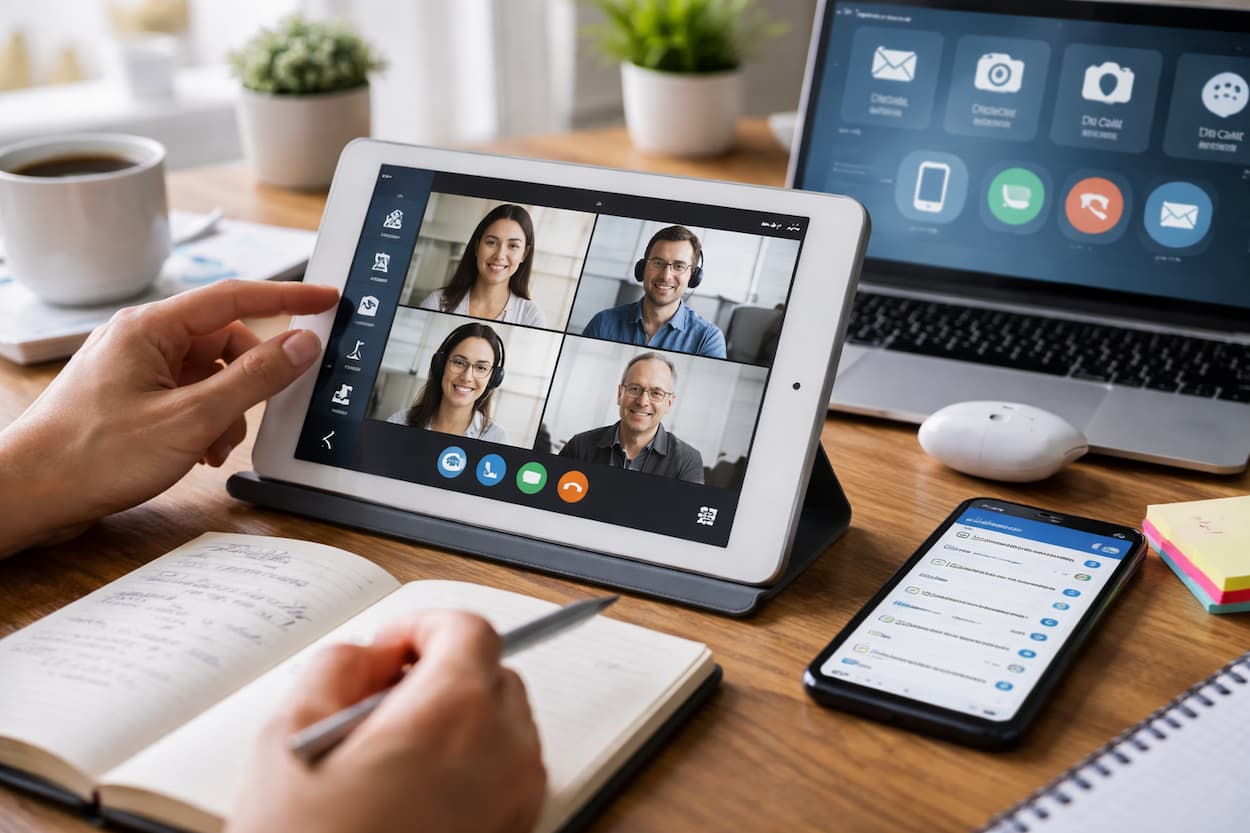
Video calling has become an essential part of modern communication. Whether it’s for work meetings, online classes, virtual family gatherings, or catching up with friends, video calling apps are the backbone of remote communication. However, for many people—especially beginners—these apps can feel overwhelming. From technical glitches to etiquette concerns, there’s a lot to learn. The good news is that mastering video calling apps can be straightforward. With the right approach, you can confidently navigate these platforms and make the most of virtual communication.
In this article, we’ll provide practical, step-by-step tips that will help you master video calling apps quickly, troubleshoot common issues, and present yourself professionally online.
Understand the Basics of Video Calling Apps
Before diving into advanced tips, it’s important to understand how video calling apps work. Most apps, whether Zoom, Microsoft Teams, Google Meet, or WhatsApp, share basic features:
- Video and Audio Communication: The core function is to transmit real-time video and audio between participants.
- Chat and Messaging: Many apps have built-in chat functions for sharing links, text, or files during calls.
- Screen Sharing: This allows participants to share presentations, documents, or their entire screen.
- Recording Options: Some apps allow you to record meetings for later review or sharing.
By understanding these fundamental features, you can navigate any video calling app more confidently. Start by experimenting with a simple call to test your camera, microphone, and internet connection.
Choose the Right App for Your Needs
There are dozens of video calling apps available, and selecting the right one depends on your specific needs:
- Professional Meetings: Zoom, Microsoft Teams, or Google Meet are preferred for work meetings due to their robust features like scheduling, breakout rooms, and recording.
- Casual Calls: WhatsApp, Messenger, or FaceTime are ideal for casual conversations with friends and family.
- Educational Purposes: Platforms like Zoom, Google Meet, and Cisco Webex are commonly used for online classes and webinars.
Choosing the right app helps you avoid frustration and ensures that you have the necessary tools for your purpose.
Ensure Your Equipment is Ready
Video calls rely heavily on your hardware. Even the best apps can’t fix poor equipment. Make sure your setup is ready before any call.
- Camera: Use a built-in or external webcam with at least 720p resolution for clear video.
- Microphone: Built-in laptop microphones work, but a dedicated headset or USB microphone improves audio quality.
- Internet Connection: Stable internet with at least 2–5 Mbps download/upload speed ensures smooth calls.
- Lighting: Natural light or a soft lamp in front of you avoids shadows and improves visibility.
- Background: Choose a clean, uncluttered background or use virtual backgrounds if the app supports it.
Testing your equipment before calls prevents interruptions and makes you look more professional and prepared.
Learn App-Specific Shortcuts and Features
Each video calling app has unique shortcuts and features that save time and enhance your experience. Learning them early can make a huge difference:
- Zoom: Use Alt + A to mute/unmute, Alt + V to start/stop video, and Alt + S for screen sharing.
- Microsoft Teams: Ctrl + Shift + M mutes/unmutes; Ctrl + Shift + O toggles video; and Ctrl + Shift + E raises/lowers hand.
- Google Meet: Ctrl + D mutes/unmutes, Ctrl + E toggles video, and Ctrl + Alt + C opens chat.
Knowing these shortcuts reduces awkward fumbling during calls and helps you respond quickly to unexpected situations.
Set Up a Distraction-Free Environment
Distractions can ruin the flow of a video call. Taking simple steps to minimize interruptions enhances your experience and your professionalism:
- Inform Others: Let family or roommates know when you’re on a call.
- Close Unnecessary Apps: Reduce notifications from email or messaging apps to avoid distractions.
- Mute Microphone When Not Speaking: This reduces background noise for everyone on the call.
- Avoid Multitasking: Focus on the call to show respect and improve communication.
Creating a focused environment improves both your performance and the overall quality of the meeting.
Practice Proper Video Call Etiquette
Professional and social success on video calls depends on etiquette as much as technical skills. Here are some practical tips:
- Dress Appropriately: Even if you’re at home, dressing neatly creates a good impression.
- Look at the camera: This simulates eye contact and makes interactions feel more personal.
- Use Names When Speaking: Helps participants feel included and maintains clarity.
- Keep Background Noise Minimal: Close doors and windows and turn off notifications.
- Be Patient with Technical Issues: Everyone faces glitches occasionally; remain calm and professional.
Good etiquette builds trust, improves communication, and helps you stand out in professional or academic settings.
Master Screen Sharing and Collaboration Tools
Sharing your screen effectively is an important skill for work and study:
- Prepare Before Sharing: Close unrelated tabs and organize documents to avoid showing sensitive information.
- Use Highlighting Tools: Apps like Zoom and Teams allow you to annotate your screen for better communication.
- Practice Control Options: Know how to share only a window vs. your full screen and how to give remote control if needed.
- Keep Presentations Concise: Avoid long, cluttered slides or files that slow down the call.
Mastering these features ensures your ideas are presented clearly and efficiently.
Optimize Audio and Video Quality
Poor audio or video can make even the best meeting frustrating. Use these practical tips to improve quality:
- Use headphones: Reduces echo and improves clarity.
- Position the camera at eye level: This gives a natural view and improves engagement.
- Adjust Video Settings: Many apps allow you to adjust brightness, contrast, and resolution.
- Test Microphone Volume: Speak clearly and adjust input volume before the call.
Optimized audio and video help you communicate effectively and avoid technical misunderstandings.
Record Meetings for Reference
Recording calls is useful for work, learning, or personal reference:
- Know the Rules: Always get consent if you plan to record calls.
- Save Recordings Properly: Organize files by date and topic for easy retrieval.
- Review Later: Recording allows you to review missed points, check decisions, or practice improving your own presentation.
Recording provides a safety net and helps you stay organized, especially in professional or educational contexts.
Troubleshoot Common Issues Quickly
Even experienced users face technical problems. Learning to troubleshoot common issues saves time:
- Audio Problems: Check mute buttons, microphone permissions, and headset connections.
- Video Not Showing: Restart app, check camera permissions, or reconnect external webcam.
- Connectivity Issues: Close other apps consuming bandwidth, switch to Ethernet, or restart the router.
- App Crashes: Keep apps updated, clear the cache, and ensure device software is current.
Quick troubleshooting ensures calls proceed smoothly without unnecessary stress.
Explore Advanced Features Gradually
Once you’re comfortable with basics, exploring advanced features can enhance your productivity:
- Breakout Rooms: Ideal for workshops, collaborative sessions, or group discussions.
- Polling and Q&A: Useful for webinars or interactive sessions to engage participants.
- Virtual Backgrounds and Filters: Enhance visuals or maintain privacy in your space.
- Integration with Calendars: Scheduling meetings via Google Calendar or Outlook ensures timely participation.
Gradually incorporating advanced features allows you to improve efficiency without feeling overwhelmed.
Practice Regularly to Build Confidence
Like any skill, mastering video calling comes with practice. The more calls you participate in, the more comfortable you become:
- Host Mock Calls: Practice with a friend to test equipment, lighting, and speaking confidence.
- Join Group Calls: Participate in group discussions to handle multiple participants.
- Experiment with Features: Regular usage helps you learn shortcuts, screen sharing, and collaboration tools.
- Reflect on Performance: Identify areas to improve, such as muting habits or camera angles.
Frequent practice builds confidence and ensures you can handle any video call situation smoothly.
Keep Learning and Stay Updated
Video calling apps evolve rapidly, with new features and updates released frequently. Staying informed keeps you ahead:
- Follow Official Guides: App websites often provide tutorials and FAQs.
- Watch Online Tutorials: YouTube or blogs offer practical tips and step-by-step instructions.
- Experiment Safely: Test new features in practice calls before using them in important meetings.
- Join Communities: Online forums and groups provide advice, troubleshooting tips, and shared experiences.
Continuing to learn ensures you remain confident and efficient on any platform.
Conclusion
Mastering video calling apps quickly is achievable with a combination of practical skills, proper equipment, and consistent practice. By understanding app features, preparing your environment, optimizing audio and video, and learning etiquette, even beginners can participate confidently in virtual meetings and online interactions. Investing time in practice, exploring advanced features, and staying updated ensures that you are always ready for professional, educational, or personal video calls. With these strategies, video calling becomes a seamless, stress-free, and productive part of your daily communication.
FAQs
1. What is the easiest way to improve video call quality?
Use a stable internet connection, position your camera at eye level, use headphones, and ensure good lighting in front of you.
2. How can I reduce background noise during calls?
Mute your microphone when not speaking, close doors/windows, and use noise-cancelling headphones if possible.
3. Can I use the same tips for mobile devices and laptops?
Yes. Most video calling apps have similar features across devices. Focus on lighting, audio, and app familiarity.
4. How do I handle technical issues during an important call?
Stay calm, communicate the problem politely, and have a backup device or phone ready to reconnect.
5. Are virtual backgrounds recommended for beginners?
Yes, they help maintain privacy and provide a clean appearance, but make sure your device meets the app’s requirements for smooth performance.

NilansGuide Editorial Team creates practical guides for people who want to use technology with more confidence. Our content covers everyday smartphone use, apps, digital safety, common technology problems, and beginner-friendly device guidance. We focus on clear explanations and practical steps that help readers understand and solve everyday technology questions without unnecessary complexity. Content is reviewed and updated when needed to keep information useful and relevant.