
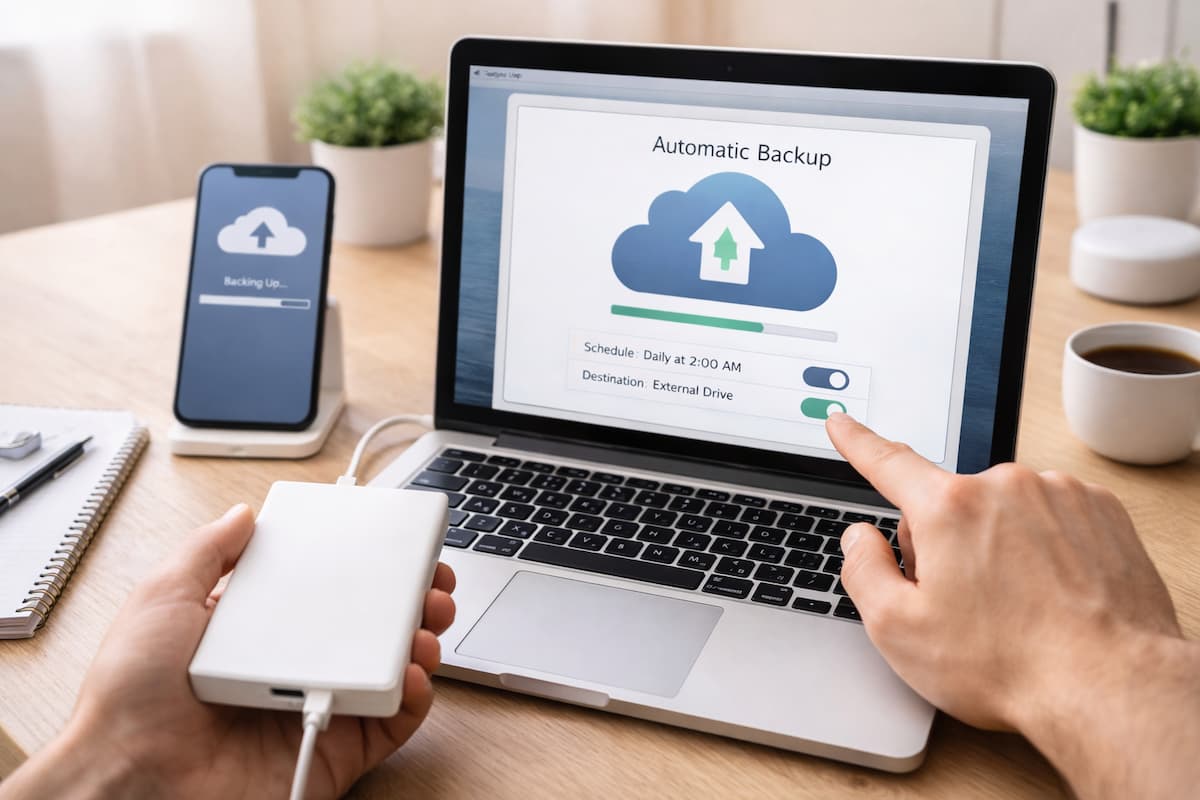
In today’s digital world, your files—whether personal photos, important documents, or work projects—are invaluable. Losing them due to a system crash, accidental deletion, malware attack, or hardware failure can be devastating. The good news is that you don’t have to rely on luck or memory. By setting up automatic backups, you can ensure that your important files are consistently saved without having to remember to do it manually.
This article will guide you step by step on how to set up automatic backups for your files easily, covering everything from choosing the right storage solutions to configuring software settings. Whether you’re a beginner or just looking for simple solutions, these tips will make backing up your data hassle-free and reliable.
Understand Why Automatic Backups Are Essential
Before diving into setup instructions, it’s important to understand why automatic backups are crucial:
- Protection Against Data Loss: Accidents happen—files can be deleted by mistake, or devices can fail unexpectedly. Backups ensure your data is safe.
- Time-Saving: Automatic backups run without your intervention, removing the need to remember to copy files manually.
- Peace of Mind: Knowing that your files are safely stored allows you to work, study, or browse without worry.
- Recovery After Cyberattacks: Ransomware and malware attacks can encrypt or delete files. Backups allow you to restore data quickly.
Understanding these benefits highlights why setting up automatic backups should be a priority for everyone.
Choose the Right Backup Method
There are several ways to back up your files automatically, and choosing the right method depends on your needs and resources. Common methods include:
Local Backups
Local backups involve saving files on a device physically connected to your computer, such as:
- External Hard Drives or SSDs: Ideal for large files, fast transfers, and offline access.
- USB Flash Drives: Portable and convenient for smaller amounts of data.
Cloud Backups
Cloud backups store your files online, offering access from any device:
- Google Drive, OneDrive, Dropbox: Popular cloud storage services that provide automatic sync options.
- iCloud: Ideal for Apple users with seamless integration.
- Dedicated Backup Services: Services like Backblaze or Carbonite specialize in automatic backup solutions.
Hybrid Approach
Combining local and cloud backups gives the best protection: local backups for fast recovery and cloud backups for offsite disaster protection.
Selecting the right method ensures your files are safe, accessible, and recoverable in multiple scenarios.
Prepare Your Files for Backup
Before setting up automatic backups, organize your files to make the process efficient:
- Identify Important Files: Focus on documents, photos, videos, and work-related data.
- Create a Folder Structure: Organize files into categories like Work, Personal, Photos, and Projects.
- Remove Duplicates or Unnecessary Files: Less clutter speeds up backup and saves storage space.
- Consider File Size and Frequency: Larger files or frequently updated files may require different backup settings.
Proper preparation reduces backup time and ensures your important files are prioritized.
Set Up Automatic Backups on Windows
Windows provides built-in tools to make automatic backups simple. Here’s how to do it:
Using File History
- Connect an External Drive: Plug in your external hard drive or SSD.
- Open File History: Go to Settings > Update & Security > Backup.
- Add a Drive: Select the drive where backups will be stored.
- Turn On File History: Click Automatically back up my files.
- Choose Folders to Backup: Add custom folders or use defaults like Documents, Pictures, and Desktop.
- Set Backup Frequency: Options include every 10 minutes, hourly, or daily.
File History automatically saves changes, allowing you to restore older versions if needed.
Using OneDrive
- Install OneDrive: Windows 10 and 11 often have OneDrive pre-installed.
- Sign In: Use your Microsoft account to log in.
- Choose Folders to Sync: Select Documents, Desktop, Pictures, or custom folders.
- Enable Automatic Sync: OneDrive automatically uploads files to the cloud whenever changes are made.
- Access from Any Device: Your files are available online and on other devices linked to the account.
OneDrive provides cloud backup with seamless integration, ideal for users with Microsoft accounts.
Set Up Automatic Backups on Mac
Mac computers also have built-in tools for effortless automatic backups:
Using Time Machine
- Connect an External Drive: Plug in a hard drive or SSD.
- Open Time Machine: Go to System Settings > Time Machine.
- Select Backup Disk: Choose your connected drive.
- Turn On Automatic Backups: Time Machine will back up your system and files regularly.
- Configure Frequency: Backups typically run hourly, daily, or weekly depending on your setup.
Time Machine keeps multiple versions of your files, making it easy to restore specific files or entire systems.
Using iCloud Drive
- Enable iCloud Drive: Go to System Settings > Apple ID > iCloud > iCloud Drive.
- Select Folders to Sync: Choose Desktop, Documents, or custom folders.
- Automatic Upload: Files are automatically stored in the cloud and accessible from other Apple devices.
- Ensure Enough Storage: Upgrade iCloud storage if needed to accommodate all files.
iCloud provides offsite backup for Apple users, making file access and restoration simple.
Use Backup Software for Advanced Options
For users with larger data or advanced requirements, backup software can automate and enhance file protection:
- Backblaze: Simple setup with unlimited cloud storage and automatic daily backups.
- Carbonite: Offers cloud backup with scheduling options and file versioning.
- Acronis True Image: Includes full system backups, ransomware protection, and cloud storage.
- EaseUS Todo Backup: Allows scheduled backups, file filtering, and cloud integration.
Backup software often provides more flexibility, including version history, compression, and encryption options.
Schedule Backups for Convenience
Once your backup method is selected, scheduling backups ensures consistency:
- Set Daily or Weekly Backups: Adjust based on file change frequency.
- Choose Off-Peak Hours: Schedule during periods when your computer is idle to avoid slowdowns.
- Monitor First Backups: Ensure the initial backup completes successfully before relying on automation.
Regular, automated scheduling guarantees that your files remain up-to-date and protected without extra effort.
Encrypt Your Backups for Security
Protecting backup files is just as important as creating them:
- Use Built-In Encryption: Many backup services and operating systems offer encryption options.
- Enable Password Protection: Prevent unauthorized access to local backups.
- Use Encrypted Cloud Services: Services like Backblaze, iCloud, and OneDrive offer secure cloud storage.
Encryption ensures that even if your backup is lost or stolen, your data remains private.
Test Your Backups Regularly
Creating backups is only useful if you can restore them when needed:
- Perform Test Restores: Periodically recover a file to confirm backup integrity.
- Check File Versions: Ensure version history is properly saved and accessible.
- Verify Backup Locations: Confirm that all important files are included and nothing is missing.
Testing your backups prevents unpleasant surprises when you actually need to recover data.
Clean and Maintain Backup Storage
Maintaining backup storage ensures efficiency and reliability:
- Delete Old or Unnecessary Files: Keep storage organized to avoid clutter.
- Monitor Storage Space: Ensure enough room is available for future backups.
- Replace Failing Drives: Replace external drives if signs of wear or errors appear.
- Update Software: Keep backup software up to date for security and performance.
Regular maintenance keeps backups reliable and reduces the risk of data loss.
Take Advantage of Versioning Features
Some backup solutions offer versioning, which saves multiple versions of files:
- Restore Previous Versions: Useful for recovering edited or accidentally deleted files.
- Track Changes Over Time: Versioning allows you to compare and revert to earlier file states.
- Cloud and Local Support: Many cloud services provide automatic versioning, and some software does it locally.
Versioning adds an extra layer of safety, especially for files that change frequently.
Consider Offsite Backups for Extra Safety
Offsite backups protect against physical disasters like fires, floods, or theft:
- Cloud Storage: Automatically stores files offsite, accessible from anywhere.
- External Drives Stored Elsewhere: Keep a copy at a friend’s house or office.
- Combination Approach: Use both local and offsite backups for maximum protection.
Offsite backups ensure that no single disaster can destroy your important files permanently.
Conclusion
Automatic backups are an essential habit for protecting your valuable data. Whether you’re a beginner or a tech-savvy user, setting up automatic backups doesn’t have to be complicated. By understanding backup methods, organizing your files, using built-in tools like File History or Time Machine, leveraging cloud storage, and implementing encryption and versioning, you can safeguard your files efficiently and reliably.
Regular monitoring, maintenance, and testing ensure that backups remain functional and up to date. Ultimately, automatic backups provide peace of mind, knowing that your personal and professional files are always protected from accidents, hardware failures, or cyber threats. Investing a little time upfront in automatic backups saves countless hours—and potential heartbreak—later.
FAQs
1. How often should I back up my files automatically?
Daily backups are ideal for frequently updated files, while weekly backups can suffice for less critical data.
2. Can I set up automatic backups without paying for cloud storage?
Yes. Free cloud services like Google Drive, OneDrive, and Dropbox offer limited storage, and local backups to external drives are free after purchase.
3. What is the best combination of backup methods?
A hybrid approach—local backups for fast recovery and cloud backups for offsite protection—offers the best security.
4. Will automatic backups slow down my computer?
Minimal slowdown can occur during backup processes, but scheduling backups during off-peak hours reduces impact.
5. Can I back up only specific folders instead of the entire computer?
Yes. Most tools allow you to select folders or file types, giving you control over what gets backed up and conserving storage space.

NilansGuide Editorial Team creates practical guides for people who want to use technology with more confidence. Our content covers everyday smartphone use, apps, digital safety, common technology problems, and beginner-friendly device guidance. We focus on clear explanations and practical steps that help readers understand and solve everyday technology questions without unnecessary complexity. Content is reviewed and updated when needed to keep information useful and relevant.