
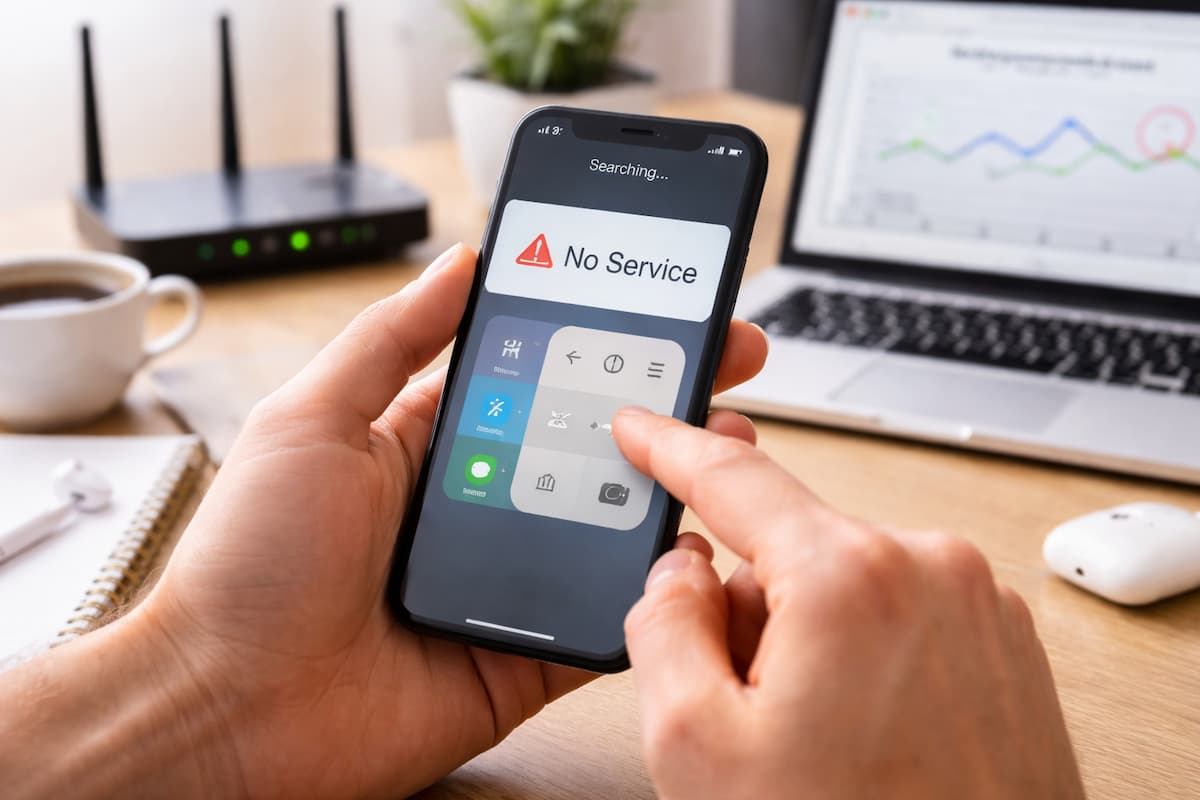
In today’s fast-paced world, a reliable mobile connection is more than a convenience—it’s essential. Whether you’re browsing the internet, using messaging apps, or joining a video call, connectivity issues can disrupt productivity and communication. Slow internet, frequent disconnections, or dropped calls can be frustrating, especially when you need your phone the most.
The good news is that most mobile connectivity problems are solvable with simple troubleshooting steps. By understanding common causes and applying practical solutions, you can restore your mobile network, Wi-Fi, or data connection quickly without relying on tech support.
This guide will cover the most frequent mobile connectivity problems, explain why they occur, and provide step-by-step solutions for each, helping you regain a stable connection efficiently.
Understand the Types of Mobile Connectivity Problems
Before troubleshooting, it’s important to identify the type of connectivity issue you’re experiencing. Common problems include:
- Mobile Data Issues: Slow internet or failure to connect via 3G, 4G, or 5G networks.
- Wi-Fi Connectivity Problems: Intermittent Wi-Fi connections, failure to join a network, or slow internet speed.
- Bluetooth Connectivity Problems: Difficulty pairing or maintaining connections with accessories.
- Network Signal Problems: Weak or fluctuating mobile signal in certain areas.
- App-Specific Connectivity Issues: Certain apps fail to load or sync data despite stable connections.
Identifying the problem type makes troubleshooting faster and more accurate.
Check Basic Settings and Network Indicators
Sometimes, the issue is simpler than it seems. Begin with basic checks:
- Airplane Mode: Ensure airplane mode is off. Accidentally enabling it disables all wireless connections.
- Network Signal: Look at the signal bars. If they are low, move to a location with better reception.
- Data Connection: Verify if mobile data is enabled.
- Wi-Fi Toggle: Ensure Wi-Fi is turned on if you are connecting to a wireless network.
- Battery Saver Mode: Some phones limit connectivity to save battery; disable it if needed.
Performing these initial checks often resolves simple problems quickly.
Restart Your Mobile Device
Restarting a phone may sound basic, but it can fix various connectivity issues:
- Clear Temporary Glitches: Restarting refreshes system processes that may interfere with connectivity.
- Re-establish Network Connections: The phone reconnects to mobile towers and Wi-Fi networks.
- Reset Cached Settings: Temporary network caches can cause problems; a restart clears them.
Restarting should always be your first troubleshooting step if connectivity issues appear suddenly.
Troubleshoot Mobile Data Problems
Mobile data issues are common and can manifest as slow internet or failure to load apps. To resolve them:
Check Data Balance and Plan
- Verify that your mobile plan has sufficient data. Running out of data may limit connectivity speed.
- Check for network restrictions or throttling applied by your provider.
Toggle Mobile Data
- Turn off mobile data and wait a few seconds before turning it back on.
- This helps reconnect to the nearest cell tower and can restore internet access.
Reset Network Settings
- Go to Settings > System > Reset Options > Reset Network Settings (may vary by phone).
- This clears saved Wi-Fi networks, paired Bluetooth devices, and mobile settings, resolving persistent issues.
Switch Network Modes
- Change between 3G, 4G, and 5G depending on availability and signal strength.
- Some phones perform better on certain network modes in specific areas.
Contact Your Service Provider
- If problems persist, your mobile provider can check for outages or account-specific issues.
Troubleshoot Wi-Fi Connectivity Problems
Wi-Fi problems are common at home, offices, or public hotspots. Quick fixes include:
Check the router and modem.
- Restart your router/modem to refresh the connection.
- Ensure cables are properly connected and the router is powered on.
Forget and Reconnect to the Network
- Go to Wi-Fi Settings > Forget Network > Reconnect
- Re-enter the password to resolve authentication or IP conflicts.
Check Wi-Fi Signal Strength
- Move closer to the router if the signal is weak.
- Avoid physical obstacles like walls or electronic interference from other devices.
Reset Network Settings
- Resetting network settings can resolve persistent Wi-Fi problems.
- This removes saved networks and fixes potential misconfigurations.
Check for Router Firmware Updates
- Outdated firmware can cause connectivity issues; update via the router’s admin settings.
Troubleshoot Bluetooth Connectivity Problems
Bluetooth issues often prevent connecting headphones, speakers, or smartwatches. Steps to fix:
Toggle Bluetooth
- Turn Bluetooth off and back on to refresh connections.
Forget and Re-Pair Devices
- In Bluetooth settings, select Forget Device and pair again.
Check Device Compatibility
- Ensure both devices support the same Bluetooth version and profiles.
Reduce Interference
- Keep devices within 10 meters and avoid obstacles like walls or other electronics.
Restart Devices
- Restart both your phone and the accessory to fix temporary glitches.
Fix Weak or Fluctuating Mobile Signal
A weak signal can affect calls, data, and messaging. To improve signal:
- Move to a Higher Location: Signals are stronger in open areas or higher floors.
- Avoid Obstacles: Thick walls and metal objects can block signals. Verify
- Check for Network Outages: Contact your provider to confirm if the area is experiencing service problems.
- Use Wi-Fi Calling: If your carrier supports it, Wi-Fi calling can maintain communication when the signal is poor.
- Consider a signal booster: Signal boosters can enhance mobile reception at home or in offices.
Taking these steps improves mobile signal stability and call quality.
Troubleshoot App-Specific Connectivity Issues
Sometimes only certain apps fail to connect. Quick fixes include:
- Clear App Cache: Go to Settings > Apps > App Name > Storage > Clear Cache to resolve temporary glitches.
- Update the App: Ensure the app is updated to the latest version to address connectivity bugs.
- Verify App Permissions: Some apps require mobile data or Wi-Fi access.
- Reinstall the App: Uninstalling and reinstalling can resolve persistent issues.
These steps can fix app-specific problems without affecting other network functions.
Use Network Diagnostic Tools
Modern smartphones offer tools to diagnose connectivity issues:
- Ping and Speed Test Apps: Test if your internet is slow or intermittent.
- Network Analyzer Apps: Identify weak signals, IP conflicts, and router issues.
- Built-In Troubleshooters: Some devices have network diagnostics under settings to guide automatic fixes.
Using these tools provides precise information about the problem and speeds up resolution.
Keep Your Phone and Apps Updated
Software updates often fix bugs that impact connectivity:
- Operating System Updates: Releases improve compatibility with networks and enhance performance.
- App Updates: Updates fix known bugs that can affect connectivity.
- Automatic Updates: Enable automatic updates to reduce the chance of running outdated software.
Staying updated reduces the likelihood of connectivity problems caused by software issues.
Manage Background Apps and Data Usage
Too many background apps can slow down mobile connectivity:
- Limit Background Data: Restrict apps that use excessive data.
- Close Unused Apps: Apps running in the background may compete for bandwidth.
- Monitor Data Usage: Use system settings to track which apps consume the most data.
Managing background activity ensures optimal connectivity for the apps you’re actively using.
Consider a factory reset as a last resort.
If none of the above solutions work, a factory reset may fix persistent connectivity issues:
- Backup Important Data: Factory reset erases all data.
- Perform Reset in Settings: Settings > System > Reset Options > Erase All Data (Factory Reset)
- Reconfigure Your Phone: Set up Wi-Fi, mobile data, and apps after the reset.
Factory reset should be the last option after trying all other troubleshooting steps.
Conclusion
Mobile connectivity problems can be frustrating, but practical steps can solve most issues. By understanding the type of problem—whether mobile data, Wi-Fi, Bluetooth, weak signals, or app-specific issues—you can apply targeted solutions quickly. Checking basic settings, restarting your phone, updating software, managing background apps, and using diagnostic tools often resolves problems efficiently.
For persistent issues, resetting network settings or consulting your service provider ensures reliable connectivity. Regular updates, proper device maintenance, and mindful data usage can prevent many problems from occurring in the first place. With these tips, you can troubleshoot mobile connectivity problems confidently, saving time and maintaining seamless communication and internet access in your daily life.
FAQs
Q1: Why is my mobile data working slower than usual?
A: Slow mobile data can be caused by network congestion, low signal strength, background apps consuming bandwidth, or reaching your data limit.
Q2: My Wi-Fi keeps disconnecting. What should I do?
A: Restart your router, forget and reconnect to the network, look for firmware updates, and ensure no interference from other devices.
Q3: How can I improve weak mobile signal at home?
A: Move to higher floors or near windows, use Wi-Fi calling if available, or invest in a signal booster.
Q4: Why do some apps not connect even with a reliable internet?
A: App-specific issues may arise from outdated apps, permission restrictions, cached data, or temporary server problems.
Q5: Can restarting my phone really resolve connectivity issues?
A: Yes. Restarting clears temporary glitches, refreshes network connections, and can solve many minor connectivity problems instantly.

NilansGuide Editorial Team creates practical guides for people who want to use technology with more confidence. Our content covers everyday smartphone use, apps, digital safety, common technology problems, and beginner-friendly device guidance. We focus on clear explanations and practical steps that help readers understand and solve everyday technology questions without unnecessary complexity. Content is reviewed and updated when needed to keep information useful and relevant.