
What Does Automating a To-Do List Mean?
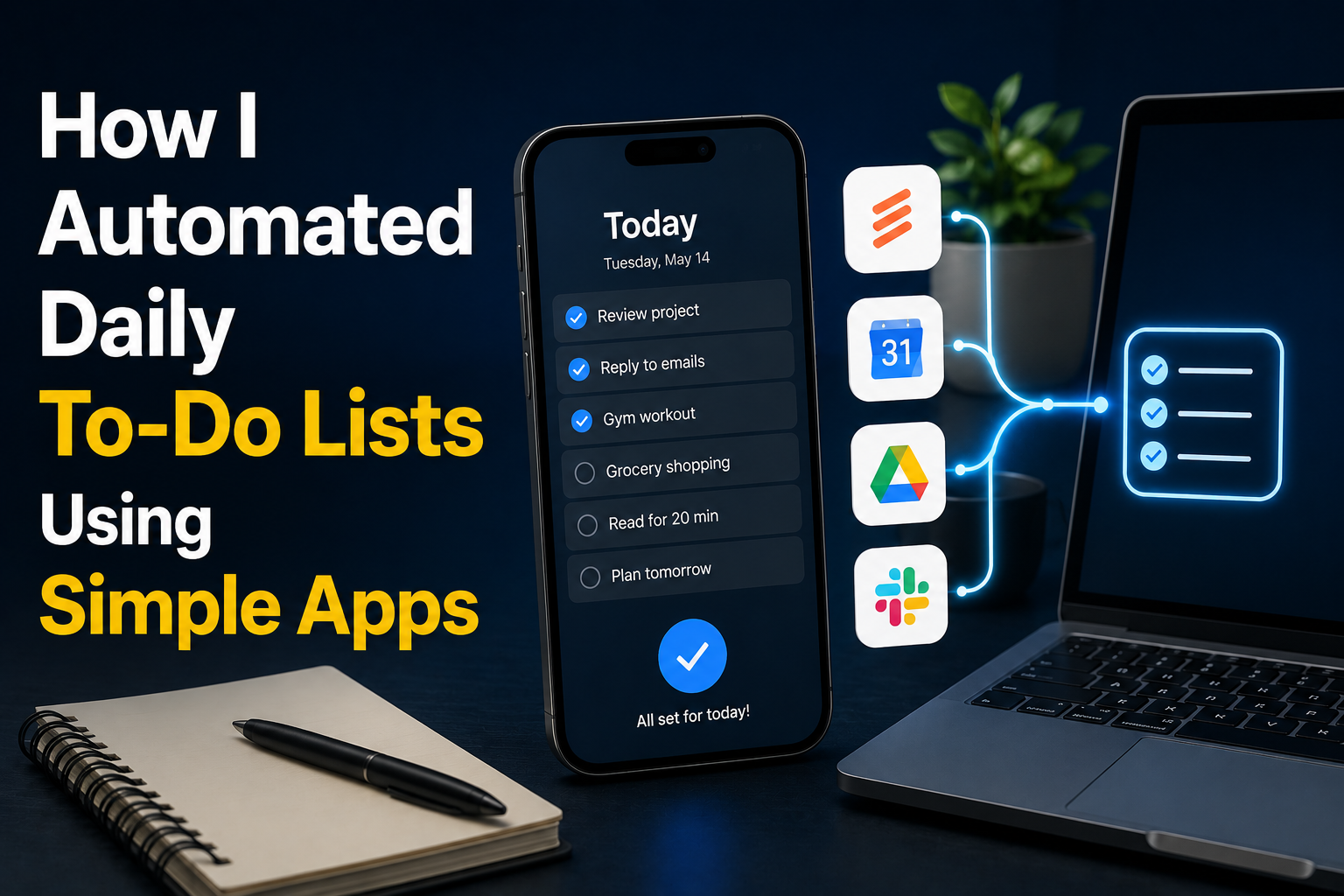
Automating a to-do list means using digital tools to handle repetitive planning tasks automatically. Instead of rewriting the same tasks every morning, apps can create reminders, repeat schedules, and organize information based on your preferences. For example, if you need to review emails every weekday, exercise three times per week, or pay monthly bills, you can create repeating tasks instead of entering them manually each time.
| Manual To-Do List | Automated To-Do List |
|---|---|
| Create the same tasks repeatedly | Tasks repeat automatically |
| Easy to forget updates | Apps provide reminders |
| Requires more daily planning | System handles routine tasks |
| More mental effort | Less decision fatigue |
The goal is not to automate every part of life. The goal is to remove unnecessary repetition and create a smoother daily routine.
Why Automated Task Systems Are Useful
Many productivity problems happen because people rely on memory alone. Human attention is limited, and important tasks can easily be forgotten when there are many responsibilities competing for attention. An automated task system acts like a personal assistant. It keeps track of recurring responsibilities and reminds you at the right time.
Benefits of automated to-do lists
- Reduces mental stress
- Saves time on planning
- Improves consistency
- Helps manage recurring tasks
- Makes priorities clearer
Tip: Automation works best for repeated tasks, not every single decision you make during the day.
Choosing the Right Task Management App
The best app depends on your needs. Beginners should choose tools that are simple, easy to understand, and comfortable to use regularly.
| App Type | Best For |
|---|---|
| Basic Reminder Apps | Simple alerts and daily tasks |
| Task Management Apps | Projects and organized workflows |
| Calendar Apps | Time-based planning |
| Automation Apps | Connecting different services |
Popular categories include reminder applications, digital calendars, note-taking tools, and task management platforms. The important factor is choosing one system you will actually use.
Creating Recurring Daily Tasks
Recurring tasks are one of the easiest ways to automate daily planning. Instead of adding the same activity repeatedly, you create it once and allow the app to repeat it automatically.
Examples of recurring tasks
- Morning planning routine
- Checking important emails
- Weekly cleaning tasks
- Monthly financial reviews
- Regular learning sessions
Recurring tasks are especially useful for habits because they create consistency without requiring daily setup.
| Task Frequency | Example |
|---|---|
| Daily | Review priorities |
| Weekly | Plan upcoming goals |
| Monthly | Review subscriptions |
| Yearly | Important renewals |
Using Reminders and Notifications Effectively
Notifications are useful when they support your workflow, but too many alerts can create distraction. The goal is to receive important reminders without creating unnecessary interruptions.
Better notification habits
- Create reminders only for meaningful tasks.
- Use different reminder times based on urgency.
- Remove outdated notifications.
- Avoid creating alerts for everything.
A good system should help you remember important tasks while allowing you to focus without constant interruptions.
Warning: Too many notifications can make a productivity system feel stressful instead of helpful.
Organizing Tasks With Categories and Labels
As your task list grows, organization becomes important. Categories and labels help separate different areas of life so you can quickly find what needs attention.
| Category | Example Tasks |
|---|---|
| Work | Projects and meetings |
| Personal | Appointments and errands |
| Learning | Courses and reading |
| Home | Maintenance tasks |
Organization reduces confusion and makes your daily list easier to manage.
Connecting Apps for Better Automation
Many productivity tools can work together. Connecting apps allows information to move automatically between different services. For example, a calendar event can create a reminder, or a completed task can trigger an update in another productivity tool.
Common automation examples
- Calendar events creating reminders
- Email messages becoming tasks
- Notes turning into action items
- Forms creating organized records
Simple connections can save time by reducing repeated manual actions.
Building a Simple Daily Workflow
A good automated system should match your daily routine. Start small instead of creating a complicated setup with many tools.
Example beginner workflow
- Morning: Review automated task list
- During work: Complete priority tasks
- Evening: Check completed tasks
- Weekly: Adjust the system
The best workflow is one that feels natural. If a system becomes too complicated, it becomes another task to manage.
Common Automation Mistakes to Avoid
Automation can improve productivity, but poor planning can create problems. Many beginners make the mistake of adding too many tasks and notifications.
- Automating unnecessary tasks
- Creating too many reminders
- Using multiple apps without a clear purpose
- Ignoring regular system reviews
- Making the workflow too complicated
A simple system that you use consistently is better than a complex system that becomes difficult to maintain.
Maintaining Your Automated Task System
A productivity system needs occasional updates. Your responsibilities change, and your task system should change with them.
| Maintenance Activity | Recommended Timing |
|---|---|
| Remove old tasks | Weekly |
| Review priorities | Weekly |
| Update categories | When needed |
| Check notifications | Monthly |
Regular maintenance keeps your system useful and prevents digital clutter.
FAQs
1. What is the easiest way to automate a daily to-do list?
The easiest method is creating recurring tasks in a simple reminder or task management app. Start with a few important daily activities and expand only when needed.
2. Do I need advanced apps to automate tasks?
No. Many basic reminder and calendar apps already provide useful automation features. Advanced tools are only necessary for more complex workflows.
3. Can automation make me more productive?
Automation can help reduce repetitive planning work and improve consistency. However, it works best when combined with clear priorities and realistic goals.
4. How many tasks should I automate?
Only automate tasks that repeat regularly or are easy to forget. Too much automation can create unnecessary complexity.
5. Should I use multiple productivity apps?
Most beginners benefit from starting with one main task app. Adding more tools should only happen when there is a clear reason.
Conclusion
Automating daily to-do lists is a simple way to create better organization and reduce unnecessary mental effort. By using recurring tasks, reminders, categories, and basic app connections, you can create a system that supports your daily goals. The most effective productivity systems are not the most complicated ones. They are simple tools that fit your routine and continue working without constant attention. tart with a few important tasks, build gradually, and adjust your system as your needs change. Small improvements can create a more organized and productive daily life.
References
- Microsoft Productivity and Time Management Resources
- Google Workspace Learning Center – Productivity Tools
- Apple Support – Reminders and Calendar User Guides
- National Institute of Standards and Technology—Digital Organization Practices“`

NilansGuide Editorial Team creates practical guides for people who want to use technology with more confidence. Our content covers everyday smartphone use, apps, digital safety, common technology problems, and beginner-friendly device guidance. We focus on clear explanations and practical steps that help readers understand and solve everyday technology questions without unnecessary complexity. Content is reviewed and updated when needed to keep information useful and relevant.