
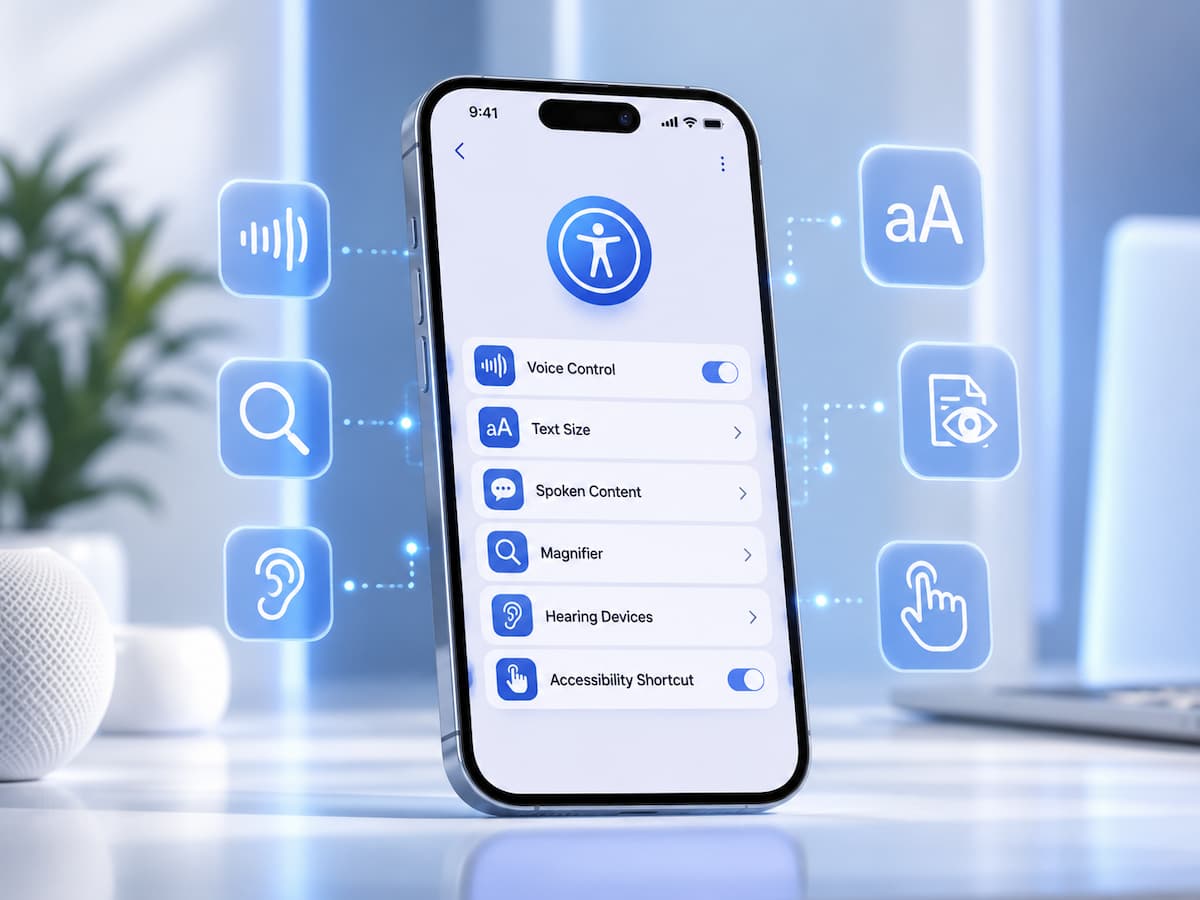
Many iPhone users explore only the basic settings and never discover the powerful tools hidden inside the Accessibility menu. While designers originally created these features to help people with different physical, visual, hearing, and learning needs, many of them are useful for everyone. Accessibility features can make everyday tasks easier, from reading small text and controlling your device with your voice to reducing distractions and improving comfort during long periods of use. These tools can help users customize their iPhone experience based on personal preferences rather than relying solely on default settings. Whether you are a beginner or an experienced iPhone user, learning about accessibility settings can help you get more value from your device. This guide explains the most useful iPhone accessibility features, how they work, and how they can improve daily smartphone use.
What Are iPhone Accessibility Features?
iPhone accessibility features are built-in tools that allow users to adjust how they interact with their device. They can change how information appears on the screen, how commands are entered, and how notifications and sounds are experienced. These settings are located inside the Accessibility section of the iPhone Settings app. Apple includes many options because people use smartphones in different ways. Some users may need larger text, while others may prefer voice controls or simplified interactions.
| Accessibility Area | Purpose |
|---|---|
| Vision | Helps users see and read content more easily |
| Physical and Motor | Makes device control easier |
| Hearing | Improves sound and notification awareness |
| General Features | Creates a more personalized experience |
These features are not only for people with disabilities. Anyone can use them to make their iPhone more comfortable and efficient.
Why Accessibility Settings Are Useful for Everyone
Technology becomes more helpful when it adapts to the user. Default settings are designed for general use, but they may not be ideal for every person. For example, someone who spends many hours reading on their phone may benefit from larger text. A person who frequently uses their hands while cooking may find voice commands more convenient.
Everyday benefits of accessibility features
- Improved readability
- Faster access to important actions
- Better control options
- Reduced eye strain
- More comfortable device usage
Tip: Exploring Accessibility settings can reveal useful tools you never knew your iPhone had.
Using VoiceOver for Screen Reading
VoiceOver is Apple’s built-in screen reader that describes what appears on the screen. It allows users to navigate their iPhone using spoken feedback and gestures. Although VoiceOver is mainly designed for users with visual challenges, it can also be useful for learning how your iPhone organizes information and interacts with apps.
VoiceOver features include:
- Reading text aloud
- Describing buttons and icons
- Helping navigate applications
- Providing spoken feedback
VoiceOver can be customized through settings to adjust speaking speed, voice options, and gesture controls.
Magnifier and Visual Assistance Tools
The Magnifier feature turns your iPhone into a digital magnifying glass. It uses the camera to enlarge small text, labels, menus, and objects that may be difficult to see. This tool can be helpful in everyday situations, such as reading product labels, instructions, restaurant menus, or small documents.
| Feature | Useful For |
|---|---|
| Magnifier | Enlarging small objects and text |
| Brightness Controls | Improving visibility |
| Color Filters | Adjusting screen appearance |
Practical examples
A person shopping in a store can quickly use the Magnifier to read small packaging details. Someone checking paperwork can enlarge text without needing another device.
Making Text Easier to Read
Many people experience difficulty reading small text on smartphone screens, especially after long periods of use. iPhone provides several options to improve readability.
Useful text settings
- Larger Text
- Bold Text
- Increase Contrast
- Reduce Transparency
Increasing text size can make messages, websites, and apps easier to read. Bold text can improve visibility by making important information stand out more clearly.
| Setting | Effect |
|---|---|
| Larger Text | Makes written content bigger |
| Bold Text | Improves text visibility |
| Contrast Options | Makes interface elements clearer |
Using Voice Control to Operate Your iPhone
Voice Control allows users to operate their iPhone using spoken commands. Instead of tapping the screen, users can open apps, select options, and perform actions with their voice. This feature can be useful when your hands are busy or when you want a different way to interact with your device.
Examples of voice commands
- Open applications
- Send messages
- Navigate menus
- Select buttons
Voice Control processes commands directly on supported devices, which can help maintain privacy compared with some online voice services.
Back Tap Shortcuts for Faster Actions
Back Tap is a simple but powerful feature that allows users to perform actions by tapping the back of their iPhone. It can be configured to activate shortcuts, screenshots, accessibility tools, and other functions. This feature is useful because it provides quick access without searching through menus.
| Back Tap Action | Possible Use |
|---|---|
| Screenshot | Capture information quickly |
| Open Magnifier | Quick visual assistance |
| Shortcut Activation | Automate common tasks |
Back Tap is especially useful for people who regularly use specific features and want faster access.
Guided Access for Better Focus
Guided Access limits an iPhone to a single application and allows control over available features. It is useful when you want to reduce distractions or keep a specific task focused.
Common uses include:
- Helping children stay focused on educational apps
- Preventing accidental app switching
- Creating a distraction-free environment
Guided Access can also be useful for presentations, demonstrations, or situations where you want another person to use only one app.
Hearing Accessibility Features
The iPhone includes several tools designed to improve hearing experiences. These features can help users notice sounds, customize audio settings, and connect with supported hearing devices.
| Feature | Purpose |
|---|---|
| Sound Recognition | Alerts users about important sounds |
| Audio Adjustments | Customizes listening experience |
| LED Flash Alerts | Provides visual notifications |
These tools can also be helpful in noisy environments where regular alerts may be difficult to notice.
Reducing Motion and Improving Comfort
Some users experience discomfort from animations and movement effects on screens. iPhone includes settings that allow users to reduce motion and adjust visual effects.
Helpful comfort settings
- Reduce Motion
- Reduce Transparency
- Increase Contrast
- Adjust display settings
These changes can create a simpler and more comfortable viewing experience, especially for users who prefer fewer visual effects.
Common Accessibility Mistakes to Avoid
Accessibility features are powerful, but incorrect settings can sometimes make the iPhone harder to use. Understanding how features work helps prevent confusion.
- Turning on features without learning their controls
- Changing too many settings at once
- Forgetting which options were modified
- Ignoring built-in help information
When testing new accessibility features, change one setting at a time. This makes it easier to understand the effect and return to previous settings if needed.
FAQs
1. Are iPhone accessibility features only for people with disabilities?
No. While these features support users with different needs, they also benefit everyone. Tools like larger text, voice commands, Magnifier, and Back Tap can improve daily convenience.
2. Where can I find accessibility settings on an iPhone?
Accessibility settings are available inside the iPhone Settings app. Open Settings and select Accessibility to view options related to vision, hearing, physical control, and more.
3. Can accessibility settings improve battery life?
Some display-related changes may affect power usage differently, but accessibility features are mainly designed to improve usability rather than battery performance.
4. What is the most useful iPhone accessibility feature?
The most useful feature depends on personal needs. Many users find larger text, Voice Control, Back Tap, and Magnifier particularly useful for everyday tasks.
5. Can I quickly access accessibility features?
Yes. iPhone allows users to create shortcuts for certain accessibility features, making it easier to turn them on or off when needed.
Conclusion
iPhone accessibility features provide many useful tools that can improve comfort, control, and productivity. Although these options support different user needs, they also benefit anyone who wants a more personalized smartphone experience. Features like larger text, voice control, Magnifier, Back Tap, and Guided Access can make everyday tasks easier while helping users interact with technology in ways that suit their lifestyle. Taking a few minutes to explore accessibility settings can reveal powerful tools hidden inside your iPhone. The best technology experience is one that adapts to the person using it.
References
- Apple Support – Accessibility Features on iPhone
- Apple User Guide – iPhone Accessibility Settings
- Apple Accessibility Documentation
- National Institute on Aging – Technology Accessibility Resources

NilansGuide Editorial Team creates practical guides for people who want to use technology with more confidence. Our content covers everyday smartphone use, apps, digital safety, common technology problems, and beginner-friendly device guidance. We focus on clear explanations and practical steps that help readers understand and solve everyday technology questions without unnecessary complexity. Content is reviewed and updated when needed to keep information useful and relevant.