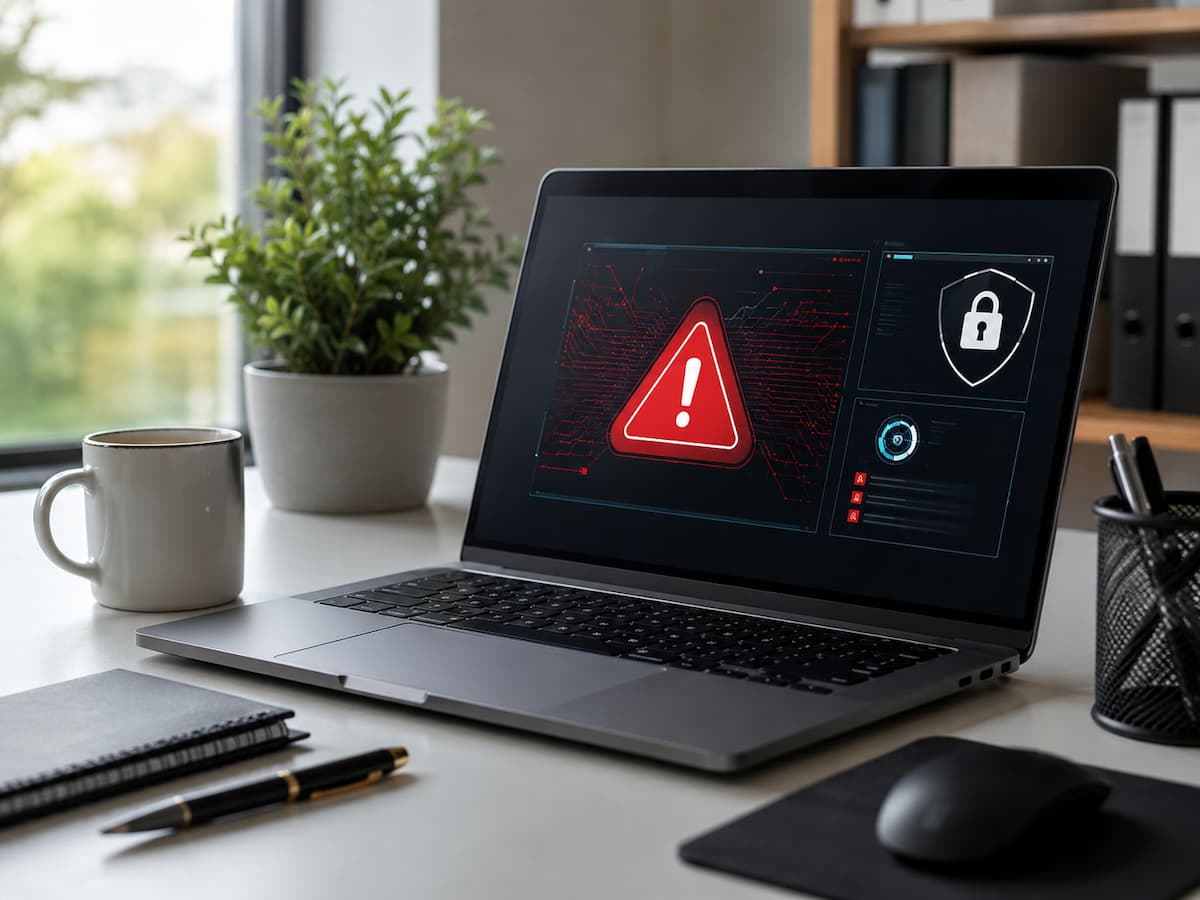
Malware is a general term used for harmful software designed to perform unwanted actions on a computer. The word combines “malicious” and “software” because these programs are created to interfere with normal computer operation, steal information, damage files, or give unauthorized access to attackers. Different types of malware behave in different ways. Some programs secretly monitor activity, while others display unwanted advertisements or use computer resources without permission. Some malware tries to spread to other devices, while others focus on stealing passwords or financial information.
| Type of Malware | How It Usually Works |
|---|---|
| Virus | Attaches to files and spreads when users open infected content |
| Trojan | Pretends to be a legitimate program but performs harmful actions |
| Spyware | Monitors activity and may collect private information |
| Ransomware | Locks files or systems and demands payment |
| Adware | Displays unwanted advertisements and redirects browsing |
Malware infections often happen because of unsafe downloads, suspicious email attachments, fake software updates, compromised websites, or clicking harmful links. However, even careful users can sometimes encounter malware because threats constantly change.
Tip: Malware prevention is easier when you recognize early warning signs instead of waiting until your computer stops working properly.
Your Computer Suddenly Becomes Slow
One of the most common warning signs of malware is a noticeable decrease in computer performance. A device that formerly worked smoothly may suddenly take longer to start, applications may open slowly, or basic tasks may feel unusually difficult. Malware can slow down a computer because malicious programs often run in the background. These programs may use processing power, memory, storage, or internet bandwidth without the user knowing. The computer is then forced to divide resources between normal tasks and unwanted activities.
Common Performance Changes to Watch For
- Longer startup times
- Programs freezing frequently
- Unexpected system crashes
- Slow response when opening files
- Fans running constantly even during simple tasks
A slow computer does not always mean malware is present. Other causes include an old hard drive, insufficient storage, too many startup programs, or outdated hardware. However, a sudden performance drop combined with other unusual behavior should not be ignored.
| Possible Cause | Typical Solution |
|---|---|
| Too many background programs | Review startup applications |
| Low storage space | Remove unnecessary files |
| Malware activity | Run a trusted security scan |
| Old hardware | Consider upgrades if needed |
Unexpected Pop-Ups and Strange Advertisements
Frequent pop-ups are another common sign that a computer may have unwanted software. While some websites naturally display advertisements, malware-related pop-ups often appear when you are not browsing or appear in unusual places. Adware is a type of unwanted software that may generate excessive advertisements, redirect searches, or change browser behavior. These advertisements may promote questionable services, fake security warnings, or misleading software downloads.
Warning Signs of Suspicious Pop-Ups
- Advertisements appear on websites that normally do not show them
- Pop-ups appear when no browser is open
- Messages claim your computer is infected and demand immediate action
- You are redirected to unfamiliar websites
Warning: Fake security alerts are a common trick. Do not install software or provide payment information because of an unexpected warning message.
A legitimate security program usually does not force you into urgent decisions through random browser messages. If a pop-up creates panic and demands immediate payment, treat it carefully.
Unknown Programs Appearing on Your Computer
Another warning sign is finding applications that you do not remember installing. Some malware enters a computer by being bundled with free software downloads. Users may accidentally install additional programs because they skip through installation steps too quickly. Unknown programs are not always dangerous. A computer may contain manufacturer software, automatic utilities, or programs installed by another user. However, unfamiliar applications combined with other symptoms deserve attention.
How to Check Installed Programs
Review the list of installed applications regularly. Look for programs with unfamiliar names, unknown publishers, or installation dates that match the beginning of unusual computer behavior.
| Question | What It May Indicate |
|---|---|
| Do you recognize the program? | If not, investigate before opening it |
| Was it installed recently? | It may be connected to a recent problem |
| Does it have a trusted publisher? | Unknown publishers require caution |
Browser Changes You Did Not Make
Your web browser is often one of the first places where malware activity becomes visible. Some unwanted programs modify browser settings to control searches, display advertisements, or redirect users to specific websites. A sudden change in your homepage, search engine, extensions, or browser behavior can be a warning sign. Sometimes, browser hijackers—unwanted software designed to alter browsing settings—cause these changes.
Browser Warning Signs
- Your homepage changes without permission
- Search results look different
- New extensions appear unexpectedly
- Websites redirect automatically
- The browser becomes slower than usual
Check your browser extensions regularly and remove anything you do not recognize. Extensions can provide useful features, but they also have access to browsing activity and should only come from trusted sources.
High CPU, Memory, or Internet Usage
A computer infected with malware may use unusual amounts of system resources even when you are not actively doing anything. Checking resource usage can reveal programs consuming more power than expected. For example, a computer sitting idle should not normally have constant heavy processor activity unless legitimate background tasks are running. Malware may use these resources for hidden activities, including unauthorized processing or communication with external servers.
What to Check
- Programs using unusually high CPU percentage
- Unknown applications using memory
- Unexpected network activity
- Battery draining faster than normal on laptops
Resource usage alone does not confirm malware, but it can help identify unusual behavior that requires further investigation.
Security Tools Stop Working or Settings Change
One serious warning sign of malware is when your security software stops working correctly or important settings change without your permission. Some malicious programs attempt to weaken protection because security tools make it harder for them to operate. You may notice that your antivirus program will not open, updates fail repeatedly, firewall settings are disabled, or security notifications appear unexpectedly. While technical problems can sometimes cause these issues, you should investigate sudden changes.
Security-Related Warning Signs
- Antivirus software turns off without your action
- Security updates fail repeatedly
- Firewall settings change unexpectedly
- You cannot access security websites
- System settings are modified without explanation
If malware has changed security settings, simply turning them back on may not solve the problem. A deeper scan may be needed to identify and remove the unwanted program.
Best Practice: Keep your operating system, browser, and security software updated. Updates often fix weaknesses that malware uses to enter devices.
Missing, Locked, or Changed Files
Changes to personal files can be one of the most concerning signs of malware activity. Some threats specifically target documents, photos, videos, and other important data. Ransomware is one example of malware that can encrypt files and prevent users from opening them. Other malicious programs may delete files, hide folders, or change file names.
File-Related Warning Signs
| Symptom | Possible Explanation |
|---|---|
| Files will not open | Possible corruption or encryption |
| New file extensions appear | Possible ransomware activity |
| Files disappear suddenly | Possible malware or system issue |
| Unknown files appear | Possible unwanted software activity |
If important files become unavailable, avoid making random changes. Disconnecting from the internet may help limit some threats, especially if the malware is communicating with outside systems. Professional assistance may be needed for serious infections.
Unexpected Account Activity Can Be a Warning Sign
Sometimes, malware symptoms can also affect other devices. If someone gains access to your device, they may attempt to use stored information or saved login details. Unexpected password reset emails, unfamiliar login notifications, or unusual activity on online accounts may indicate a security problem. These signs do not always mean malware is responsible, but they should encourage a careful security review.
Steps to Protect Your Accounts
- Change important passwords from a trusted device
- Enable multi-factor authentication when available
- Review recent account activity
- Avoid saving sensitive passwords in unsafe locations
How to Check Your Computer for Malware Safely
If you notice several warning signs, the next step is checking your computer carefully. Avoid downloading random “cleanup tools” from pop-up advertisements because many fake security programs are designed to look helpful while creating more problems.
Step 1: Update Your System
Install available operating system and security updates. Updated software improves protection and may fix weaknesses that attackers use.
Step 2: Run a Trusted Security Scan
Use a reliable security program from a recognized provider. Perform a full scan rather than only a quick scan if you suspect an infection.
Step 3: Review Suspicious Applications
Check installed programs and remove software that you do not recognize or no longer need. Research unfamiliar programs before deleting them because some system tools may have unfamiliar names.
Step 4: Check Browser Extensions
Remove unknown extensions and restore browser settings if unwanted changes have occurred.
Step 5: Monitor the Computer After Cleaning
After removing threats, continue watching performance and behavior. Some infections may leave behind unwanted settings that need additional attention.
Common Ways Malware Gets Onto Computers
Understanding how malware enters a computer is one of the best ways to prevent future problems. Most infections happen because malicious programs trick users into allowing access or installing harmful files.
| Source | Risk | Safer Practice |
|---|---|---|
| Email attachments | Malicious files disguised as documents | Do not open unexpected attachments |
| Free software downloads | Bundled unwanted programs | Download from official sources |
| Fake updates | Malware disguised as important software | Use official update systems |
| Suspicious websites | Drive-by downloads and scams | Avoid unknown websites |
How to Protect Your Computer From Malware
Preventing malware is much easier than recovering from an infection. Good security habits reduce the chance of problems and help protect personal information.
Essential Malware Protection Habits
- Keep your operating system updated
- Use reputable security software
- Create regular backups of important files
- Download software only from trusted sources
- Be careful with email links and attachments
- Use strong, unique passwords
- Enable multi-factor authentication where possible
Backups are especially important because they provide protection if files are damaged or locked by malware. A backup stored separately from the main computer can make recovery much easier.
Warning: A backup connected permanently to an infected computer may also become affected. Keep important backups protected.
Conclusion
Malware does not always announce itself with obvious warnings. Often, the first signs are small changes such as slower performance, strange pop-ups, unknown programs, browser modifications, or unusual resource usage. Recognizing these signals early gives you a better chance of protecting your files and personal information. The best defense against malware combines awareness, safe habits, regular updates, reliable security tools, and backups. No computer is completely immune to threats, but careful everyday decisions greatly reduce risk. If your computer begins behaving differently, do not ignore the warning signs. Investigate calmly, use trusted tools, and take steps to secure your device. Early action can prevent minor issues from becoming major security problems.
References
- Microsoft Security Documentation – Malware protection and Windows security guidance
- Cybersecurity and Infrastructure Security Agency (CISA) – Cybersecurity awareness resources
- National Institute of Standards and Technology (NIST) – Computer security guidance and best practices
- Federal Trade Commission (FTC) – Consumer guidance about malware and online security

NilansGuide Editorial Team creates practical guides for people who want to use technology with more confidence. Our content covers everyday smartphone use, apps, digital safety, common technology problems, and beginner-friendly device guidance. We focus on clear explanations and practical steps that help readers understand and solve everyday technology questions without unnecessary complexity. Content is reviewed and updated when needed to keep information useful and relevant.