
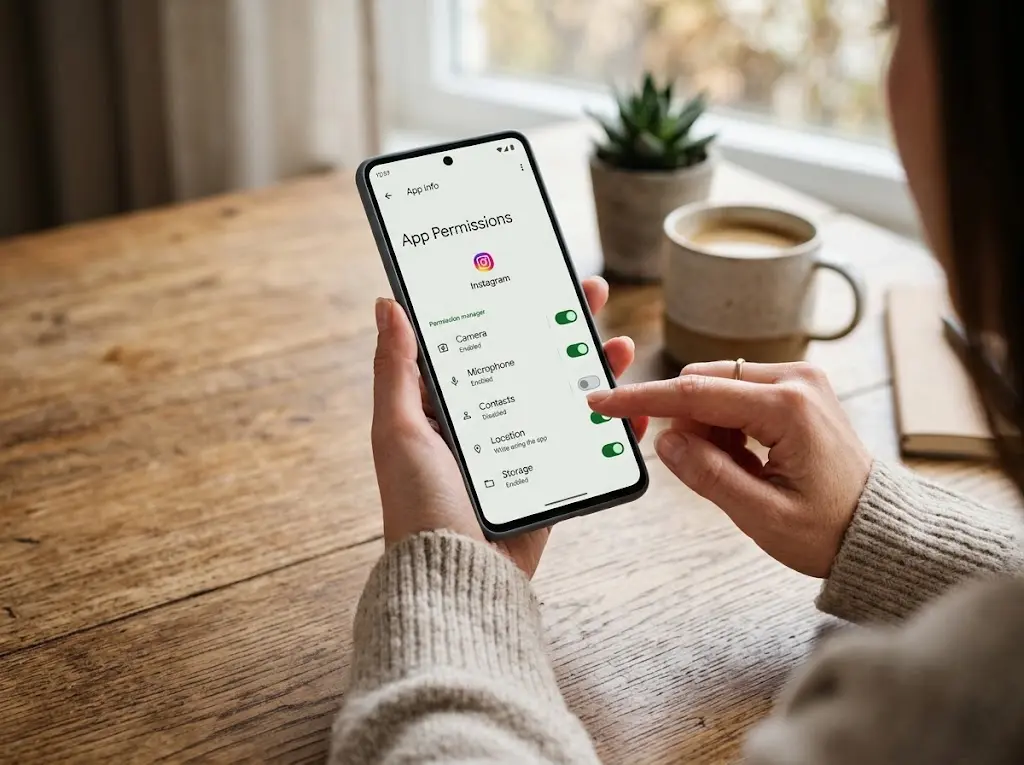
An app asking for permission is not automatically doing something wrong. A navigation app needs location to guide you, a video-calling app needs the camera and microphone to let you communicate, and a photo editor may need access to pictures you want to edit. The useful question is not whether an app asks for permission, but whether the access makes sense for what you want the app to do.
That makes an app-permission review less about blocking everything and more about matching access with purpose. A permission audit can help you spot unnecessary access, choose narrower options when your phone provides them, and revisit decisions when the way you use an app changes.
Understanding What App Permissions Actually Mean
App permissions are controls that determine whether an app can access particular features or information on your phone. Depending on the operating system and app, these can include the camera, microphone, location, contacts, photos, calendar, files, notifications, phone functions, SMS, or nearby devices. The important point is that permission is usually about access to a capability, not a statement that an app is good or bad.
For example, imagine installing a video-calling application. It asks to use the camera and microphone. Those requests have an obvious connection to making video calls. Refusing them may leave the app installed and usable for other functions, but video calling cannot work normally without the required access. Now imagine a simple flashlight application asking for contacts and calendar access. That combination deserves more scrutiny because those permissions do not have an obvious connection to turning on the phone’s light.
Context matters. The same permission can be reasonable for one app and unnecessary for another.
A useful way to think about every request is
- What does this app actually do?
- Does this permission support something I want the app to do?
- Does it need this access all the time, only while I use the feature, or not at all?
Those three questions are more useful than automatically choosing “Allow” or “Don’t Allow.”
A Simple Way to Judge a Permission Request
When an app requests access, first consider the specific feature you are trying to use. Suppose a mapping application asks for location while you are starting navigation. Location is central to determining where you are and providing directions. A request for location is therefore understandable. But suppose the same app asks for access to your contacts. There may be a legitimate feature behind that request, such as finding contacts who use a particular service, but you should consider whether that feature is something you actually want to use.
The third question concerns how much access is necessary. Some phones provide choices, such as allowing location only while an app is being used, granting a one-time location permission, or allowing approximate rather than precise location. The best choice depends on the feature.
For example, an app that needs your location to show nearby places may work adequately with approximate location. A navigation app giving turn-by-turn directions may need a more precise location to perform its main function. Do not assume the broadest permission is always necessary simply because the app requests it.
Permission-by-Permission Examples
Camera
- Camera access allows an app to use your phone’s camera when the operating system permits it.
- It makes sense for applications that take pictures, scan documents, make video calls, record video, scan QR codes, or provide camera-based features.
- A video-calling app is a straightforward example. Without camera access, you may still be able to participate in an audio call, depending on the application, but the video portion cannot function normally.
- A photo editor may also request camera access if it lets you take a new picture directly inside the editor. However, if you only want to edit existing photos, you may not need to grant camera access at all.
- If an unrelated utility requests the camera and you cannot identify a feature that needs it, pause before allowing it.
Microphone
- Microphone permission allows an app to capture audio through the phone’s microphone.
- Voice and video calling, voice recording, speech-to-text features, audio recording, and some communication tools can have a clear reason to use them.
- Consider a video-conferencing app. Camera access handles the picture, while microphone access allows other participants to hear you. Both permissions directly support the service.
- On the other hand, if you are using an app only to read information or perform a calculation, microphone access may not be necessary for the task you intend to perform.
- Some apps offer voice features that you may never use. In that situation, you can consider leaving microphone access disabled until you actually need the feature, if your phone allows you to control it that way.
Location
- Location is one of the permissions where the amount and timing of access can matter.
- A navigation app has an obvious reason to use your location. A weather application may use location to provide local forecasts. A map-based service may need it to identify nearby businesses or places.
- But location is not automatically necessary simply because an app offers location-related features.
- Where supported, your phone may distinguish between precise and approximate location. Approximate location can be suitable for features that only need a general area, while precise location may be important for turn-by-turn navigation or other location-sensitive functions.
- You may also see choices such as “while using the app,” “one time,” or “broader/background access,” depending on the operating system and app.
- Think about the feature rather than choosing the most convenient-looking option. If an app only needs your location when you open it, continuous access may not be necessary.
Contacts
- Contacts permission can give an app access to information stored in your address book.
- A messaging or communication service may use contacts to help you find people you know who also use that service. A calling application may have contact-related features for similar reasons.
- But contact access deserves a deliberate decision because your address book can contain information about other people as well as yourself.
- If you are installing a photo editor, for example, there is usually an obvious reason for it to access photos you want to edit. That does not automatically mean it needs access to your contacts.
- If you do not intend to use an app’s contact-related feature, consider whether you need to grant the permission at all.
Photos and Media
- Photo access allows an app to work with pictures or other media, although the exact controls differ between Android and iPhone/iPad.
- A photo editor may need access to images you select for editing. A social application may need photo access when you choose an image to upload. A printing or document application may need access to pictures you specifically want to process.
- Some newer permission systems can provide more limited access, such as selecting particular photos rather than giving an app unrestricted access to your entire photo collection.
- When such a choice is available, consider whether the app needs your whole library or simply the files you want to use.
Notifications
- Notifications are different from permissions such as camera or microphone because they primarily control whether an app can send alerts to you.
- A messaging application may need notifications if you want to know when someone sends you a message. A delivery or appointment application may use them for status updates.
- But you do not necessarily need notifications from every app you install. If an app’s alerts are not useful to you, disabling them can make the phone quieter without preventing the app’s core function from working.
Calendar
- Calendar access allows an app to read or, where supported, add or modify calendar information.
- A scheduling application may have a clear reason to interact with your calendar. An event-management app may also offer calendar integration.
- If an unrelated app requests calendar access and you cannot connect it to a feature you use, ask why the access is needed before granting it.
Files
- File access can allow an application to work with documents or other files stored on your device. The exact scope of access varies considerably between operating systems and app designs.
- A document editor, file-management application, or media utility may need access to files you deliberately choose to open or manage.
- However, “the app works with files” does not necessarily mean it needs unrestricted access to everything stored on the phone. Look for more limited file-selection options when they are offered.
Nearby Devices
- Nearby-device access can support features involving Bluetooth accessories and other nearby hardware.
- For example, an application designed to configure headphones, smart equipment, fitness accessories, or other compatible hardware may reasonably need this access.
- If you are not connecting an app to a nearby device, there may be little reason to enable the permission for that particular purpose.
Phone and SMS Access
- Some applications can request permissions or special access related to phone calls or SMS. The exact permissions and controls differ by operating system and app.
- There are legitimate uses. For example, an application designed around phone communication may need certain call-related capabilities, while an app involved in handling verification messages may interact with SMS in supported ways.
- Because phone and SMS-related access can affect communication functions, do not approve it merely because the app asks. Check which feature requires it and whether you actually intend to use that feature.
How to Review Permissions Already Granted
You do not have to wait for an app to ask again. Both Android and iPhone/iPad provide ways to review permissions after installation, although the names and locations of controls can change with operating-system versions. On Android, look in the phone’s settings for an area related to apps, app permissions, permission management, or a similar option. You can usually select an individual app to see the permissions it has been given or review certain permission categories to see which apps have access.
Android menus can differ between manufacturers and versions, so do not worry if the wording on your phone is slightly different. Search Settings for terms such as “permissions” or “app permissions” if you cannot immediately find the relevant screen.
On iPhone and iPad, open Settings and look for the individual app or privacy-related controls. Apple’s privacy settings group access to information and device features such as location, contacts, photos, camera, microphone, and calendars. The exact presentation can change as iOS and iPadOS are updated. When reviewing an app, do not simply count how many permissions it has. Ask what each permission is being used for. An app can legitimately require several permissions if it combines several functions. Another app might only need one or two.
What to Change When Something Looks Unnecessary
If you find an app with access that no longer makes sense, you do not necessarily need to uninstall the app. Start by identifying what you use the app for. If you never use the feature associated with a permission, you can often turn that permission off.
For example, suppose a photo application has camera access because you once used its built-in camera, but now you only edit imported pictures. You could reconsider whether camera access is still necessary. If your phone offers different permission levels, choose the narrowest option that still supports the feature you actually use.
It is also reasonable to change your mind later. A permission decision is not necessarily permanent. If you disable microphone access and later decide to use voice recording, the app can generally request the required permission again, or you can return to the relevant settings and change it.
What Happens After You Deny Access?
Denying a permission does not always mean the entire app stops working. Often, only the feature that depends on that permission is affected. If you deny camera access to a video-calling app, for example, video may not work while other parts of the service continue to function. An app may also explain that a feature cannot continue until you grant a particular permission. If the feature is important to you, you can reconsider the decision.
This is why permission management should not be treated as a competition to have the fewest permissions enabled. The goal is to give an app the access it reasonably needs for the functions you choose to use. If an application behaves differently after you change a permission, check which feature stopped working. That can help you understand what the permission was actually supporting.
A Simple Permission Audit
You can perform a quick review every so often, especially after installing several new applications.
For each app, ask:
- What do I actually use this app for?
- Which permissions does it currently have?
- Can I explain why each permission is useful?
- Does the app need the access all the time, or only while I am using a feature?
- Can I use approximate location instead of precise location?
- Can I select specific photos or files instead of providing broader access?
- Are there permissions I originally allowed but no longer need?
- If I turn one off, which feature is likely to stop working?
You do not need to audit every application in one sitting. Reviewing a handful of frequently used apps is a practical place to start. It can also be useful to review permissions when your relationship with an app changes. An application you once used for scanning documents may no longer need camera access if you have stopped using that feature. Likewise, an app that once needed contacts for a particular task may no longer need that access.
FAQs
1. Should I deny every permission an app requests?
No. Some permissions are essential to an app’s main purpose. The better approach is to judge each request against the feature you want to use and choose a narrower permission level when that option is appropriate.
2. Does an app requesting an unusual permission mean it is malicious?
Not necessarily. There may be a legitimate feature behind the request, and some apps combine several functions. However, an unexplained permission is a good reason to pause and determine what feature requires it before granting access.
3. Can I change an app permission after I already allowed it?
Yes, phones generally provide controls for reviewing and changing previously granted permissions. The exact menu and available choices depend on your operating-system version and device.
4. What is the difference between precise and approximate location?
Precise location provides a more exact position, while approximate location provides a less specific area. Where your phone offers both choices, use the level that is sufficient for the feature. Navigation may require more precision than a feature that only needs to know your general area.
5. Will denying a permission break an app?
It can disable a feature that depends on that permission, but it does not necessarily make the entire app unusable. If something stops working, identify the affected feature and decide whether you want to restore the required access.
Practical Takeaway
Managing app permissions is not about making every app as restricted as possible. It is about making intentional choices. When an app asks for access, connect the permission to something the app actually does. Consider whether the access is needed continuously or only during a particular task, and use more limited options when your phone provides them.
Then review permissions that were granted in the past. Your needs change, apps gain new features, and permissions that once made sense may no longer be necessary. A good permission audit leaves you with a simple answer for every important permission on your phone: I know why this app has this access, and I am comfortable with the level of access it has.

NilansGuide Editorial Team creates practical guides for people who want to use technology with more confidence. Our content covers everyday smartphone use, apps, digital safety, common technology problems, and beginner-friendly device guidance. We focus on clear explanations and practical steps that help readers understand and solve everyday technology questions without unnecessary complexity. Content is reviewed and updated when needed to keep information useful and relevant.