
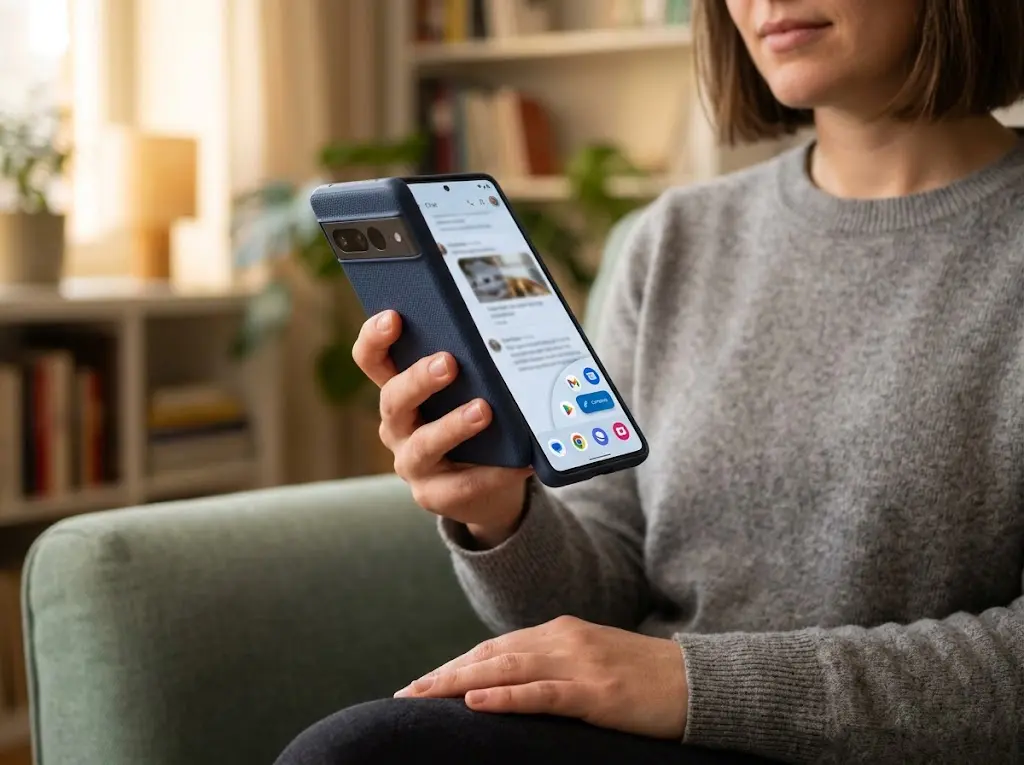
You are holding your phone in one hand while carrying a bag, eating, walking somewhere, or simply trying to keep your other hand free. You tap the screen, but the button you need is near the top corner. You stretch your thumb, shift the phone in your palm, and try again. Suddenly, using a simple feature feels harder than it should. Large screens are useful, but they can also create a physical problem: your thumb cannot comfortably reach every part of the display while you hold the phone securely in one hand.
Making a phone easier to use one-handed is not about changing every setting you can find. It is about noticing where your hand struggles and then reducing unnecessary reaching. The best changes depend on the problem you are actually having.
If the Top of the Screen Is Hard to Reach
The upper part of a large phone can be one of the most awkward areas to reach with your thumb. This becomes especially noticeable when an important control, menu, or navigation element sits near the top. Some phones include a one-handed mode that temporarily changes the usable area of the screen so controls at the top become easier to reach. On supported Android phones, the exact feature and controls can vary by manufacturer and software version. iPhones also have a built-in reachability feature that can bring the upper portion of the screen downward when supported.
The important idea is not the name of the feature. It is what the feature solves: instead of stretching your thumb toward the top, the phone brings the upper content closer to your thumb. This can be particularly helpful when you need to reach something at the top only occasionally. It may be less useful if you constantly need to interact with the full screen, because repeatedly changing the screen position can become another action to remember. If your phone offers a one-handed option, try it with the specific situations that cause difficulty rather than leaving it enabled simply because it exists.
If Controls Near the Opposite Edge Are Difficult
Reaching the far side of the screen can be just as awkward as reaching the top. For a right-handed user, controls near the far left edge may require stretching the thumb across the display. For a left-handed user, the opposite can happen. The problem becomes more noticeable on wider phones. There is no universal setting that moves every button on every app. Individual apps decide where many of their controls appear.
Instead, look for ways to avoid reaching across the screen unnecessarily. If an app provides a shortcut, quick action, or alternate control that is closer to your thumb, that may be easier than repeatedly stretching for the original button. This is also where system search can be useful. Rather than navigating through several menus to reach a setting located somewhere near the top or in a difficult-to-reach area, searching for the setting can reduce the number of physical movements required. Search is not just a way to find information. It can also be a way to avoid unnecessary navigation.
If Typing Feels Awkward
Typing is a different one-handed problem because your thumb has to travel repeatedly across the keyboard. Many smartphone keyboards offer a one-handed keyboard layout. Depending on the phone and keyboard app, the keyboard can be shifted toward one side of the screen, making the keys easier to reach with one thumb. This can make a noticeable difference if you regularly type short messages with one hand. The right side is not automatically better for everyone. A left-handed user may prefer the keyboard positioned toward the left, while a right-handed user may prefer the right. Some keyboards let you choose the side.
There is also a practical reason not to make the keyboard permanently smaller just to improve reach. A smaller keyboard can create more room around the keys but may make individual keys harder to hit accurately. If one-handed typing is only occasional, switching to a one-handed layout when needed may be more comfortable than changing the keyboard permanently. Voice input is another option when typing is physically inconvenient. For a short message or search query, speaking can eliminate the need to reach across a keyboard. It is best used when the surroundings and the information being entered make voice input appropriate.
If You Keep Reaching for the Same Controls
Notice what your thumb actually does during a normal day. Perhaps you repeatedly open the same setting, start a particular action, search for something, or access a feature buried inside a menu. If the same task requires an awkward reach every time, the problem may not be your phone’s size. It may be the number of physical steps between you and the feature. Look for a shortcut that places that function somewhere easier to reach.
The exact options vary between phones and apps, but the principle is simple: frequently used actions deserve an easier physical path. This does not mean moving everything you use toward one corner. Too many shortcuts can make the interface harder to understand. You may remember where something was before you moved it, while another person using the phone may not. A good arrangement is one that reduces repeated reaching without making the phone’s controls confusing.
If Menus Make You Stretch Too Often
Sometimes the easiest way to make a phone more comfortable is to avoid a menu entirely. Suppose you want to change a setting that is several screens deep. If the phone has a system search feature, searching for the setting may take less effort than navigating through multiple screens.
This approach is especially useful for tasks you perform only occasionally. There is little benefit in memorizing a long path through menus when the phone can locate the setting for you. Voice commands can serve a similar purpose for certain tasks. Depending on the phone and feature involved, you may be able to ask the device to perform an action rather than physically reaching through several controls. These options are not about making the phone “smarter.” They are about reducing the amount of physical movement required to accomplish a task.
If Text or Display Elements Are Hard to Use
Reach is not always about distance. If text is very small, buttons can become harder to identify and tap accurately. Increasing text size or display size can sometimes make controls easier to recognize, although it can also cause some screens to show less content. That trade-off matters.
A larger interface may make individual elements easier to see, but it does not necessarily make every control physically closer. In some apps, larger text can even change the layout and cause you to scroll more. The goal should be comfortable interaction, not simply making everything larger.
If you change a display setting, use the phone normally for a while. Pay attention to whether reading and tapping actually became easier. If one problem improved while another appeared, the setting may not be the right solution.
If You Keep Accidentally Touching the Screen
One-handed use can become frustrating when your thumb or another part of your hand touches something unintentionally. Before changing touch-related settings, look at how you are holding the phone. You may be trying to reach a distant control while simultaneously changing the phone’s position in your hand. That movement can make your touches less precise. Instead of stretching farther, pause and use a shortcut, search, voice input, or a one-handed interface when available.
Some phones also provide settings that affect touch interaction, but these vary considerably between platforms and manufacturers. Changing touch behavior without knowing what it does can sometimes create a new problem. A safer approach is to change one relevant setting at a time and test it during the situation where accidental touches normally occur. One-handed use should also not require an uncomfortable grip. If reaching a control forces you to loosen your hold or shift the phone in a way that feels unstable, use another interaction method or use both hands when practical. Convenience is not worth making an ordinary task unnecessarily difficult.
If Gestures Help but Also Cause Confusion
Gestures can reduce the need to reach for visible buttons, but they are not automatically easier. A gesture may allow you to navigate with a thumb movement instead of tapping a control at the top of the screen. That can be useful when the gesture is easy to remember and perform. The problem comes when you start using many gestures simply because they exist. If you forget which movement performs which action, you may spend more time thinking about the interface than actually using it.
Choose gestures that solve a real reach problem. For example, a familiar navigation gesture that keeps your thumb near the lower part of the screen may be useful. A complicated gesture that you rarely remember is probably not an improvement. One-handed usability is about reducing effort, not collecting shortcuts.
Why Accessibility Features Can Still Be Useful
Some features designed for accessibility can make everyday phone use more comfortable even when a person does not think of themselves as needing accessibility support. One-handed screen modes, larger text, touch adjustments, voice input, and other options can solve practical problems related to reach, vision, movement, or accuracy. That does not mean you need to turn on a large collection of accessibility settings.
Instead, treat these features as tools. If one solves a specific physical problem, it may be worth using. If it does not solve anything you actually struggle with, there is no reason to enable it simply because someone recommends it. The useful question is always: What part of using this phone is physically difficult, and which change would reduce that difficulty?
Try These Changes First
If your phone feels awkward to operate with one hand, avoid changing everything at once. Start with the problem you notice most often.
A sensible first test might be:
- Try the phone’s one-handed mode if reaching the upper screen is the main problem.
- Try a one-handed keyboard layout if typing is the main problem.
- Use system search when menus require repeated awkward reaching.
- Find a practical shortcut for one or two functions you use frequently.
- Try voice input when typing is inconvenient and speaking is appropriate.
- Adjust text or display size only if visibility is contributing to the problem.
Use each change for a little while before deciding whether it helps. This makes it much easier to tell which adjustment actually improved the experience.
If a Change Makes the Phone Harder to Use
Not every improvement works for every person. You might move a shortcut and later realize you can no longer find it easily. A larger display setting might make text clearer but force you to scroll more. A one-handed keyboard might improve reach but make typing less accurate. That is useful information, not a failure.
If a change makes ordinary tasks harder, undo it or return to the previous setting. Most interface adjustments can be changed again, so there is little reason to keep an arrangement that feels worse simply because it seemed like a good idea initially. It is also worth reconsidering changes after using the phone in different situations. A layout that works well while sitting at a desk may not be ideal when you are walking or carrying something. The best setup is often a compromise rather than a perfect arrangement.
A Better Way to Think About One-Handed Phone Use
The goal is not to make every part of the phone reachable by one thumb. Some tasks are naturally easier with two hands. What matters is reducing the unnecessary reaching that happens during ordinary one-handed use.
Start by noticing the physical movement that causes trouble. Is your thumb repeatedly reaching upward? Are you stretching toward the opposite edge? Are you shifting your grip just to type? Are you opening several menus when a search or shortcut would do?
Once you identify the problem, choose the smallest change that addresses it. That might be a one-handed mode, a different keyboard position, a shortcut, system search, voice input, or a simple change to text size. The solution does not have to involve a major redesign of the phone.
FAQs
1. Does every smartphone have a one-handed mode?
No. One-handed features vary between iPhone, Android, and individual Android manufacturers. The exact feature and controls can also change with software versions. If your phone does not provide one, other approaches such as keyboard options, shortcuts, search, or voice input may still help.
2. Will one-handed mode work inside every app?
Not necessarily. A system-level one-handed feature may change how the overall interface is positioned, but individual apps can behave differently. Some app layouts may not respond in exactly the same way.
3. Is a one-handed keyboard better than a normal keyboard?
It depends on how you use your phone. A one-handed keyboard can make keys easier to reach with one thumb, but the reduced width can also affect typing accuracy. It is worth testing rather than assuming it will be better.
4. Should I move all my controls and shortcuts to one side?
Usually, no. Moving a small number of frequently used functions can reduce reaching, but changing too much can make the interface harder to remember. Keep the changes focused on the controls that cause a real problem.
5. What if I still cannot comfortably reach something?
Use two hands when practical, or choose another interaction method such as search, a shortcut, voice input, or a supported one-handed feature. One-handed use is a convenience, not a requirement for every task.
Practical Takeaway
A phone becomes easier to use one-handed when you reduce the amount of reaching required, rather than simply changing lots of settings. Identify the areas that cause trouble, then solve those specific problems. Bring distant controls closer when your phone supports it, shift the keyboard when typing is awkward, use shortcuts or search to avoid unnecessary navigation, and consider voice input when it makes sense. Test changes one at a time. Keep the ones that genuinely make everyday interactions easier, and undo anything that creates more confusion or effort. The best one-handed setup is not the one with the most special features. It is the one that lets your thumb do less unnecessary work.

NilansGuide Editorial Team creates practical guides for people who want to use technology with more confidence. Our content covers everyday smartphone use, apps, digital safety, common technology problems, and beginner-friendly device guidance. We focus on clear explanations and practical steps that help readers understand and solve everyday technology questions without unnecessary complexity. Content is reviewed and updated when needed to keep information useful and relevant.