
When Windows 11 displays the “DNS Server Isn’t Responding” error, your computer has successfully connected to the local router, but it cannot translate domain names (like google.com) into IP addresses. This network failure is typically caused by a corrupted local DNS cache, an unresponsive ISP-provided server, or misconfigured TCP/IP settings.
Instead of waiting for your Internet Service Provider (ISP) to resolve the outage, you can force Windows to clear its network cache and switch to a more reliable, high-speed public DNS server. Below is the complete diagnostic and repair sequence to restore internet access.
Phase 1: Initial Diagnostics and Network Verification
Before altering system configurations, verify that the issue is isolated to the DNS protocol and not a total internet drop.
- Press
Win + R, typecmd, and press Enter. - Type
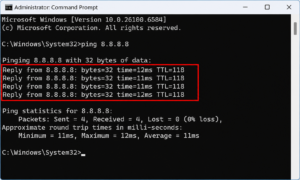
ping 8.8.8.8and press Enter. - If you receive replies (e.g., “Reply from 8.8.8.8: bytes=32 time=14ms TTL=117”), your internet connection is active, and the issue is strictly DNS-related.
- If you receive “Request timed out” or “Destination host unreachable,” your entire network connection is down, pointing to a router or hardware failure rather than a DNS error.
Phase 2: Step-by-Step Fixes
Fix 1: Flush the DNS Cache and Reset TCP/IP
Windows 11 stores a local cache of recently visited websites to speed up loading times. If this cache becomes corrupted or outdated, it prevents new connections. Flushing the cache and resetting the Winsock catalog is the most effective immediate fix.
- Click the Start Menu, type
cmd, right-click Command Prompt, and select Run as administrator. - Type the following commands exactly as written, pressing Enter after each one:
ipconfig /flushdns(This clears the corrupted local cache).ipconfig /registerdns(Refreshes DHCP leases and re-registers DNS names).ipconfig /release(Releases your current IP address).ipconfig /renew(Requests a new IP address from the router).netsh winsock reset(Resets the Winsock catalog back to default settings).
- Restart your computer immediately to apply the Winsock reset.
Fix 2: Switch to a Reliable Public DNS (Google or Cloudflare)
By default, Windows 11 uses the DNS server provided by your ISP, which is often slow or prone to localized outages. Switching to a global public DNS circumvents ISP-level routing failures.
- Press
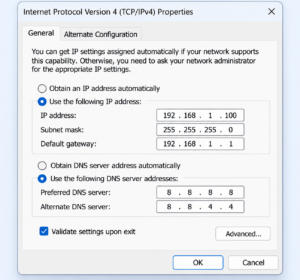
Win + R, typencpa.cpl, and hit Enter. This opens the Network Connections panel directly. - Right-click your active network adapter (either Wi-Fi or Ethernet) and select Properties.
- In the list, scroll down and click on Internet Protocol Version 4 (TCP/IPv4) to highlight it, then click the Properties button below.
- Select the radio button labeled “Use the following DNS server addresses”.
- Enter the preferred and alternate DNS addresses from one of the reliable providers below:
| DNS Provider | Preferred DNS Server | Alternate DNS Server | Best For |
| Google DNS | 8.8.8.8 |
8.8.4.4 |
Maximum global reliability and uptime. |
| Cloudflare | 1.1.1.1 |
1.0.0.1 |
Fastest response times and privacy. |
| OpenDNS | 208.67.222.222 |
208.67.220.220 |
Built-in phishing and malware blocking. |
| Quad9 | 9.9.9.9 |
149.112.112.112 |
High security against malicious domains. |
- Check the box for “Validate settings upon exit” and click OK.
Fix 3: Disable IPv6 Temporarily
Sometimes, conflicts between IPv4 and IPv6 protocols on local networks can cause the DNS server to hang. Disabling IPv6 forces Windows to route all traffic through the more stable IPv4 protocol.
- Return to the Network Connections panel (
ncpa.cpl). - Right-click your active adapter and select Properties.
- Scroll through the list and locate Internet Protocol Version 6 (TCP/IPv6).
- Uncheck the box next to it.
- Click OK and test your internet connection.
Fix 4: Update or Rollback the Network Adapter Driver
A corrupted network interface controller (NIC) driver can sever the communication between Windows 11 and your router.
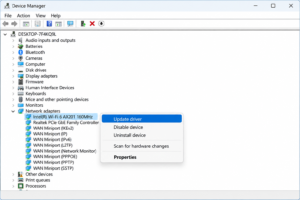
- Right-click the Start Menu and select Device Manager.
- Expand the Network adapters section.
- Right-click your primary adapter (e.g., Intel Wi-Fi 6 AX201 or Realtek PCIe GbE Family Controller) and select Update driver.
- Choose Search automatically for drivers.
- If Windows states the best driver is already installed, right-click the adapter again, select Properties, navigate to the Driver tab, and click Roll Back Driver (if a recent Windows update caused the failure).
Fix 5: Disable Peer-to-Peer Windows Updates (Delivery Optimization)
Windows 11 utilizes Delivery Optimization to download updates from other PCs on your local network or the internet. This background service can occasionally flood your bandwidth and disrupt DNS requests.
- Open Settings (
Win + I). - Navigate to Windows Update > Advanced options > Delivery Optimization.
- Toggle the “Allow downloads from other PCs” switch to the Off position.
Advanced Troubleshooting
If the issue persists after applying the standard fixes, the problem may reside in your router’s hardware cache or MAC address filtering.
- Power Cycle the Router: Unplug the power cable from your modem and router for a full 60 seconds. This clears the router’s internal DNS cache and RAM, forcing it to establish a fresh connection with your ISP upon reboot.
- Disable Third-Party Antivirus: Security suites like Avast, Bitdefender, or Norton sometimes install custom firewall rules that intercept DNS queries. Temporarily disable the web shield module in your antivirus to see if connectivity returns.
Frequently Asked Questions
1. Why does my DNS server stop responding randomly?
Random DNS drops are usually caused by an overwhelmed ISP server, IP address conflicts on your local network, or a background Windows service (like a VPN) failing to release a custom DNS route after disconnecting.
2. Does flushing DNS delete my browsing history?
No. Flushing the DNS cache only deletes the IP address mapping that Windows uses to find servers. Your browser history, cookies, and saved passwords in Chrome or Edge remain completely untouched.
3. Can a VPN cause the DNS Server Not Responding error?
Yes. VPNs use custom DNS servers to prevent DNS leaks. If a VPN crashes or is uninstalled incorrectly, it can leave Windows configured to look for a DNS server that is no longer accessible. Resetting TCP/IP resolves this.
Sources:
- Microsoft Learn: Troubleshooting TCP/IP connectivity.
- Cloudflare: What is 1.1.1.1?
- Google Public DNS Documentation.