
Keeping your Windows 11 operating system updated is crucial for security and performance. However, the update process is not always seamless. One of the most frustrating roadblocks users encounter is Error 0x800f081f.
Usually, this error code appears alongside a message that reads: “There were some problems installing updates, but we’ll try again later.” The installation typically reaches a certain percentage (often around 10% or 100%) before failing and rolling back the changes.
Fundamentally, Error 0x800f081f is tied to the Deployment Image Servicing and Management (DISM) tool and Component-Based Servicing (CBS). It means that Windows 11 cannot find the required source files to complete the update, or the files it has found are corrupted. Most commonly, this is linked to a missing or damaged Microsoft .NET Framework 3.5 installation.
In this comprehensive guide, we will walk through every proven method to resolve this error, starting from the simplest automated fixes to more advanced command-line solutions.
Pre-Troubleshooting: Create a System Restore Point
Before making deep system changes or running command-line utilities, it is an essential best practice to create a System Restore Point. If a fix does not go as planned, you can easily revert your PC to its current state without losing personal data.
- Click on the Start Menu and type
Create a restore point. - Hit Enter to open the System Properties window.
- Select your main system drive (usually
C:) and click the Create… button at the bottom. - Name the restore point (e.g., “Before Update Fix”) and click Create.
Once Windows confirms the restore point is created, you can safely proceed to the solutions below.
Fix 1: Run the Built-In Windows Update Troubleshooter
Microsoft includes an automated troubleshooting utility within Windows 11 that is designed to clear out stuck update caches and restart necessary background services. While it does not fix deep corruption, it should always be your first step.
Step-by-Step Execution:
- Press
Windows Key + Ion your keyboard to open the Settings app. - Ensure you are on the System tab on the left-hand sidebar.
- Scroll down the right pane and click on Troubleshoot.
- Click on Other troubleshooters.
- Locate Windows Update in the list and click the Run button next to it.
The troubleshooter will now scan your system. It will check for pending restarts, initialize diagnostic data, and attempt to clear the BITS (Background Intelligent Transfer Service) queue. If it says it made changes to your system, restart your PC and try downloading the update again. If the 0x800f081f error persists, move to the next fix.
Fix 2: Repair System Files using SFC and DISM
Because Error 0x800f081f is directly tied to missing or corrupted source files, running the System File Checker (SFC) and Deployment Image Servicing and Management (DISM) tools is the most effective solution. These command-line utilities scan your core Windows files and replace broken ones using a fresh Windows image.
Step 1: Run the SFC Scan
- Click the Start Menu and type
cmd. - Right-click on Command Prompt and select Run as administrator. (Click “Yes” on the User Account Control prompt).
- In the black console window, type the following command exactly as shown and press Enter:
sfc /scannow
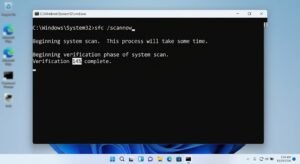
Allow the scan to reach 100%. This can take anywhere from 5 to 15 minutes depending on your hard drive speed. If it finds and fixes corrupt files, restart your PC.
Step 2: Run the DISM Tool
If SFC fails to fix the issue, you must use DISM. In the same Administrator Command Prompt window, type the following command and hit Enter:DISM /Online /Cleanup-Image /RestoreHealth
This command connects to Windows Update servers to download clean replacements for any corrupted system image files. Once the process completes successfully, restart your computer and attempt the Windows update again.
Fix 3: Enable or Repair .NET Framework 3.5
Historically, the 0x800f081f error code is the universal flag for a missing or incompatible .NET Framework 3.5 component. Windows 11 relies on this framework to execute specific legacy installation protocols during major system updates.
How to Enable .NET Framework:
- Press
Windows Key + Rto open the Run dialog box. - Type
appwiz.cpland press Enter. This opens the Programs and Features window. - On the left side of the window, click on Turn Windows features on or off.
- A new window will pop up. Look at the very top of the list for .NET Framework 3.5 (includes .NET 2.0 and 3.0).
- If the box next to it is unchecked, click it so it shows a solid black square or checkmark.
- Click OK.
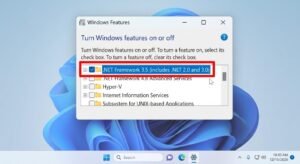
Windows will now prompt you to download the required files from Windows Update. Click Let Windows Update download the files for you. Once the installation is finished, restart your PC and try updating your system again.
Fix 4: Reset Windows Update Components Manually
If the automated troubleshooter (from Fix 1) failed to clear your update cache, the SoftwareDistribution and catroot2 folders might be severely corrupted. These folders hold the temporary files downloaded during the update process. By renaming them, you force Windows 11 to create fresh, uncorrupted folders and download the update files from scratch.
Step-by-Step Execution:
- Open Command Prompt as an administrator (search
cmdin the Start Menu, right-click, Run as Admin). - You must first stop the background services that handle updates. Type the following commands, pressing Enter after each one:
net stop wuauservnet stop cryptSvcnet stop bitsnet stop msiserver - Now, rename the corrupted folders by executing these two commands:
ren C:\Windows\SoftwareDistribution SoftwareDistribution.oldren C:\Windows\System32\catroot2 catroot2.old - Finally, restart the update services you stopped earlier:
net start wuauservnet start cryptSvcnet start bitsnet start msiserver
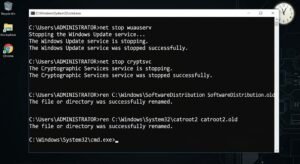
Close the Command Prompt, restart your PC, and navigate back to Settings > Windows Update to try downloading the update.
Fix 5: Manually Install the Update via Microsoft Update Catalog
If Windows Update simply refuses to process the installation through the Settings app, you can bypass the internal updater entirely by downloading the specific update package directly from Microsoft’s servers.
- Go to your Windows Update settings and look at the update that is failing. It will have a Knowledge Base number starting with “KB” (for example, KB5012345). Note this number down.
- Open your web browser and navigate to the official Microsoft Update Catalog (catalog.update.microsoft.com).
- In the search bar at the top right, type in your specific KB number and press Enter.
- You will see a list of results. Look for the version that matches your system architecture (usually Windows 11 x64-based Systems).
- Click the Download button next to it. A new window will appear with a
.msulink. Click that link to download the file. - Once downloaded, double-click the
.msufile. The Windows Update Standalone Installer will launch and install the update manually.
Conclusion
Windows 11 update error 0x800f081f can seem intimidating because it blocks crucial security patches, but it is almost always a software-level issue related to system file corruption or the .NET framework. By systematically running the SFC/DISM scans, enabling the required frameworks, and clearing out your old update caches, your PC will return to normal operation.
If all else fails, bypassing the Windows updater and using the Microsoft Update Catalog to manually install the .msu package is the most reliable workaround to keep your machine secure.
Frequently Asked Questions
Will running SFC or DISM commands delete my personal files?
No. The System File Checker (SFC) and DISM tools only target core Windows operating system files (like .dll and .sys files). They do not scan, touch, or delete your personal documents, photos, or installed applications.
Why does the update get stuck at a specific percentage before showing 0x800f081f?
Updates usually get stuck at certain milestones (like 20% or 100%) because that is the exact moment the installer tries to verify or execute a corrupted file. When the Component-Based Servicing (CBS) fails to read the file, it aborts the process and rolls the system back to prevent a permanent crash.
Can I just ignore the update that is causing Error 0x800f081f?
While you can temporarily pause updates, ignoring them long-term is not recommended. Cumulative updates contain critical security patches that protect your PC from malware and vulnerabilities. Fixing the error ensures your system remains secure.