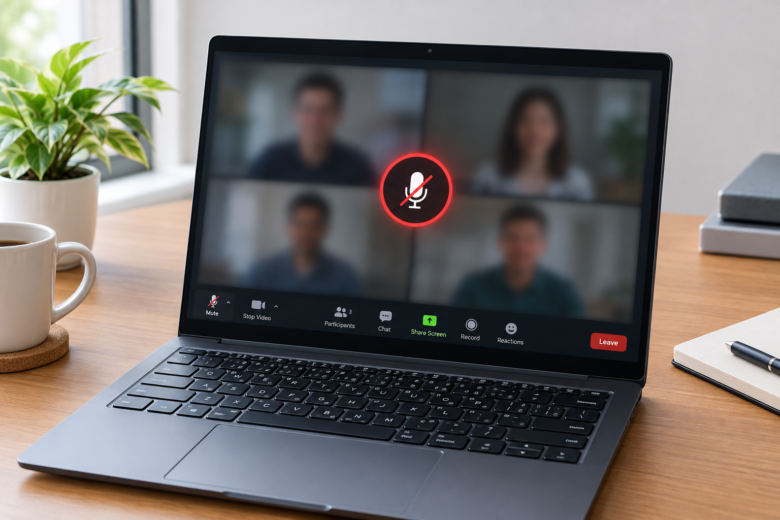
You join an important remote meeting, unmute yourself, and start pitching your idea, only to be met with complete silence. A few seconds later, someone holds up a piece of paper that reads, “We can’t hear you.” It is a uniquely stressful scenario that almost every remote worker has faced.
If you are using Windows 11, microphone issues in Zoom have become increasingly common. The operating system handles audio routing, privacy permissions, and driver management quite differently than its predecessors. When a Windows update runs in the background, or when you switch between different communication apps like Microsoft Teams and Zoom, your audio input can suddenly fail.
The good news is that a broken microphone in Zoom is rarely a hardware death sentence. It is almost always a software conflict, a buried privacy toggle, or a misconfigured driver. Instead of panicking or buying a new headset, work through this logical troubleshooting sequence to get your microphone back online in Windows 11.
1. The Physical Hardware Check (Don’t Skip This)
Before digging into system registries and audio drivers, start with the absolute basics. It sounds repetitive, but physical connection errors account for a massive percentage of microphone failures.
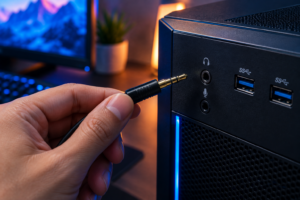
If you are using a wired USB or 3.5mm headset, unplug it and plug it into a different port. Sometimes, USB hubs or front-panel case ports fail to deliver enough power or data bandwidth for an audio device. Plug the headset directly into the motherboard ports on the back of your PC.
If you are using a wireless Bluetooth headset, check the battery level. Many wireless headsets automatically disable the microphone when the battery dips below 10% to save power for audio output. Additionally, inspect your headset for a physical hardware mute switch or button. Many gaming headsets and professional headsets have inline volume controls with a mute slider that overrides any software settings in Windows or Zoom.
2. Verify Zoom’s Internal Audio Configuration
Often, Windows 11 recognizes your microphone perfectly fine, but Zoom is simply looking at the wrong device. This happens frequently if you leave a webcam plugged in; Zoom might try to use the terrible built-in webcam microphone instead of your dedicated headset.
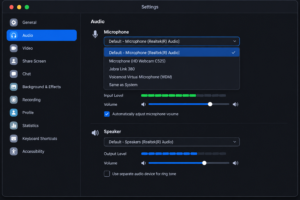
Here is how to force Zoom to use the correct input:
- Open the Zoom desktop client and click your profile picture in the top right corner.
- Select Settings and navigate to the Audio tab on the left sidebar.
- Look for the Microphone section. Click the dropdown menu.
- You will see a list of all audio inputs connected to your PC. Select the specific microphone you want to use (e.g., “Realtek High Definition Audio” or “Logitech Pro X”).
- Speak into your microphone at a normal volume. The Input Level bar directly below the dropdown should fill up with green color.
- If it remains gray, uncheck the box that says “Automatically adjust microphone volume” and manually drag the volume slider all the way to the right to ensure Zoom isn’t artificially muting you.
3. Allow Microphone Access in Windows 11 Privacy Settings
Windows 11 takes user privacy very seriously. If a recent feature update was installed, Windows might have revoked microphone access for desktop applications to protect you from spyware. If this privacy toggle is flipped off, no app on your computer will be able to hear you, regardless of your Zoom settings.
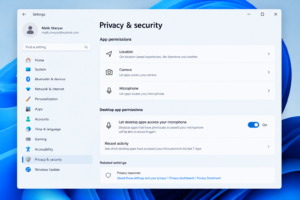
To fix Windows 11 privacy permissions:
- Right-click the Windows Start button and select Settings.
- On the left-hand menu, click on Privacy & security.
- Scroll down to the “App permissions” section and click on Microphone.
- First, ensure the master switch for Microphone access at the top is toggled On.
- Scroll down to the section titled “Let desktop apps access your microphone”. Turn this toggle On as well.
- Look at the list beneath that toggle to verify that “Zoom Meetings” is listed and has recently accessed your microphone.
4. Disable “Exclusive Mode” in Legacy Sound Properties
If your microphone works fine in Google Meet or Discord but completely fails the moment you open Zoom, you are likely dealing with an “Exclusive Mode” conflict.
Windows has a legacy feature that allows one application to take exclusive control of an audio device. If Skype or Microsoft Teams is running in the background, they might be hoarding your microphone, leaving Zoom with no input signal.
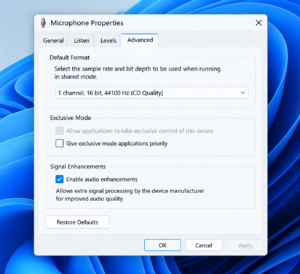
To disable exclusive mode:
- Press the Windows Key + R to open the Run dialog box.
- Type
mmsys.cpland hit Enter. This is a shortcut that opens the classic Sound Control Panel. - Navigate to the Recording tab.
- Find your active microphone (it will have a green checkmark next to it), right-click it, and select Properties.
- Go to the Advanced tab.
- Under the “Exclusive Mode” section, uncheck the box that says “Allow applications to take exclusive control of this device.”
- Click Apply, then OK. Restart Zoom and test your audio again.
5. Address Audio Enhancements Conflict
Windows 11 includes built-in audio enhancements designed to reduce background noise or improve vocal clarity. However, Zoom also has its own highly aggressive background noise suppression algorithms. When both Windows and Zoom try to filter your audio at the same time, they often cancel each other out, resulting in a muted or heavily distorted microphone.
Go back to the Windows Settings app, navigate to System > Sound, and click on your microphone. Scroll down to the Audio enhancements option and select Off from the dropdown menu. Let Zoom handle the noise cancellation natively.
6. Update, Reinstall, or Rollback Audio Drivers
If you have tried all the settings above and your computer still refuses to register sound, you are dealing with a corrupt audio driver. Drivers act as the translator between your physical microphone and Windows 11. If a recent Windows update installed an incompatible driver, that translation breaks down.
Fixing the driver through Device Manager:
- Right-click the Start button and select Device Manager.
- Expand the category labeled “Audio inputs and outputs”.
- Right-click your microphone and select Uninstall device. (Do not worry, this won’t break your computer).
- Restart your PC. When Windows 11 boots back up, it will automatically detect the missing microphone and install the freshest, most stable default driver available.
If you are using a high-end gaming headset (like Razer, SteelSeries, or Corsair), bypass Windows completely. Open the manufacturer’s dedicated software on your PC and check for firmware updates there, as proprietary software usually overrides standard Windows drivers.
7. Restart the Windows Audio Service
Sometimes, the core service that runs all sound on your computer just crashes silently in the background. Instead of restarting your whole computer, you can jumpstart the audio service.
Open the Windows Search bar, type Services, and hit Enter. Scroll down the long alphabetical list until you find Windows Audio. Right-click it and select Restart. Do the same for the service right below it, called Windows Audio Endpoint Builder. This takes about five seconds and forces Windows to re-initialize all connected audio devices.
Frequently Asked Questions
Why does my microphone work in Microsoft Teams but not in Zoom?
This is almost always caused by Windows Exclusive Mode. Teams might be running in the background and holding onto the microphone’s input signal. Disabling “Allow applications to take exclusive control of this device” in your legacy Sound Control Panel usually resolves this instantly.
What does “Failed to detect your microphone” mean in Zoom?
This error means Zoom cannot find a hardware device to pull audio from. This usually happens if your PC’s privacy settings are blocking desktop apps from accessing the mic, or if your audio driver is completely corrupted.
Can a Windows 11 update break my microphone?
Yes. Major Windows 11 feature updates frequently reset privacy permissions to their default (strict) settings, which turns off microphone access for third-party apps like Zoom. Updates can also install generic audio drivers over your specific manufacturer drivers.
How do I test my microphone before a Zoom meeting starts?
You don’t have to wait for the meeting to begin to find out your mic is broken. Open the Zoom desktop app, click on your profile picture, go to Settings, and select Audio. Click the “Test Mic” button. Speak for a few seconds; Zoom will record your voice and play it back to you. If you hear yourself, you are good to go.
Sources & References
- To ensure your app is up to date, download the latest client directly from the Official Zoom Download Center.
- For deeper driver troubleshooting, refer to Microsoft’s Official Windows 11 Sound Fix Guide.
- Always keep your motherboard’s audio drivers updated by checking your PC manufacturer’s support page (e.g., Dell, HP, Lenovo).