
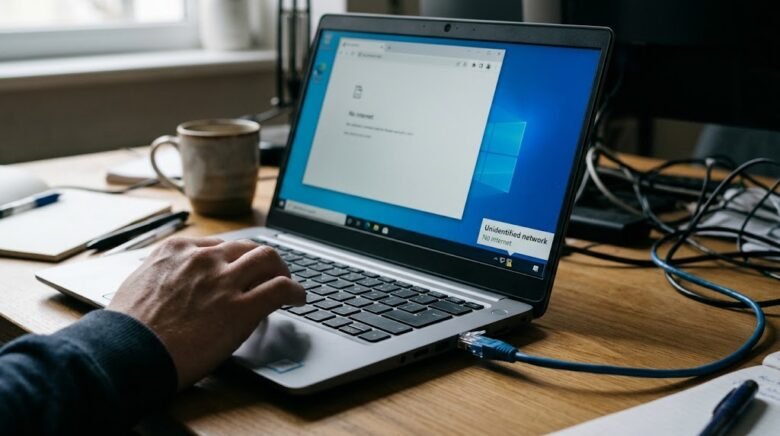
You sit down at your desk, plug in your Ethernet cable expecting that snappy, wired internet speed, but instead, you are greeted by the dreaded yellow warning triangle in your system tray. Hovering over it reveals the frustrating message: “Unidentified Network, No Internet Access.”
We have all been there. While Wi-Fi has its own set of connection drops, a hardwired Ethernet connection is supposed to be foolproof. When it fails, it usually points to a communication breakdown between your computer and your router. Specifically, your Windows machine is trying to talk to the network, but it isn’t receiving a valid IP address or the correct network settings to establish an internet connection. Instead of tearing your hair out or buying a new network card, let’s walk through the exact steps to diagnose and resolve this issue. We will start with the easiest fixes and move down to the advanced command-line network resets.
Why Does the “Unidentified Network” Error Happen?
Before we start typing commands, it helps to understand what is actually going wrong. When you plug an Ethernet cable into your PC, your router’s DHCP (Dynamic Host Configuration Protocol) server is supposed to assign your computer a unique IP address.
If your computer says “Unidentified Network,” it means this handshake failed. Windows knows it is physically plugged into something, but it doesn’t know what that network is, and it doesn’t have the IP address required to browse the web. This can be caused by outdated network drivers, corrupted TCP/IP settings, third-party antivirus software blocking the connection, or simply a faulty cable.
The Preliminary Hardware Checks
Do not skip these. It is incredibly common to spend an hour troubleshooting Windows software only to realize the cable was loose.
- Inspect the Ethernet Cable (RJ45): Unplug the cable from your PC and the router. Check the plastic clip on the ends. Is it broken? If the cable doesn’t “click” into place, the connection will drop constantly. Try swapping it with a spare cable.
- Try a Different Router Port: Sometimes, a specific LAN port on the back of your router dies. Move the cable from LAN 1 to LAN 2 and wait ten seconds to see if the network is recognized.
- Power Cycle Your Router: Unplug your modem and router from the wall outlet. Wait a full 60 seconds (do not rush this), and plug them back in. Wait for all the lights to turn green before checking your PC.
If the hardware is fully functional and you still have no internet, it is time to move on to the software fixes.
Step 1: Flush DNS and Reset TCP/IP Configuration
When network settings get tangled up, clearing out the old data and forcing a fresh start is usually the most effective fix. We can do this using the Windows Command Prompt.
Here is how to safely reset your network stack:
- Click on the Start Menu and type cmd.
- Right-click on Command Prompt and select Run as administrator. (If you don’t run it as an admin, these commands will fail).
- Once the black window opens, type the following commands exactly as they appear. Press Enter after every single line and wait for the confirmation text before typing the next one:
Plaintext
ipconfig /release
ipconfig /flushdns
ipconfig /renew
netsh winsock reset
netsh int ip reset
The ipconfig /release and /renew commands force your computer to drop its current invalid IP address and beg the router for a fresh one. The netsh commands rebuild the core network architecture in Windows that might have been corrupted by a recent update.
Once you have run all five commands, restart your computer.
Step 2: Update or Reinstall Your Network Adapter Drivers
An outdated or corrupted Network Interface Card (NIC) driver will prevent Windows from correctly reading incoming network traffic. Windows updates frequently push generic drivers that can sometimes break specific Realtek or Intel Ethernet adapters.
To fix driver issues:
- Right-click the Start button and select Device Manager.
- Click the arrow next to Network adapters to expand the list.
- Look for your Ethernet adapter (it will usually have “Gigabit”, “GbE”, “Realtek”, or “Intel” in the name).
- Right-click it and choose Uninstall device.
- Important: If a box pops up asking to “Attempt to remove the driver for this device,” leave it unchecked for now, and just click Uninstall.
- Restart your computer.
When Windows boots back up, it will automatically detect the missing Ethernet adapter and reinstall the cleanest, most recent driver it has in its repository. If the internet comes back, you are good to go.
Step 3: Assign a Static IP Address and Custom DNS
Sometimes, the router’s DHCP server is just being stubborn and refuses to give your PC a working IP address. We can bypass this completely by manually assigning an IP address and utilizing reliable, third-party DNS servers.
- Press Win + R, type
ncpa.cpl, and hit Enter. This opens your Network Connections window. - Right-click your Ethernet connection and select Properties.
- Scroll down the list, click on Internet Protocol Version 4 (TCP/IPv4), and hit the Properties button below it.
- Select the bubble that says Use the following IP address.
Enter the following details (assuming your router’s IP is the standard 192.168.1.1):
- IP address:
192.168.1.50(The ’50’ ensures it won’t conflict with phones or TVs already connected). - Subnet mask:
255.255.255.0(This should populate automatically). - Default gateway:
192.168.1.1(Or192.168.0.1, depending on your router brand).
Next, we will change your DNS servers to Google’s public servers, which are often faster and more stable than the ones provided by your ISP.
- Preferred DNS server:
8.8.8.8 - Alternate DNS server:
8.8.4.4
Click OK, close the windows, and check if the yellow triangle disappears.
Step 4: Turn Off Fast Startup (Windows 10 & 11)
Windows has a feature called “Fast Startup” that behaves like a hybrid between shutting down and putting your PC to sleep. It saves your current system state to memory to boot up faster next time.
Unfortunately, if your network adapter enters a glitchy state, Fast Startup will preserve that glitch every time you turn the PC off and on.
To disable it:
- Open the Start menu, type Control Panel, and hit Enter.
- Change the “View by” setting in the top right to Large icons.
- Click on Power Options, then click Choose what the power buttons do on the left sidebar.
- Click the shield icon that says Change settings that are currently unavailable.
- Uncheck the box for Turn on fast startup (recommended).
- Save your changes and completely shut down (not restart) your computer. Turn it back on and check your Ethernet status.
Step 5: The Nuclear Option – Windows Network Reset
If you have tried cables, commands, IP changes, and driver reinstalls, and you still see “Unidentified Network,” Windows gives you a built-in “nuclear” option.
This feature will wipe out every network setting on your computer. It removes and reinstalls all network adapters, resets your VPN software, and restores all networking components to their original factory settings.
For Windows 11:
- Go to Settings > Network & internet > Advanced network settings.
- Scroll down and click Network reset.
- Click the Reset now button.
For Windows 10:
- Go to Settings > Network & Internet > Status.
- Scroll to the very bottom and click Network reset.
- Click Reset now.
Your computer will warn you that it will restart in 5 minutes. Save any open work. Once the PC boots back up, your Ethernet adapter will act exactly as it did the day you bought the computer.
Frequently Asked Questions
Why does my Ethernet work on one laptop but say “Unidentified Network” on another?
This proves the cable and router are working perfectly. The issue is entirely isolated to the second laptop’s software. It is highly likely a driver issue, a corrupted TCP/IP configuration, or an aggressive third-party firewall blocking the connection on that specific machine.
Can an old Ethernet cable cause an IP configuration error?
Yes. Ethernet cables contain eight tiny copper wires. If one of the wires responsible for data transmission is frayed or broken internally, the cable might still provide enough of a signal for Windows to detect it’s plugged in, but not enough data integrity to actually negotiate an IP address.
Does disabling IPv6 fix the Unidentified Network error?
In some rare cases with older routers, yes. Some legacy routers struggle to route IPv6 traffic correctly. You can disable it by going to your adapter properties (the same place we changed the IPv4 settings) and unchecking the box next to Internet Protocol Version 6 (TCP/IPv6).
Will resetting my network delete my personal files?
No. A Windows Network Reset only affects network adapters, saved Wi-Fi passwords, Bluetooth pairings, and VPN configurations. Your personal documents, photos, and installed applications are completely safe and untouched.
Sources & Further Reading
To ensure you are getting the safest and most accurate tech advice, the troubleshooting steps above are verified against official documentation:
- Microsoft Support: Fix Ethernet connection problems in Windows
- Intel Support: Troubleshooting Network Adapter Connectivity Issues
- Cisco Networking Academy: Understanding DHCP and IP addressing mechanisms.