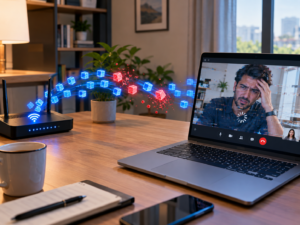
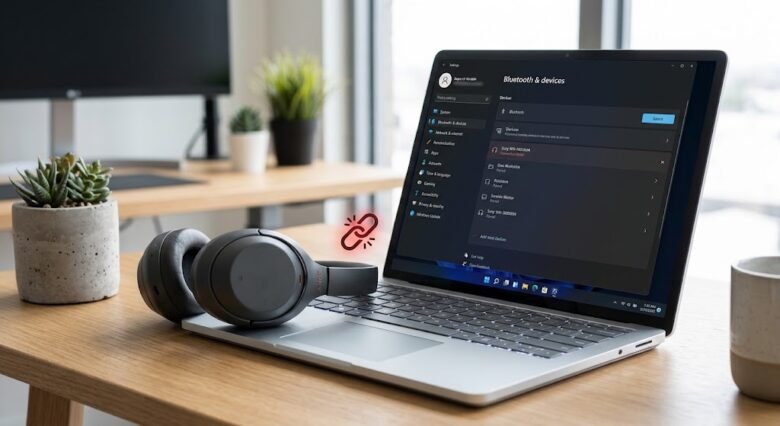
You sit down at your desk, turn on your wireless headphones or mouse, and expect an instant connection. Instead, you look at your Windows 11 settings and see the frustrating message: “Paired” but not “Connected.” You toggle the Bluetooth switch off and on, but nothing happens. The device remembers your PC, and your PC remembers the device, yet they absolutely refuse to communicate.
This is one of the most common Bluetooth anomalies in Windows 11. Fortunately, it is rarely a hardware failure. In most cases, it is a software conflict, a frozen background service, or an outdated driver that is holding up the connection.
In this comprehensive guide, we are going to walk through every proven method to force your Bluetooth device to connect properly. We will start with the easiest, most common fixes and work our way down to advanced system tweaks.
Why Does “Paired” Not Mean “Connected”?
Before jumping into the step-by-step fixes, it helps to understand why Windows 11 makes a distinction between being paired and being connected.
When a device is Paired, it simply means your computer and the Bluetooth peripheral have successfully exchanged security PINs or keys in the past. They are on each other’s trusted lists. However, being Connected requires an active, real-time data stream.
Several things can interrupt this real-time stream:
- Background Service Freezes: The specific Windows service responsible for managing Bluetooth connections might have crashed in the background.
- Driver Corruption: The software bridge (the driver) between your operating system and the physical Bluetooth adapter on your motherboard is corrupted or out of date.
- Device Hijacking: Your peripheral might be silently connected to your smartphone or tablet instead of your PC.
- Power Management Overreach: Windows 11 aggressively puts hardware to sleep to save battery, and sometimes it forgets to wake the Bluetooth adapter back up.
Pre-Flight Checks: Do These First
Before diving into Device Manager and Windows Services, check these three simple things. They solve the problem about 30% of the time.
- Check for Device Hijacking (Multi-Point Connections): If you use your Bluetooth headphones with your phone as well, turn off the Bluetooth on your phone temporarily. Many audio devices will automatically cling to the first device they see. If your phone grabs the connection first, Windows 11 will only show the device as “Paired.”
- Check the Battery Levels: A device with less than 10% battery might have enough juice to show up as paired, but it will refuse an active connection to save power. Plug it in for five minutes and try again.
- The Airplane Mode Toggle: Sometimes, the Windows 11 Bluetooth radio just needs a hard reset. Press Win + A to open Quick Settings. Turn Airplane mode ON, wait 10 seconds, and turn it OFF. This resets all wireless radios simultaneously.
If those quick checks did not resolve the issue, move on to the targeted technical fixes below.
Fix 1: The Clean Unpair and Reconnect
Sometimes the security key exchanged during the initial pairing gets corrupted. The fastest way to fix this is to make your PC and the device forget each other entirely and start fresh.
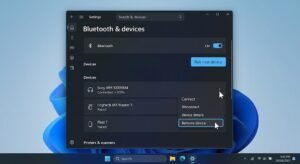
- Press Win + I on your keyboard to open the Windows Settings app.
- Navigate to Bluetooth & devices on the left sidebar.
- Click on Devices to see your full list of paired hardware.
- Find the problematic device in the list, click the three-dot menu (…) next to it, and select Remove device.
- Crucial Step: Restart your computer now. Do not skip this. Restarting clears the cached memory of the Bluetooth radio.
- Once you are back on the desktop, put your device back into pairing mode (usually by holding the power or Bluetooth button until a light flashes).
- Go back to Bluetooth & devices > Add device, and pair it again.
Fix 2: Restart the Bluetooth Support Service
Windows 11 relies on a background application called the “Bluetooth Support Service.” If this service stops running, crashes, or is set to manual startup, your devices will remain paired but will never successfully connect.
Here is how to force it back on and ensure it runs automatically:
- Press Win + R to open the Run dialog box.
- Type
services.mscand press Enter. This opens the Windows Services manager. - Scroll down the alphabetical list until you find Bluetooth Support Service.
- Right-click on it and select Properties.
- Look at the Startup type dropdown menu. If it is set to Manual, change it to Automatic.
- If the Service status says “Stopped,” click the Start button.
- If it is already running, click Stop, wait a few seconds, and then click Start to reboot the service.
- Click Apply and then OK.
Check your Bluetooth device now. In many cases, it will connect immediately after you click Apply.
Fix 3: Reinstall the Bluetooth Adapter Driver
Drivers act as the translators between your hardware and Windows 11. If a recent Windows update corrupted the Bluetooth driver, it will lose the ability to establish active connections. A clean wipe of the driver forces Windows to install a fresh, working copy.
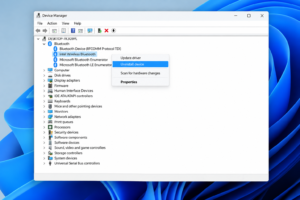
- Right-click on the Windows Start Button and select Device Manager from the Power User menu.
- Click the arrow next to Bluetooth to expand the list.
- Look for your primary Bluetooth radio. It is usually named “Intel Wireless Bluetooth,” “Realtek,” “Qualcomm,” or “Generic Bluetooth Adapter.” (Ignore the ones labeled “Enumerator”).
- Right-click your main adapter and choose Uninstall device.
- A warning box will appear. If there is a checkbox that says “Attempt to remove the driver for this device,” leave it unchecked for now. Just click Uninstall.
- Your Bluetooth will instantly stop working. Don’t panic.
- Restart your PC. When Windows 11 boots back up, it will detect that the Bluetooth hardware is missing its driver and will automatically reinstall a fresh, clean version.
Fix 4: Stop Windows from Turning Off Bluetooth to Save Power
Windows 11 has aggressive power management features. To save laptop battery life, the operating system will occasionally turn off the Bluetooth adapter. Sometimes, a bug prevents Windows from turning it back on when you need it, leaving your devices paired but disconnected.
You can disable this specific power-saving feature to ensure a stable connection:
- Open Device Manager again (Right-click Start > Device Manager).
- Expand the Bluetooth category.
- Right-click your main Bluetooth adapter (e.g., Intel Wireless Bluetooth) and select Properties.
- Look for a tab at the top called Power Management. (Note: If you don’t see this tab, skip to the next fix, as your specific hardware does not support this feature).
- Uncheck the box that says Allow the computer to turn off this device to save power.
- Click OK and restart your computer.
Fix 5: Run the Native Windows 11 Troubleshooter
If you have tried the manual steps above and the connection is still failing, it is time to let Windows attempt to diagnose itself. The built-in troubleshooter in Windows 11 is surprisingly effective at catching registry errors and fixing them silently.
- Press Win + I to open Settings.
- Go to System > Troubleshoot.
- Click on Other troubleshooters.
- Find Bluetooth in the list and click the Run button next to it.
- The diagnostic tool will scan your radio, check the background services, and attempt to apply automated fixes. If it finds an issue, it will detail what was fixed on the final screen.
Fix 6: Run System File Checker (SFC) Scan
If a core Windows system file related to wireless networking has been corrupted, none of the standard Bluetooth fixes will work. You can repair system files using the Command Prompt.
- Click the Start menu, type
cmd. - Right-click on Command Prompt and select Run as administrator.
- In the black window, type the following command exactly:
sfc /scannow - Press Enter.
- This process will take about 5 to 15 minutes. It scans your entire operating system for corrupted files and replaces them with fresh copies from a cached folder. Once it reaches 100%, restart your PC and try connecting your device again.
Frequently Asked Questions
Why does my Bluetooth connect for a second and then disconnect?
This is almost always a battery issue or a driver crash. First, ensure the device is fully charged. If it is, the Bluetooth driver on your PC is likely crashing as soon as data transfer begins. Follow Fix 3 above to reinstall the Bluetooth driver via Device Manager.
Can a Wi-Fi router interfere with my Windows 11 Bluetooth?
Yes. Both Bluetooth and traditional Wi-Fi operate on the 2.4 GHz frequency band. If your PC is sitting directly next to a Wi-Fi router, the signal interference can prevent a stable connection. Try moving your laptop a few feet away from the router or connecting your PC to a 5 GHz Wi-Fi network to free up the 2.4 GHz space.
I don’t see a Bluetooth icon anywhere in Windows 11. What happened?
If the Bluetooth toggle has vanished from Quick Settings and Settings, your PC is not detecting the physical Bluetooth hardware. This usually means the Bluetooth adapter has been disabled in the BIOS/UEFI settings, or the motherboard hardware has failed.
Does updating my BIOS fix Bluetooth issues?
Yes, in some cases. Motherboard manufacturers frequently release BIOS updates to fix stability issues with onboard Wi-Fi and Bluetooth chips. If you have tried all software fixes, check your laptop manufacturer’s support website for a recent BIOS update.
Sources & References
To ensure the accuracy and safety of the troubleshooting steps provided in this guide, information was cross-referenced with the following technical documentation:
- Microsoft Support Official Documentation: Troubleshooting Bluetooth problems in Windows (support.microsoft.com).
- Intel Support: Wireless and Bluetooth driver installation guidelines.
- Hardware Manufacturer Guidelines: Standard operating procedures for wireless peripheral connectivity across Dell, HP, and Lenovo hardware diagnostic manuals.