Few hardware issues destroy your computing experience faster than a lagging wireless mouse. Whether you are trying to headshot an enemy in a competitive shooter, precisely crop an image in Photoshop, or simply drag a spreadsheet window across your monitors, a cursor that stutters, skips, or freezes feels like dragging your hand through wet concrete.
Many users immediately assume their mouse is broken and rush out to buy a replacement. However, hardware failure is rarely the actual cause. Wireless mice rely on a delicate ecosystem of radio frequencies, USB power states, operating system polling rates, and software drivers. When just one of these elements falls out of sync, your cursor behavior becomes erratic.
This comprehensive guide will bypass the generic “turn it off and on again” advice. Instead, we will walk through the exact physical, systemic, and software-level fixes required to eliminate wireless mouse lag and restore a buttery-smooth desktop experience.
1. Eliminate USB 3.0 Radio Frequency Interference
The most common, yet least understood, cause of wireless mouse stuttering is radio frequency (RF) interference. Most wireless mice operate on a 2.4GHz frequency using a small USB dongle.
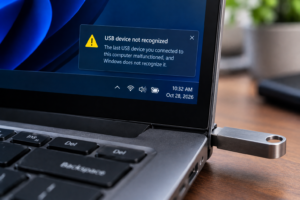
What most users do not realize is that active USB 3.0 ports (the ones with blue plastic inside) emit broadband noise in the 2.4GHz spectrum. If you plug your wireless mouse receiver directly adjacent to a high-speed USB 3.0 device—like an external hard drive or a heavy-duty webcam—the radio noise will drown out the signal from your mouse, causing massive stuttering and connection drops.
The Fix:
- Relocate the Dongle: Move your wireless mouse USB receiver to a USB 2.0 port (usually black plastic inside). USB 2.0 does not emit the same 2.4GHz interference.
- Create Physical Distance: If your PC case is located on the floor or hidden behind a thick wooden desk, the radio signal has to fight through physical barriers. Use a USB extension cable to bring the receiver up to your desk, placing it within direct line-of-sight of your mouse. Many high-end gaming mice actually include this extension cable in the box for this exact reason.
- Move Your Router: Ensure your Wi-Fi router is not sitting directly next to your PC. Wi-Fi routers blast 2.4GHz signals that easily overpower the tiny transmitter inside a wireless mouse.
2. Disable USB Selective Suspend in Windows
Windows is aggressively programmed to save power, especially on laptops. One of the ways it does this is by utilizing a feature called “USB Selective Suspend.” This feature cuts power to USB ports that the operating system thinks are idle.
Unfortunately, Windows often miscalculates this with wireless receivers, momentarily cutting power to the dongle and causing a micro-stutter every time you move the mouse after a brief pause.
How to Disable It:
- Click the Start Menu, type Control Panel, and hit Enter.
- Navigate to Hardware and Sound > Power Options.
- Next to your selected power plan, click Change plan settings.
- Click on Change advanced power settings.
- In the new window, scroll down and expand the USB settings tree.
- Expand USB selective suspend setting.
- Change the setting from Enabled to Disabled.
- Click Apply and then OK.
3. Adjust the Mouse Polling Rate
If you are using a high-end wireless gaming mouse (from brands like Logitech, Razer, or Corsair), the device likely boasts a high “polling rate.” The polling rate is how many times per second the mouse reports its physical position to your computer.
A standard office mouse has a polling rate of 125Hz (125 times per second). Gaming mice often default to 1000Hz, 2000Hz, or even 4000Hz. While high polling rates reduce latency, they also demand immense CPU resources. If you are running a heavy application or playing a demanding game, your CPU might choke on the sheer volume of mouse data, resulting in a wildly stuttering cursor.
The Fix:
- Open your specific mouse manufacturer software (e.g., Logitech G HUB, Razer Synapse, Corsair iCUE).
- Navigate to the Performance or Mouse Settings tab.
- Locate the Polling Rate or Report Rate dropdown.
- If it is set to 1000Hz or higher, drop it down to 500Hz.
A 500Hz polling rate is virtually indistinguishable from 1000Hz to the human eye, but it immediately cuts the CPU workload in half, completely eliminating stutter on older or heavily taxed processors.
4. Fix Conflicting Drivers and Audio Spikes
Sometimes, the lag has nothing to do with the mouse itself, but rather a driver conflict hijacking the system interrupts. A notorious culprit for this is the Realtek High Definition Audio driver, which can cause micro-stutters across the entire operating system, manifesting most noticeably in your mouse movements.
To ensure your mouse drivers are clean and isolated:
- Right-click the Start Button and select Device Manager.
- Expand the Mice and other pointing devices section.
- You will likely see multiple entries named “HID-compliant mouse.” Right-click and Uninstall device for every single one.
- Unplug your wireless mouse receiver.
- Restart your computer using your keyboard (Press the Windows Key, use Tab and Arrow keys to navigate to the power button, and hit Enter).
- Once Windows has booted back to the desktop, plug the receiver back in. Windows will silently install a fresh, uncorrupted driver stack.
5. Disable “Enhance Pointer Precision”
If your mouse does not necessarily “freeze” but feels artificially sluggish, floaty, or inaccurate when trying to click small icons, the problem is likely a legacy Windows feature known as mouse acceleration.
Microsoft calls this “Enhance pointer precision.” Instead of a 1:1 raw input (moving the mouse one inch on the desk equals an exact distance on the screen), this feature artificially accelerates the cursor based on how fast you move your hand. This inconsistency feels exactly like input lag.
How to turn it off:
- Press the Windows Key, type Mouse Settings, and hit Enter.
- Scroll down and click on Additional mouse options (or Advanced mouse settings).
- In the traditional Mouse Properties window, click the Pointer Options tab.
- Under the Motion section, completely uncheck the box labeled Enhance pointer precision.
- Click Apply and OK.
Your mouse will instantly feel more responsive, snappy, and predictable.
6. Check the Monitor Refresh Rate Sync
If you have a dual-monitor setup or recently purchased a high-refresh-rate monitor (144Hz or 240Hz), Windows can sometimes mismanage the display scaling. If a window is crossing over between a 60Hz screen and a 144Hz screen, the Desktop Window Manager (DWM.exe) can throttle your cursor down to 60Hz, making it look like it is lagging terribly on your primary display.
To verify your monitor is running at its maximum speed:
- Go to Settings > System > Display.
- Click on Advanced display.
- Under the Choose a refresh rate drop-down menu, ensure it is set to the absolute maximum number available (e.g., 144Hz, not 60Hz).
Summary Checklist for Troubleshooting
If you are currently frustrated by mouse lag, tackle the problem in this exact order to save time:
- Check physical interference: Move the USB dongle away from USB 3.0 ports and routers.
- Fix power settings: Disable USB Selective Suspend in Windows Power Options.
- Lower polling rate: Use your mouse software to drop the report rate to 500Hz.
- Disable acceleration: Turn off “Enhance pointer precision” for raw, snappy input.
Frequently Asked Questions
Does a low battery cause wireless mouse lag?
Yes. When a wireless mouse detects a critically low battery state, it actively lowers its sensor power and transmission strength to keep the device alive for as long as possible. This aggressive power-saving mode results in skipped frames and a stuttering cursor. Always try swapping in fresh alkaline batteries or fully charging a built-in lithium-ion battery first.
Is Bluetooth worse than a 2.4GHz USB receiver?
In terms of latency, yes. Bluetooth is designed for convenience and battery saving across multiple device types, whereas a dedicated 2.4GHz dongle provides a direct, high-bandwidth connection strictly between the mouse and the PC. If your mouse supports both modes and you are experiencing lag on Bluetooth, switch to the 2.4GHz USB dongle mode.
Why does my mouse only lag when playing video games?
If your mouse behaves perfectly on the desktop but stutters in a game, it is usually a CPU bottleneck. Games push your processor to 100% usage. When the CPU is maxed out, it cannot process the constant stream of location data coming from your mouse. Lowering the mouse polling rate to 500Hz or limiting your game’s frame rate usually resolves this entirely.
Does my mousepad affect lag?
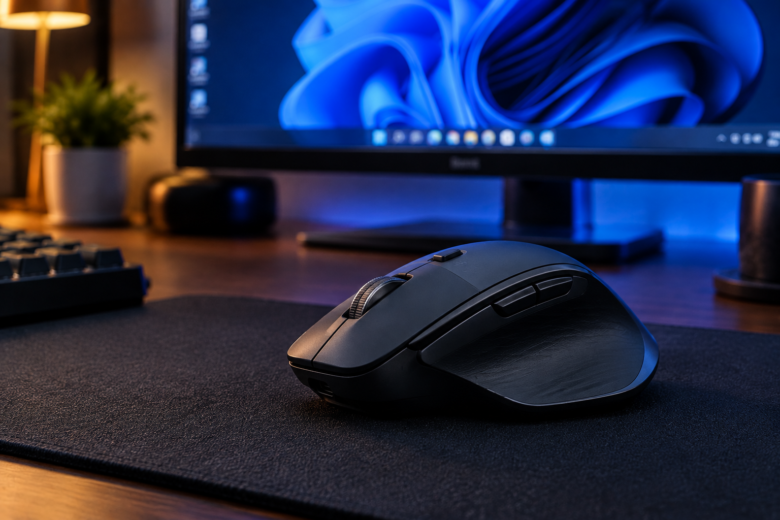
While a mousepad does not cause electronic lag, a dirty, reflective, or uneven surface can cause sensor tracking errors. If the optical sensor misreads the surface, the cursor will jump erratically across the screen, mimicking the feeling of software stutter. Using a clean, dark cloth mousepad provides the best tracking surface.
Sources & References
- Intel White Paper: USB 3.0 Radio Frequency Interference on 2.4 GHz Devices. Documentation on RF noise emissions affecting wireless peripherals.
- Microsoft Windows Support: Troubleshooting wireless mouse connections and USB Selective Suspend protocols.
- Logitech G Support: Optimizing polling rates and managing CPU usage for wireless gaming mice.