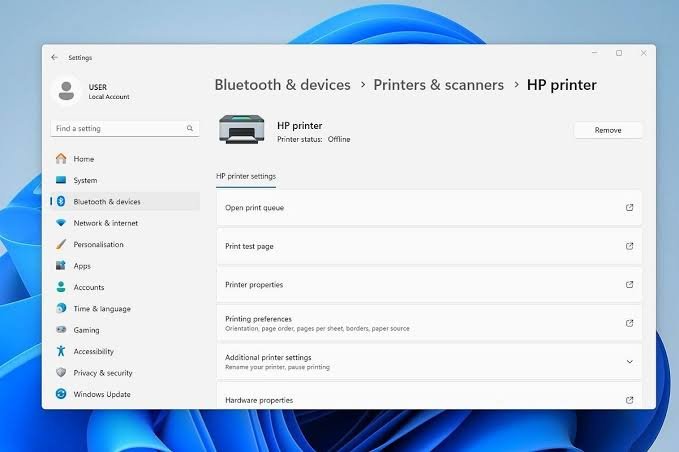
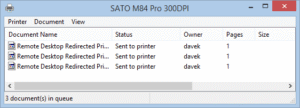
There is a unique kind of frustration reserved for hitting “Print,” hearing the machine warm up, and then watching nothing happen. You check your screen, and Windows presents you with the classic, vague error: “Printer Offline” or a print queue filled with documents stuck on “Error – Printing.”
Usually, the hardware is fine. The printer has paper, the ink is full, and the Wi-Fi is connected. The actual culprit is the Windows Print Spooler—the background software service responsible for managing all print jobs and sending them from your computer to the printer. When this service crashes, gets overloaded with corrupted files, or miscommunicates with your network, the printer appears completely dead to your operating system.
Instead of uninstalling your printer or buying a new one, you just need to clear the digital traffic jam. This guide provides step-by-step, proven methods to clear a stuck print spooler and force your printer back online.
1. Why Do Printers Suddenly Go “Offline”?
Before diving into the fixes, it helps to understand why this happens so you can prevent it in the future. A printer goes “offline” in Windows when the operating system loses communication with the device. This usually happens for three reasons:
- Corrupted Print Jobs: If a document is too large or the file gets corrupted during transfer, the Print Spooler chokes on it. Every subsequent print job piles up behind the broken one, freezing the entire queue.
- IP Address Changes: Wireless printers often use DHCP, meaning your router assigns them a dynamic IP address. If the router reboots and assigns the printer a new IP, Windows will still look for the old IP, resulting in an “Offline” status.
- SNMP Status Protocol Errors: Simple Network Management Protocol (SNMP) allows Windows to check the ink and paper status of network printers. If SNMP misreads the printer’s status, it will incorrectly tell Windows the printer is offline.
2. Method 1: Restart the Print Spooler Service (The Quick Fix)
The most effective way to clear a stuck queue and restore communication is to force-restart the Windows Print Spooler service. This flushes the temporary memory and forces Windows to reconnect to the printer.
- Press the Windows Key + R to open the Run dialog box.
- Type
services.mscand press Enter. This opens the Windows Services manager. - Scroll down the alphabetical list until you find Print Spooler.
- Right-click on Print Spooler and select Restart.
- If the “Restart” option is grayed out, click Stop, wait a few seconds, then right-click again and select Start.
Check your print queue. In most cases, the stuck documents will clear out, and the printer will immediately come back online and start printing.
3. Method 2: Manually Delete Spooler Files (The Deep Clean)
Sometimes, a print job is so corrupted that simply restarting the service does not work. The corrupted file remains lodged in your hard drive’s system folders, instantly crashing the spooler the moment it turns back on. You must delete these files manually.
- Open the Services manager (
services.msc) again. - Right-click Print Spooler and select Stop. (You must stop the service first, or Windows will not let you delete the stuck files).
- Open Windows File Explorer.
- Navigate to this exact folder path:
C:\Windows\System32\spool\PRINTERS - Windows may prompt you for administrator permission to open this folder. Click Continue.
- Inside the PRINTERS folder, you will see files ending in
.SHDand.SPL. These are your stuck print jobs. - Highlight all the files in this folder and Delete them. Do not delete the folder itself, only the files inside it.
- Go back to the Services manager, right-click Print Spooler, and select Start.
Your print queue is now completely sanitized.
4. Method 3: Clear the Spooler via Command Prompt
If you prefer a faster, more technical route, you can execute the deep clean process using a few quick commands in the Windows Command Prompt. This does exactly what Method 2 does, but without needing to click through menus.
- Click the Windows Start button, type
cmd, right-click Command Prompt, and select Run as administrator. - Type the following command to stop the spooler and press Enter:
net stop spooler - Type the following command to delete the stuck files and press Enter:
del /Q /F /S "%systemroot%\System32\Spool\Printers\*.*" - Finally, type the following command to turn the spooler back on and press Enter:
net start spooler
Exit the command prompt. Your printer should now be ready to accept new jobs.
5. Method 4: Disable “Use Printer Offline”
If your print spooler is empty but the printer still refuses to print, Windows might be actively forcing the printer into an offline state due to a misconfigured setting.
- Open the Control Panel (search for it in the Start menu).
- Go to Devices and Printers (or View devices and printers under Hardware and Sound).
- Right-click your problematic printer and select See what’s printing.
- In the new window, click the Printer tab on the top menu bar.
- Look for a checkmark next to Use Printer Offline. If it is checked, click it to uncheck it.
As soon as you remove this checkmark, Windows will attempt to ping the printer over the network. If the printer is turned on, its status should change to “Ready.”
6. Method 5: Fix Network Port and SNMP Issues
If you use a Wi-Fi printer and it consistently goes offline every few days, the issue is almost certainly network-related. Windows relies on a protocol called SNMP to talk to network printers, and it is notoriously buggy.
To disable SNMP Status:
- Open Control Panel > Devices and Printers.
- Right-click your printer and select Printer properties (Not Properties at the bottom, specifically Printer properties).
- Navigate to the Ports tab.
- Scroll down your list of ports. The port with the checkmark next to it is the one your printer is using (usually a Standard TCP/IP Port or a WSD Port). Highlight it and click Configure Port.
- Look at the bottom of the new window for a checkbox labeled SNMP Status Enabled.
- Uncheck this box, click OK, and then click Apply.
Pro Tip: If your printer is using a “WSD Port” (Web Services for Devices), this is a frequent cause of offline errors. IT professionals heavily recommend assigning your printer a Static IP address via your router, and then creating a new “Standard TCP/IP Port” in Windows using that exact IP address. This bypasses the unreliable WSD protocol entirely.
Summary of Best Practices
Dealing with printer errors interrupts your workflow. To minimize these occurrences, always ensure you download the manufacturer-specific drivers (from HP, Brother, Canon, or Epson) rather than relying solely on the generic drivers Windows installs automatically. Additionally, setting a static IP address for wireless printers is the single most effective way to permanently stop the “Printer Offline” network drop issue.
Frequently Asked Questions
Is it safe to delete the files in the PRINTERS spool folder?
Yes. The files located in C:\Windows\System32\spool\PRINTERS are purely temporary data files (representing the documents you tried to print). Deleting them will not harm your operating system or your printer; it simply cancels the print jobs that were stuck.
Why does my printer keep going offline even after I clear the spooler?
If the spooler is clear but the printer repeatedly drops offline, you are dealing with a network IP conflict or a Wi-Fi sleep mode issue. The printer’s IP address likely changed, breaking the path Windows uses to find it. Setting a Static IP address for the printer on your router will resolve this.
What is the difference between stopping the spooler and restarting the printer?
Restarting the physical printer only clears the hardware’s internal memory. However, the corrupted file causing the problem usually lives inside your computer’s Windows operating system. That is why you must clear the Windows Print Spooler on your PC to fix the issue, rather than just rebooting the physical machine.
Does this fix work for both Windows 10 and Windows 11?
Yes. The Print Spooler architecture and the services.msc interface have remained structurally identical across Windows 7, Windows 10, and Windows 11. The steps outlined here apply to all modern Windows versions.
Sources & References
- Microsoft Support: Fix printer connection and printing problems in Windows.
- Brother Technical Support: Clear the Print Queue / Print Spooler to delete stuck jobs.
- HP Customer Support: Printer is offline (Windows) troubleshooting guidelines.