
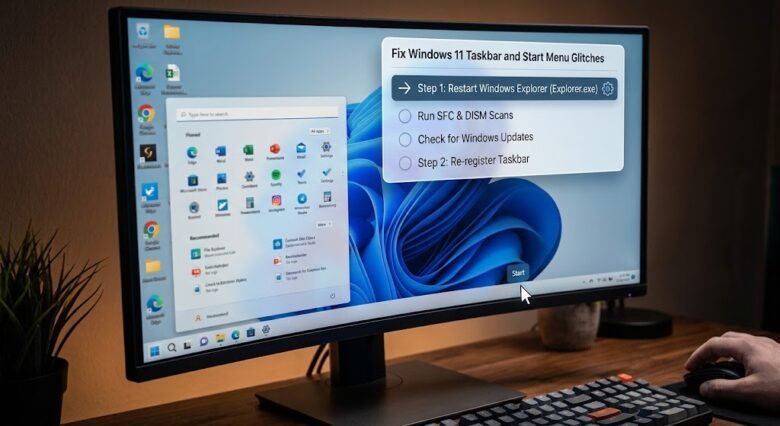
The Taskbar and Start Menu are the primary navigational arteries of the Windows 11 operating system. When you click the Windows icon and nothing happens, or when the taskbar freezes, disappears, or continuously loads with a spinning blue circle, your entire workflow comes to a grinding halt. You are left unable to open applications, search for files, or even easily shut down your PC.
Unlike previous iterations of Windows where the taskbar was deeply baked into the core system shell, Windows 11 modernized these elements by modularizing them. The Start Menu and Taskbar are now highly dependent on background services, specifically the explorer.exe process, the Windows Search index, and various Universal Windows Platform (UWP) app packages.
While this modularity allows Microsoft to push design updates faster, it also means that a single corrupted cache file, a misconfigured registry key, or a buggy Windows Update (specifically related to the “IrisService”) can completely break the graphical interface.
In this comprehensive guide, we will walk you through the exact, step-by-step methods to unfreeze your Windows 11 Taskbar and restore full functionality to your Start Menu, without needing to reinstall your operating system.
Pre-Troubleshooting: Navigating Without a Mouse
If your Taskbar is completely dead, clicking on it will do nothing. Before we begin troubleshooting, you must know how to navigate the operating system using only keyboard shortcuts. These shortcuts bypass the frozen graphical interface and talk directly to the Windows kernel.
Ctrl + Shift + Esc: Instantly opens the Task Manager.Windows Key + R: Opens the Run dialog box (crucial for executing commands).Windows Key + X: Opens the hidden advanced user menu (if the Start Menu is only partially broken).Alt + F4(while on the desktop): Opens the classic Windows shutdown dialog box.
Keep these shortcuts in mind, as you will need them to execute the fixes below.
Fix 1: Restart Windows Explorer (The Quick Fix)
The Windows Explorer process (explorer.exe) does not just manage your file folders; it is the master process responsible for rendering your desktop icons, your Taskbar, and your Start Menu. When the Taskbar freezes, it usually means explorer.exe has crashed or caught itself in an infinite processing loop. Restarting it is the fastest way to recover your interface.
Step-by-Step Execution:
- Press
Ctrl + Shift + Escon your keyboard to force the Task Manager to open. - If the Task Manager opens in a small, simplified window, click More details at the bottom left.
- Make sure you are on the Processes tab at the top.
- Scroll down the list of running apps until you find Windows Explorer (it has a yellow folder icon).
- Right-click on Windows Explorer and select Restart from the context menu.
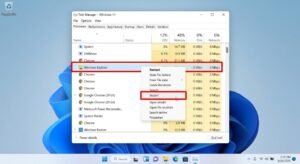
Your screen will briefly flash black, and your Taskbar will disappear for about 2 to 3 seconds. When it reappears, explorer.exe will have successfully rebooted. Try clicking your Start Menu to see if functionality is restored.
Fix 2: Re-register the Start Menu via PowerShell
If restarting Windows Explorer did not work, the internal package files that govern the Universal Windows Platform (UWP) apps—which include the modern Start Menu—might be corrupted or unregistered. You can use an elevated PowerShell command to forcefully reinstall and re-register these core UI packages.
Step-by-Step Execution:
- Press
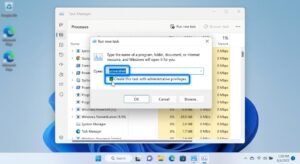
Ctrl + Shift + Escto open the Task Manager. - Click on File in the top left corner, then select Run new task.
- In the “Open” field, type
powershell. - CRITICAL STEP: Check the box underneath that says Create this task with administrative privileges. Click OK.
- A blue Administrator PowerShell window will open. Copy and paste the following exact command into the window and press Enter:
Get-AppXPackage -AllUsers | Foreach {Add-AppxPackage -DisableDevelopmentMode -Register "$($_.InstallLocation)\AppXManifest.xml"} - You will see a flurry of yellow text and progress bars processing across the screen. Ignore any red error text that appears; this simply means a specific package is currently in use and cannot be overwritten.
- Once the command finishes and returns to the standard prompt line, type
exitand press Enter. - Restart your computer.
Fix 3: Restart the Windows Search Service
In Windows 11, the Start Menu and the Windows Search function are inextricably linked. If the Windows Search indexing service stalls, hangs, or corrupts, it will drag the Start Menu down with it, causing the menu to become completely unresponsive to clicks.
Step-by-Step Execution:
- Press
Windows Key + Ron your keyboard to open the Run dialog box. - Type
services.mscand hit Enter. - In the Services window, scroll down the alphabetical list until you locate Windows Search.
- Right-click on Windows Search and select Properties.
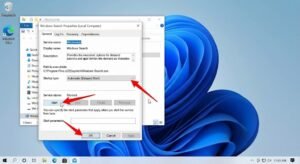
- Look at the “Service status” section in the middle of the window. If the service is stopped, click the Start button.
- If the service is already running, click Stop, wait five seconds, and then click Start to cycle the service.
- Ensure the “Startup type” is set to Automatic (Delayed Start).
- Click Apply, then OK.
Fix 4: Uninstall the Latest Windows Update
Historically, Microsoft has accidentally broken the Windows 11 Taskbar through routine cumulative updates (a famous example being the “IrisService” bug that caused massive Taskbar crashes globally). If your Taskbar was working perfectly yesterday but is broken today, a background Windows Update is likely the culprit. Uninstalling the most recent update will revert your system to a stable state.
Step-by-Step Execution:
- Press
Windows Key + Ito open Settings. (If Settings won’t open from the keyboard shortcut, pressWindows Key + R, typems-settings:, and press Enter). - On the left sidebar, click on Windows Update.
- Click on Update history.
- Scroll all the way down to the “Related settings” section and click on Uninstall updates.
- Look at the list of recent updates. Pay attention to the “Installed on” date. Locate the most recent Update for Microsoft Windows (it will usually have a KB number, like KB5001234).
- Click the Uninstall button next to it.
- Confirm the uninstallation and allow the PC to restart.
If the Taskbar works perfectly after the rollback, you should pause Windows Updates for 7 days to give Microsoft time to patch the buggy code before your PC tries to download it again.
Fix 5: Run SFC and DISM Scans
If neither restarting Explorer nor rolling back updates works, your system may be suffering from deep-level file corruption. The System File Checker (SFC) and Deployment Image Servicing and Management (DISM) utilities will scan your OS for broken files and replace them with fresh versions directly from Microsoft’s servers.
Step-by-Step Execution:
- Press
Ctrl + Shift + Escto open the Task Manager. - Click File > Run new task.
- Type
cmd, check the administrative privileges box, and click OK. - Type
sfc /scannowand press Enter. Wait for it to hit 100%. - Next, type
DISM /Online /Cleanup-Image /RestoreHealthand press Enter. - Once completed, restart your PC.
Conclusion
An unresponsive Windows 11 Taskbar and Start Menu can make your computer feel entirely useless, but it is rarely a sign of hardware failure. Because Windows 11 relies on interconnected background services to render its modern UI, graphical freezing is almost always a software-level crash.
By familiarizing yourself with keyboard shortcuts to bypass the dead interface, you can quickly restart the explorer.exe process, re-register corrupted UWP packages via PowerShell, and rollback buggy system updates. Maintaining a healthy system through occasional SFC and DISM scans will ensure that your Taskbar remains swift, responsive, and stable.
Frequently Asked Questions
1. Why did my Taskbar suddenly disappear completely?
If your Taskbar is completely invisible rather than just frozen, you may have accidentally enabled the auto-hide feature. Press Windows Key + I to open Settings, navigate to Personalization > Taskbar > Taskbar behaviors, and ensure the Automatically hide the taskbar option is unchecked. If it is unchecked and still missing, restarting explorer.exe will bring it back.
2. Will running the PowerShell command delete my installed apps?
No. The Get-AppXPackage command provided in this guide only re-registers the core manifestation files of default Windows apps (like the Start Menu, Calculator, and Microsoft Store). It does not uninstall your personal software or delete any of your user data.
3. What is the IrisService and why does it break the Start Menu?
The IrisService is a backend component Windows 11 uses to deliver Bing wallpaper of the day, lock screen spotlights, and targeted suggestions in the Start Menu. Occasionally, Microsoft pushes an update to this service that contains a server-side bug. When your PC tries to download the buggy data, it crashes the entire Start Menu UI.
4. If all fixes fail, what is my last resort?
If you have executed every fix in this guide and the Start Menu is still permanently frozen, your user profile registry may be irrevocably corrupted. The easiest fix is to create a new local user account in Windows Settings, transfer your files to the new account, and delete the corrupted one. Alternatively, you can perform a “Reset this PC” operation while keeping your personal files.