

Safe Mode is one of the most powerful diagnostic tools built into the Windows 11 operating system. When your PC is suffering from crashing drivers, severe malware infections, or stubborn software bugs, booting into Safe Mode loads only the bare minimum system files and drivers, allowing you to troubleshoot and repair the issue in a clean environment.
However, Safe Mode can occasionally become a trap. If you enabled Safe Mode using the System Configuration tool (msconfig) to troubleshoot a past problem, and then uninstalled a critical driver or forgot to reset your boot flags before restarting, Windows might get stuck in an endless loop. Every time your PC reboots, it automatically jumps right back into Safe Mode, locking you out of your normal desktop, disabling certain networking features, and preventing your favorite software from launching.
If you are trapped in this recurring loop, restarting your computer normally does nothing because the system configuration flag is hardcoded into the bootloader. In this comprehensive, step-by-step troubleshooting guide, we will walk you through the exact methods to break out of the Safe Mode boot loop in Windows 11 and restore your computer to its normal, fully-functional desktop state.
Pre-Troubleshooting: Understanding Why It Happens
Before diving into the fixes, it helps to understand why your PC is trapped. In 99% of cases, users get stuck in a Safe Mode loop because they used the msconfig utility to force a “Minimal” or “Alternative Shell” boot for diagnostic testing.
When you check that box in System Configuration, Windows is explicitly commanded to ignore standard startups indefinitely until that specific flag is cleared. Because the graphical interface in Safe Mode is often stripped down or missing certain administrative shortcuts, you cannot simply uncheck the box through normal menu navigation. You must use advanced command lines or system configuration overrides.
Fix 1: Clear the Safe Mode Boot Flag via MSConfig (If Accessible)
If your version of Safe Mode loaded with basic user interface capabilities and allows you to open applications, you can escape the loop instantly by reversing the exact setting that put you there.
Step-by-Step Execution:
- Press
Windows Key + Rsimultaneously on your keyboard to open the Run dialog box. - Type
msconfiginto the text field and press Enter. This opens the System Configuration window. - Click on the Boot tab at the top of the window.
- Look at the “Boot options” section in the lower left. If Safe boot is checked, click the checkbox to uncheck it.
- Click the Apply button, then click OK.
- A prompt will appear asking you to restart your computer. Click Restart.
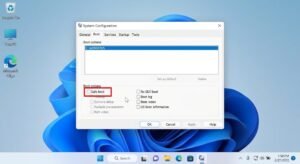
Your PC will now reboot normally, bypassing Safe Mode entirely and landing you back on your standard Windows 11 desktop.
Fix 2: Force Boot Configuration Data (BCD) Reset via Command Prompt
If your Safe Mode loop launched into a stripped-down environment (such as an Alternative Shell with a black background and no Start Menu access), the msconfig method above will not work. Instead, you must use an elevated Command Prompt to force the Boot Configuration Data (BCD) editor to clear the safeboot flag.
Step-by-Step Execution:
- If you are looking at a black Safe Mode command prompt screen, type
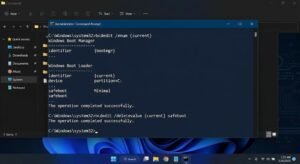
cmdand press Enter, or pressCtrl + Shift + Escto open Task Manager, click File > Run new task, typecmd, check the administrative privileges box, and hit Enter. - In the black Command Prompt window, type the following command exactly as written and press Enter:
bcdedit /deletevalue {current} safeboot - If you receive a success message (stating that the operation completed successfully), the safe boot flag has been erased from your system’s bootloader.
- Alternatively, if that specific command throws an error, type this fallback command and press Enter:
bcdedit /deletevalue {default} safeboot - Close the Command Prompt window by typing
exitand hitting Enter. - Restart your computer manually.
Fix 3: Use Automatic Repair / Advanced Startup to Escape
If your PC is caught in such a severe loop that it crashes before fully loading even the Safe Mode desktop, you will need to break the cycle using the Windows Recovery Environment (WinRE).
Step-by-Step Execution:
- Turn on your computer. As soon as you see your manufacturer’s logo or the initial Windows dots spinning, press and hold the physical Power button on your PC case for 5 to 10 seconds to force a hard shutdown.
- Turn the PC back on, and repeat the hard shutdown process two more times.
- On the fourth boot, Windows 11 will recognize that the system is failing to boot normally and will automatically launch the Automatic Repair screen.
- Click on the Advanced options button.
- Navigate to Troubleshoot > Advanced options > Command Prompt.
- Once the recovery command prompt opens (note that this runs in an isolated environment), type the following command to clear the boot flag across all active partitions and press Enter:
bcdedit /deletevalue {default} safeboot - Type
exitto close the command window, then click Continue to exit to Windows 11.
Fix 4: Perform a System Restore
If you cleared the Safe Mode boot flag using BCDedit, but your PC still refuses to boot normally and crashes back into a recovery loop, a corrupted driver or registry change made while you were testing things in Safe Mode is now breaking your standard boot sequence. You must roll back your system state using a System Restore Point.
Step-by-Step Execution:
- Access the Windows Recovery Environment (WinRE) using the 3-hard-shutdowns method outlined in Fix 3.
- Click on Troubleshoot > Advanced options > System Restore.
- Select your user account and enter your Windows password if prompted.
- When the System Restore wizard pops up, click Next.
- Choose a restore point that is dated before you entered Safe Mode or made system changes.
- Click Next, review your restoration details, and click Finish.
- Allow Windows to safely restore your registry files and reboot your system.
Conclusion
Getting trapped in a Safe Mode boot loop can feel terrifying because it isolates your PC from standard networking, custom applications, and your familiar desktop environment. However, because this loop is almost always triggered by a lingering configuration flag in the system bootloader or registry, it is entirely fixable.
Whether you uncheck the flag via MSConfig, execute a quick bcdedit command in an elevated terminal, or use the Windows Recovery Environment to restore a stable system state, your PC will quickly return to normal operation. Always remember to clear your diagnostic flags as soon as you finish troubleshooting your hardware!
Frequently Asked Questions
Will clearing the Safe Mode flag delete my personal files?
No. Using msconfig or running the bcdedit command to exit Safe Mode only modifies the bootloader configuration files. It does not touch, scan, move, or delete any of your personal documents, photos, applications, or games.
Why does Windows 11 have Safe Mode in the first place if it can cause loops?
Safe Mode is an essential diagnostic safety net. It allows technicians and advanced users to load an operating system free of third-party driver conflicts so they can safely uninstall malware or broken software. A boot loop only occurs if a user manually forces a persistent boot flag without resetting it afterward.
What should I do if my PC still boots to a black screen after exiting Safe Mode?
If you successfully exited Safe Mode (meaning the system is no longer displaying the “Safe Mode” text in the corners of your screen), but you are now stuck on a black screen with a cursor, your graphics driver is likely corrupted. Use Ctrl + Shift + Esc to open Task Manager, restart explorer.exe, or boot into Safe Mode one last time to cleanly reinstall your GPU drivers using DDU (Display Driver Uninstaller).
Can I use a USB installation drive to fix a Safe Mode loop? Yes. If the Windows Recovery Environment on your hard drive is corrupted and you cannot access a command prompt, you can plug in a bootable Windows 11 USB installation media drive, boot from it, select “Repair your computer” on the setup screen, and access the command line tools from there.