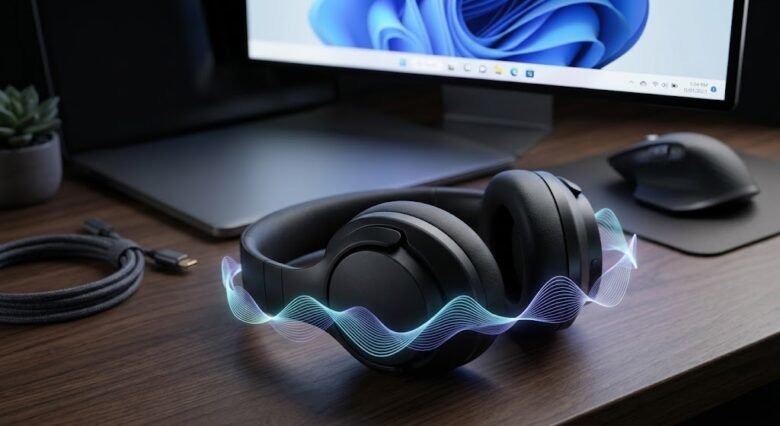
Spatial audio on Windows 11 is designed to take a standard two-channel stereo signal and wrap it around your head in a three-dimensional sphere. Whether you are using Windows Sonic for Headphones, Dolby Atmos, or DTS Headphone:X, virtual surround sound makes a massive difference in competitive shooters where pinpointing footsteps above or below you matters, or when watching movies mixed with height channels.
However, Windows 11 has a notorious habit of breaking its own spatial audio pipeline. You might try to turn on Windows Sonic only to watch the dropdown menu immediately snap back to “Off.” In other cases, the Spatial Sound toggle is completely grayed out, or clicking it triggers a cryptic warning: “Something went wrong while trying to turn on spatial audio” or “This format is not supported by the device.”
When Windows 11 refuses to engage spatial audio, it is rarely a problem with your physical headphones. Instead, the operating system is blocking the 3D audio engine because of an incompatible sample rate, a locked single-channel Bluetooth profile, or third-party bloatware hijacking the audio stream. Work through these fixes in order to unlock your spatial sound settings and clear format errors.
1. Disable Mono Audio (The #1 Cause of Grayed-Out Settings)
Before touching your drivers or registry, check the Windows Accessibility settings. Spatial audio relies on precise phase and timing differences between your left and right earcups to trick your brain into hearing 3D space.
If “Mono Audio” is enabled on your PC, Windows merges the left and right channels into a single flat stream. Because 3D audio cannot physically function on a single merged channel, Windows 11 completely locks and grays out the Spatial Sound dropdown menu without telling you why.
How to turn off Mono Audio:
- Press Windows Key + I to open the Settings app.
- Click on System in the left sidebar, then select Sound.
- Scroll down to the Output section and look directly below the Volume slider for the Mono audio toggle. (In some Windows 11 builds, this is located under Accessibility > Audio).
- Make sure the toggle is switched Off.
- Click on your headphones to open their properties page and check if the Spatial audio dropdown menu is now clickable.
2. Step Down Your Sample Rate and Bit Depth
This is the exact culprit behind the “This format is not supported by the device” error. Many users buy a high-end USB headset or an external DAC (Digital-to-Analog Converter), open the Windows sound settings, and immediately crank the audio format up to the highest possible number—such as 32-bit, 192000 Hz or 384000 Hz—assuming higher numbers automatically mean better sound.
While your hardware DAC might support those ultra-high frequencies for raw stereo music, the Windows Spatial Audio API does not. Microsoft’s spatial sound engine (along with Dolby Atmos and DTS) operates strictly within standard studio sample rates. If your headphones are set to 192000 Hz, the spatial engine crashes the moment you try to turn it on.
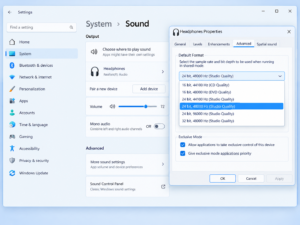
How to set a spatial-compatible format:
- Open Settings (Windows Key + I) and go to System > Sound.
- Click directly on the name of your connected headphones to open their device properties.
- Under the Output settings section, locate the Format dropdown menu.
- Change the format to 16 bit, 48000 Hz (DVD Quality) or 24 bit, 48000 Hz (Studio Quality).
- Wait two seconds for the audio stream to reset, then scroll down to the Spatial audio section and select Windows Sonic for Headphones or Dolby Atmos. It should now lock in without reverting to “Off.”
3. Clear Third-Party Audio Processing Conflicts (APO)
Spatial audio works by inserting an Audio Processing Object (APO) into the Windows sound path. The problem is that modern motherboards and gaming headsets come bundled with their own aggressive audio suites—such as Nahimic, ASUS Sonic Studio, Razer THX Spatial, SteelSeries Sonar, or Waves MaxxAudio.
Windows 11 cannot run two 3D spatial engines on the same physical output device simultaneously. If your motherboard’s Realtek driver has “Audio Enhancements” turned on, it locks the APO slot, causing Windows Sonic or Dolby Atmos to fail silently when selected.
How to bypass conflicting audio enhancements:
- In the System > Sound menu, click on your headphones to open their properties.
- Scroll down to the Advanced settings section.
- Find the Audio enhancements dropdown menu.
- Change it from “Device default effects” to Off.
- Immediately try enabling Spatial Audio right below it.
Note: In rare cases with Dolby Atmos, disabling enhancements entirely also disables the Dolby processor. If setting it to “Off” breaks Dolby Atmos, open the classic Sound Control Panel (mmsys.cpl), open your headphone Properties, go to the Advanced tab, check “Enable audio enhancements,” and instead close or uninstall third-party apps like Nahimic or Razer Synapse running in your system tray.
4. Fix the Bluetooth “Hands-Free Telephony” Trap
If you are using wireless Bluetooth headphones (like Sony WH-1000XM5, Bose QuietComfort, or AirPods) and spatial audio refuses to work—or the audio suddenly sounds like a tinny 1990s telephone call—you are trapped in the Bluetooth Hands-Free Profile (HFP).
Bluetooth lacks the bandwidth to transmit high-resolution stereo output and microphone input at the same time. Whenever an app on your PC (like Discord, Zoom, or an in-game voice chat) accesses your Bluetooth headset’s built-in microphone, Windows automatically dumps your high-quality stereo connection (A2DP) and switches the headset into a low-bitrate mono communication mode. Spatial audio cannot run on a Hands-Free profile.
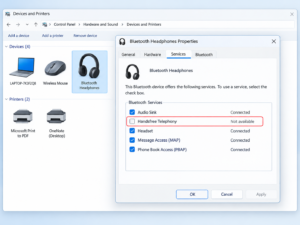
How to lock your Bluetooth headphones into Stereo mode:
- Press Windows Key + R, type
control printers, and press Enter (or go to Settings > Bluetooth & devices > Devices > More devices and printer settings). - Find your wireless headphones in the list of devices, right-click them, and select Properties.
- Navigate to the Services tab at the top of the small window.
- Wait a few seconds for the list of Bluetooth protocols to load, then uncheck the box next to Handsfree Telephony.
- Click Apply and OK.
Keep in mind: This disables the built-in microphone on your Bluetooth headset while connected to your PC, forcing you to use a standalone desk mic or webcam mic, but it guarantees your headphones stay locked in high-bitrate stereo mode where Spatial Audio works reliably.
5. Force Stereo Configuration in the Legacy Sound Panel
Sometimes, a gaming headset connects via a USB dongle and tricks Windows into thinking it is a physical 7.1 surround sound speaker system with eight individual room speakers.
Windows Sonic, Dolby Atmos for Headphones, and DTS Sound Unbound are strictly engineered to take multi-channel game audio and binaurally downmix it into 2-channel stereo headphones. If Windows thinks your headset is already a physical 7.1 speaker setup, it will grey out the headphone spatial formats entirely.
| Current Windows Speaker Config | Spatial Audio Behavior | How to Fix |
| Stereo (2.0) | Works properly with Sonic, Atmos, and DTS | None needed. |
| 5.1 / 7.1 Surround | Grays out headphone spatial formats | Re-run the Speaker Setup wizard and force Stereo. |
| Mono (1.0) | Completely locks out all 3D audio | Disable Mono Audio in Windows Accessibility settings. |
How to force your USB headset back to 2-channel Stereo:
- Press Windows Key + R, type
mmsys.cpl, and press Enter to launch the legacy Sound panel. - Under the Playback tab, click once on your headset to highlight it.
- Click the Configure button in the bottom-left corner of the window (if the button is clickable).
- Under Audio channels, select Stereo at the very top of the list instead of 5.1 or 7.1 Surround.
- Click Next through the remaining prompts, then click Finish. Your Spatial Sound tab will now allow you to apply virtual headphone formats.
6. Repair Corrupted Dolby Access or DTS Licenses
If Windows Sonic works fine, but selecting Dolby Atmos for Headphones or DTS Headphone:X throws an error or kicks you back to the Microsoft Store app, the licensing token between the companion app and the Windows audio service is broken.
Both Dolby Access and DTS Sound Unbound rely on background verification through the Microsoft Store. When Windows updates in the background, the app cache can corrupt, leading Windows to think you haven’t activated your license or free trial.
How to reset the spatial audio companion apps:
- Right-click the Start button and select Installed apps (or Apps & features).
- Search for Dolby Access or DTS Sound Unbound.
- Click the three-dot menu icon on the right side of the app and select Advanced options.
- Scroll down to the Reset section and click Repair. Wait for the checkmark to appear.
- If Repair does not fix the toggle error, click Reset right below it. This wipes the local app cache without deleting your purchased Microsoft Store license.
- Open the Dolby Access or DTS app from your Start menu, let it sync with your Microsoft account for five seconds, and click the “Configure” button directly inside the app rather than through the Windows Settings menu.
7. Swap the Audio Driver to “High Definition Audio Device”
If every single setting above is configured properly and the Spatial Sound dropdown menu is still completely non-responsive, your manufacturer’s proprietary audio driver (usually Realtek USB Audio or an OEM gaming headset driver) has a broken registry hook.
You can bypass buggy manufacturer drivers by instructing Windows 11 to use Microsoft’s native, ultra-stable audio driver instead:
- Right-click the Start button and open Device Manager.
- Expand Sound, video and game controllers.
- Right-click your headphones or motherboard audio chip and select Update driver.
- Click Browse my computer for drivers, then select Let me pick from a list of available drivers on my computer.
- Uncheck “Show compatible hardware” if needed, and select High Definition Audio Device (or USB Audio 2.0 for USB headsets).
- Click Next, ignore any warning prompts, and restart your PC. Microsoft’s native driver integrates directly with the Windows 11 spatial audio engine without third-party interference.
Frequently Asked Questions (FAQs)
Why does my Spatial Audio turn itself off every time I restart my PC?
This happens most often with USB headsets and monitor pass-through jacks. When Windows shuts down and boots back up, it initializes core audio services before your USB ports finish waking up. When it doesn’t see the headset immediately, it resets the spatial flag to “Off.” Plugging your USB headset into a direct motherboard USB 2.0 or 3.0 port (rather than a front-panel port or external USB hub) usually stops this reset behavior.
Should I turn on Windows Sonic if my game already has a “3D Audio” or “HRTF” setting inside the game menu?
No. Games like Counter-Strike 2, Valorant, Overwatch 2, and Battlefield have their own built-in HRTF (Head-Related Transfer Function) 3D audio engines. If you turn on the in-game 3D audio and turn on Windows Sonic or Dolby Atmos in Windows 11 at the same time, the sound gets processed twice. This destroys directional accuracy and makes your audio sound hollow, metallic, and distant. Only use one at a time—unless the game explicitly states its 3D audio mode feeds directly into the Windows Spatial API (like Cyberpunk 2077 or Call of Duty).
Is Dolby Atmos for Headphones actually better than the free Windows Sonic?
While both use the exact same underlying Windows Spatial API to position sounds in 3D space, most audiophiles and gamers prefer Dolby Atmos or DTS Headphone:X over Windows Sonic. Windows Sonic tends to add a noticeable mid-bass reverb that can make dialogue sound slightly boxy. Furthermore, the paid Dolby Access app includes a 10-band custom equalizer and intelligent volume leveling, whereas Windows Sonic offers zero customization toggles.
Can I use Spatial Audio with desktop speakers instead of headphones?
Not with the headphone formats. Windows Sonic for Headphones and Dolby Atmos for Headphones rely on binaural acoustic cross-talk cancellation, which only works when drivers are sealed directly over your left and right ears. If you have a Dolby Atmos-certified soundbar or an AVR home theater connected via HDMI eARC, you must download the free “Dolby Atmos for Home Theater” module inside the Dolby Access app instead.
Sources & References
- For technical details on how Windows processes 3D audio streams and sample rate limits, consult Microsoft’s Spatial Sound Architecture Documentation.
- For troubleshooting activation issues or supported bitrates with Dolby Atmos, visit the Official Dolby Access Support Knowledge Base.
- To check general audio device connectivity and driver steps in Windows 11, refer to Microsoft’s Windows Sound Troubleshooting Guide.