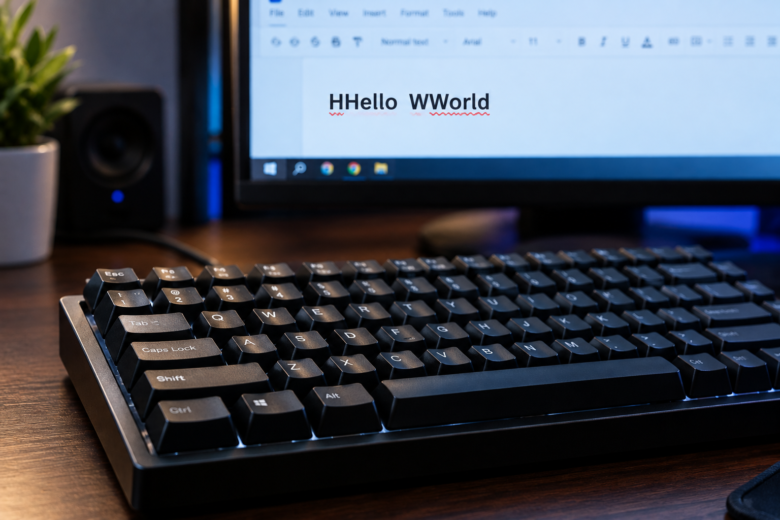
Pressing a key once and seeing it appear twice (or three times) on your screen is one of the most maddening hardware issues a PC user can face. Yyou eend uup ttyping llike tthis, constantly hitting the backspace key just to send a basic email or write a line of code. This phenomenon is known as “keyboard chattering” or “key bounce.”
While it is tempting to throw the keyboard away, chattering is rarely a sign of a completely dead peripheral. It is usually a microscopic mechanical failure or a software miscommunication regarding how Windows 11 interprets electrical signals.
When you press a key, a metal leaf inside the switch makes physical contact with another piece of metal to close an electrical circuit. Over time, dust, humidity, or metal oxidation can cause this connection to become unstable. As the metal leaves vibrate against each other, the keyboard’s microcontroller registers multiple rapid connections instead of one solid press.
Before you spend money on a replacement, this guide provides a step-by-step methodology to eliminate keyboard chattering, starting with built-in Windows 11 software filters and advancing to physical hardware repair.
1. Adjust the Windows 11 Character Repeat Rate
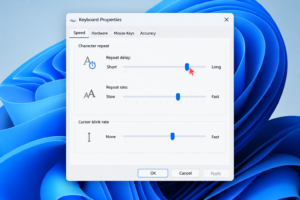
Before tearing into the physical hardware, you must rule out basic operating system misconfigurations. Windows 11 controls how quickly a key registers a second stroke if you hold it down. If the “Repeat delay” is set too short, a slightly heavy or lingering keystroke will instantly trigger a double type.
You can modify this threshold in the legacy Control Panel:
- Press the Windows Key, type Control Panel, and press Enter.
- In the top right corner of the Control Panel, change the “View by” option from Category to Large icons.
- Find and click on the Keyboard icon.
- The Keyboard Properties window will open on the Speed tab.
- Locate the Repeat delay slider. Move it one notch closer to Long.
- Locate the Repeat rate slider. Move it slightly closer to Slow.
- Click inside the blank text box at the bottom of the window to test your new settings.
- Click Apply and OK.
If the double typing stops, the issue was simply your typing speed clashing with an aggressive OS setting. If the chattering persists, move to the next method.
2. Enable Filter Keys in Windows 11 Accessibility
If modifying the repeat rate fails, Windows 11 possesses a dedicated accessibility feature designed explicitly to ignore rapid, repeated keystrokes. It is called Filter Keys.
Filter Keys intercepts the raw input from your keyboard and digitally “swallows” the duplicate keystrokes before they ever reach your word processor or web browser.
How to configure Filter Keys:
- Open Windows 11 Settings (Win + I).
- On the left sidebar, click on Accessibility.
- Scroll down to the Interaction section and click on Keyboard.
- Find the Filter keys toggle and switch it to On.
- Click on the Filter keys panel to expand its advanced settings.
- Enable the option that says Ignore quick keystrokes (slow keys) or Ignore unintended keystrokes (Bounce keys).
- You can manually adjust the time threshold. Setting it to
0.3 secondsor0.5 secondsis usually enough to catch chattering without interfering with normal, fast typing.
This is the most effective software-level bandage for a failing mechanical switch. It allows you to continue using a physically flawed keyboard without any noticeable impact on your daily workflow.
3. Deep Clean the Mechanical Switches (Hardware Fix)
If you are using a mechanical keyboard (like Razer, Corsair, Keychron, or Logitech), the chattering is almost certainly caused by microscopic debris caught between the copper contact leaves inside the specific switch that is double typing.
You must flush the contact leaves to restore a clean electrical signal.
The Isopropyl Alcohol Method:
- Unplug the keyboard from your computer.
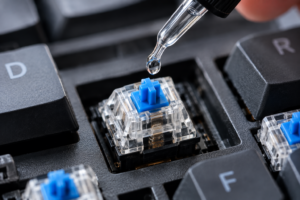
- Use a keycap puller to remove the plastic keycap from the offending key (e.g., the Spacebar or the ‘E’ key).
- Push the exposed plastic stem (the colored plus-sign part of the switch) down with your finger.
- Using a pipette, a Q-tip, or an eyedropper, place one or two drops of 99% Isopropyl Alcohol directly inside the switch housing while the stem is depressed. (Do not use water or rubbing alcohol under 90%, as they contain too much moisture and can cause rust).
- Rapidly press the switch up and down 30 to 50 times. The physical friction combined with the alcohol will dissolve any oxidized carbon build-up and flush out dust.
- Let the keyboard sit unplugged for 15 minutes to allow the alcohol to evaporate completely.
- Reconnect the keyboard and test the key.
4. Install a Third-Party Chattering Fix Utility
If Windows 11 Filter Keys feels too aggressive and slows down your intentional typing speed, you can use specialized third-party software.
A popular, free open-source tool utilized by the mechanical keyboard community is “Keyboard Chattering Fix.” Unlike Windows Filter Keys, which applies a blanket rule to your entire keyboard, this utility operates on a micro-millisecond level and provides detailed analytics.
- Download the portable Keyboard Chattering Fix application from a trusted repository (like GitHub).
- Run the application in the background.
- The software monitors the exact millisecond delay between every keystroke. Human fingers physically cannot press and release a key twice within 20 or 30 milliseconds. If the software detects two inputs within that superhuman timeframe, it identifies it as mechanical chattering and blocks the second input.
- You can set the “Chatter Threshold” manually. A setting of
40msto50msperfectly filters out mechanical switch bounce while allowing fast typists to maintain their speed. - The software also provides a live log, showing you exactly which keys are failing and how often, helping you diagnose the physical degradation of your hardware.
5. Hot-Swapping or Soldering a New Switch
If you have cleaned the switch and adjusted the software, but the key still chatters excessively, the internal copper leaf is permanently bent or worn out.
If you own a hot-swappable mechanical keyboard, fixing this takes five seconds.
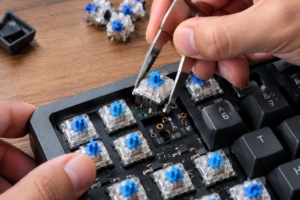
- Use a switch puller tool (usually included in the keyboard box) to grip the top and bottom latches of the broken switch.
- Pull straight up to remove the entire switch from the PCB (Printed Circuit Board).
- Take a replacement switch (or borrow one from a key you rarely use, like Scroll Lock or Pause/Break).
- Align the two metal pins on the bottom of the new switch with the holes in the PCB and press firmly down until it clicks into place.
If your keyboard is not hot-swappable (the switches are soldered to the board), you will need a soldering iron and a desoldering pump to melt the existing metal joints, remove the switch, and solder a new one in its place. If you are uncomfortable with soldering, a software block or a full keyboard replacement are your only remaining options.
Summary of Fixes
Resolving double-typing requires isolating the software from the hardware. Always begin by tweaking the Windows 11 character repeat delay and enabling Filter Keys to see if a software bandage solves your problem immediately. If the issue is isolated to a single, heavily used key (like WASD for gamers or the spacebar), it is almost guaranteed to be physical dirt or a degraded copper leaf requiring isopropyl alcohol cleaning or a direct switch replacement.
Frequently Asked Questions
Does keyboard chattering happen on laptop keyboards?
Yes, though it is less common than on desktop mechanical keyboards. Laptop keyboards use membrane domes or butterfly/scissor switches. When these chatter, it is usually due to crumbs or debris trapped under the scissor mechanism preventing the key from cleanly disengaging. Compressed air is the best fix for laptop keyboard bounce.
Can an outdated driver cause my keyboard to double type?
Occasionally, yes. If you are using a high-end peripheral from Razer, SteelSeries, or Corsair, proprietary software (like Razer Synapse or Corsair iCUE) controls the polling rate. A corrupted firmware update can cause the keyboard’s microcontroller to misinterpret inputs. Updating the firmware via the manufacturer’s software can sometimes resolve sudden, board-wide chattering.
Why does my keyboard only double type when playing video games?
Video games require you to press and hold keys at specific, strained angles (like holding ‘W’ and ‘Shift’ simultaneously). Pressing a mechanical switch slightly off-center pushes the internal stem against the copper contact at an unnatural angle, increasing the likelihood of friction and bounce. This indicates the switch is physically wearing out.
Is it safe to use WD-40 to clean mechanical keyboard switches?
Absolutely not. Standard WD-40 is a petroleum-based lubricant and solvent. It will melt the plastic housing of your keyboard switches and leave a sticky residue that attracts more dust, permanently ruining the keyboard. Always use 90%+ Isopropyl alcohol or specialized electronic contact cleaners.
Sources & References
- Microsoft Support: Configure Filter Keys and Accessibility Keyboard Settings in Windows 11. Reference for OS-level input delay modifications.
- Cherry Americas Technical Documentation: Understanding switch bounce, copper leaf oxidation, and mechanical switch lifespan parameters.
- GitHub Open Source Repositories: Keyboard Chattering Fix documentation and millisecond threshold testing protocols.